 SCREEN
How to Change the Wallpaper on a Samsung Galaxy (One UI)
Long-press an empty spot on the Home Screen, tap Wallpaper and style, then Change wallpapers. Pick a photo from Gallery or a built-in image, choose Lock screen, Home screen or both, frame it and tap Done. That works on every current Galaxy phone running One UI. The Lock Screen can also take a short video on many models, and it has its own shortcut: long-press the Lock Screen itself.
Change the wallpaper on a Galaxy in five steps
These are the steps Samsung documents for One UI. Button names can shift slightly between versions, but the order does not.
- Open the picker. Long-press an empty area of the Home Screen and tap Wallpaper and style. You can also open Settings and tap Wallpaper and style.
- Choose a source. Tap Change wallpapers. Gallery holds your own photos and videos; the other sections hold Samsung's sets, colours and any wallpaper apps you have installed.
- Pick the screen. For a photo, One UI asks whether it goes on the Lock screen, the Home screen or both. Tick what you want and tap Next.
- Frame it. Drag and pinch to position the image. A Filter option sits at the bottom; on newer One UI versions you may see Frame or Effect instead. For a video, use Trim to choose the part that plays.
- Apply. Tap Done in the top corner. Go back to the Home Screen or lock the phone to check the result.
Where each wallpaper option lives in One UI
Use this when you know what you want but not which menu holds it.
| You want | Where to go | Good to know |
|---|---|---|
| Your own photo on both screens | Long-press Home Screen → Wallpaper and style → Change wallpapers → Gallery | Choose Lock screen and Home screen when asked |
| Home Screen only | Same route, then tick Home screen only | The Lock Screen keeps its current image |
| Lock Screen only | Long-press the Lock Screen → unlock → Wallpapers → Gallery | Clock and widgets are edited on the same screen |
| Short video on the Lock Screen | Lock Screen → Wallpapers → Gallery → pick a video → Trim | Available on many Galaxy models; plays on wake |
| A different image each wake | Wallpaper and style → Change wallpapers (recent versions) | Rotates a themed image pack |
| Moving Home Screen | A live wallpaper app, applied to Home screen | Same WallpaperService every Android phone uses |
The split worth remembering: the Lock Screen is Samsung's own space, with its clock, widgets, video and rotating packs. The Home Screen follows standard Android rules, so anything moving there comes from a live wallpaper app.
Wallpapers composed for Galaxy screens
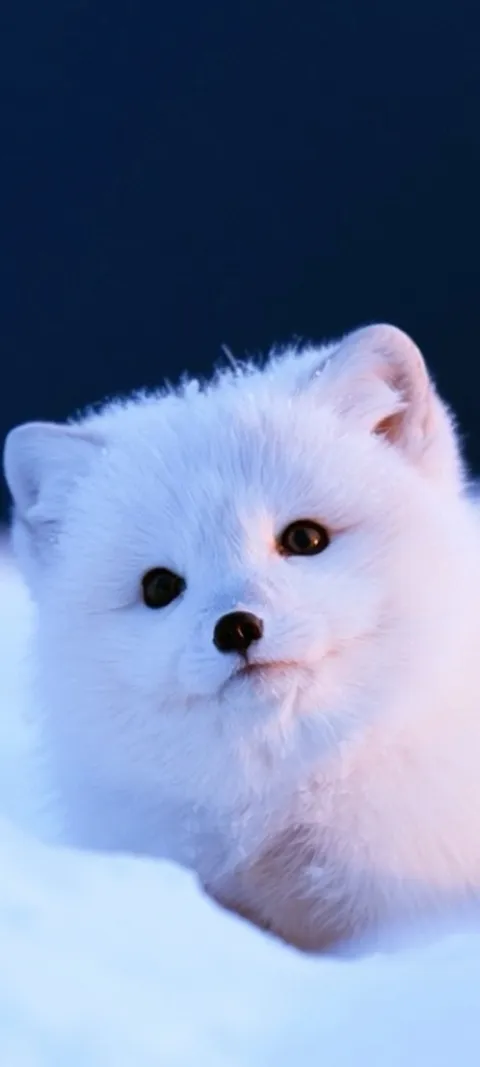
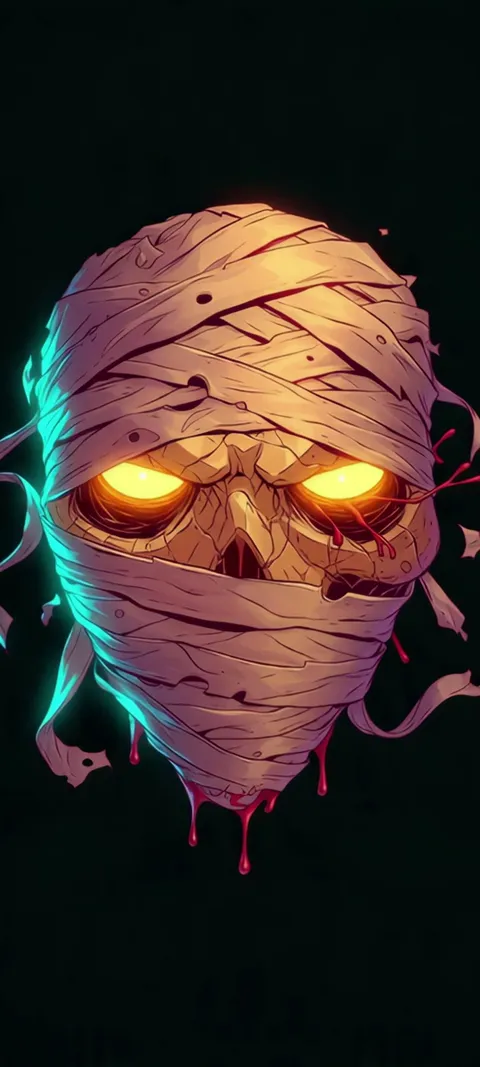
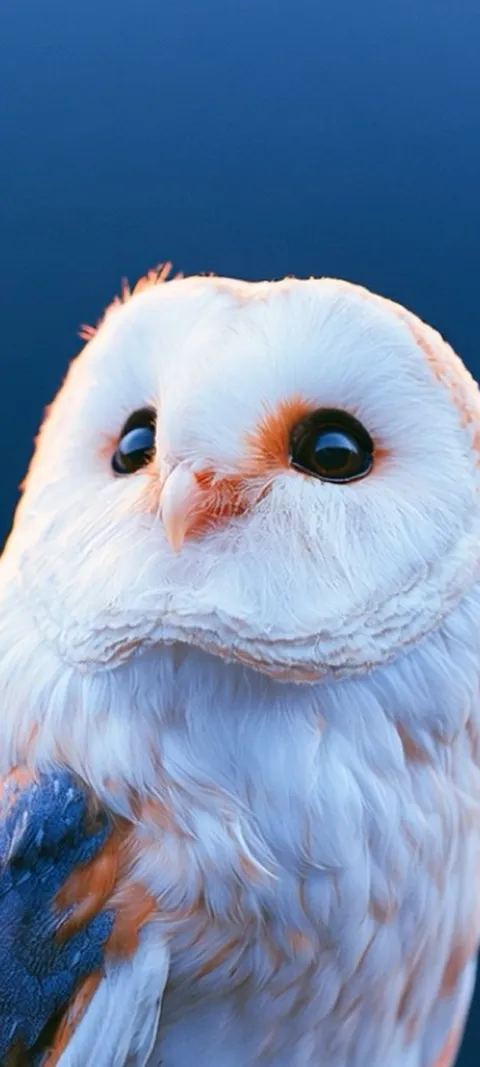
Four picks from the ScreenLux Samsung set. Each is a 1080 × 2400 file that fills a tall Galaxy display with only a sliver cropped at the ends. Previews are free; ScreenLux+ unlocks downloads.

How do you change just the Home Screen wallpaper on a Samsung phone?
Long-press an empty spot on the Home Screen, tap Wallpaper and style, then Change wallpapers. Pick an image from Gallery or one of Samsung's built-in sets. When One UI asks where to apply it, select Home screen only and leave Lock screen unticked, then tap Next, position the picture and tap Done. The Lock Screen keeps whatever it had before. The same choice appears when you start from Settings and open Wallpaper and style.
Behind app icons, a quieter image keeps labels readable. Darker art with an empty middle third works well; the Samsung Galaxy wallpapers page collects pieces composed at 1080 × 2400 with the subject clear of the dock and the clock.
How do you put your own picture as a Samsung wallpaper?
Your photos live in the Gallery source inside the wallpaper picker. Long-press the Home Screen, tap Wallpaper and style, then Change wallpapers and Gallery. Pick the photo, choose Lock screen, Home screen or both, and tap Next. Drag and pinch to frame it, add a filter if you want one, and tap Done. You can also start from the Gallery app itself: open the photo, tap the three-dot menu and look for the option to set it as wallpaper.
Portrait photos crop best. A landscape shot gets cut down to a narrow vertical strip of its middle, so the subject you wanted may land off-screen. If a photo will not frame well, crop it to a tall shape in Gallery's editor first, then set it.
How do you set different wallpapers on the Samsung Lock Screen and Home Screen?
Set them one at a time. For the Lock Screen, long-press it, unlock, tap Wallpapers in the top corner, pick an image from Gallery and tap Done. For the Home Screen, long-press an empty spot, open Wallpaper and style, tap Change wallpapers, pick a second image and apply it to Home screen only. One UI stores the two separately, so changing one never touches the other. Your clock style and Lock Screen widgets stay where you left them.
A common pairing is a bold image on the Lock Screen and a darker, simpler one behind the icons. Rainy City Lights on the Lock Screen over Abyss Purple on the Home Screen is one that keeps both readable. Browse the Lock Screen wallpapers for images composed around a large clock.
What is the Dynamic Lock Screen on a Samsung Galaxy?
Dynamic Lock screen is a Samsung feature that shows a different image from a themed pack each time you turn the screen on. You pick a category, such as landscapes, plants, animals or artwork, and One UI downloads a rotating set and cycles through it on the Lock Screen. It only affects the Lock Screen; the Home Screen keeps its own wallpaper. If you want your own picture to stay put, switch back to a Gallery image and the rotation stops.
It sits in the wallpaper picker on recent One UI versions, though the exact spot varies by model. On supported newer models, Samsung also offers AI-generated wallpapers from the same menu.
Why does my Samsung wallpaper look zoomed in or cropped?
Because the image does not match the shape of the screen. Galaxy S and A phones use tall displays of roughly 19.5:9 to 20:9, so a square or landscape photo has to be enlarged until it fills the height, which cuts off the sides and softens detail. Low-resolution images look worse once stretched. The fix is a tall image of about 1080 × 2400 pixels, framed with the subject near the centre. Foldables add a second shape: the inner screen is close to square and needs its own image.
When you position a photo, pinch out as little as possible; every bit of zoom throws away pixels. On a Fold or Flip, set the cover screen and the main screen separately so neither has to stretch an image composed for the other.
How do you get a moving wallpaper on a Samsung Home Screen?
Use a live wallpaper app. Android draws moving Home Screen backgrounds through a system component called WallpaperService, and Samsung phones support it like every other Android phone. Install the app, choose a wallpaper, apply it to the Home Screen, and the animation plays behind your icons while the Home Screen is visible, then pauses when you open an app or lock the phone. A Gallery video is the simpler route for the Lock Screen on models that support it.
ScreenLux on Android works this way: it plays a muted 1080 × 2400 loop on the Home Screen and sets a matching still on the Lock Screen, so the two screens look like a pair. Blazing Tunnel Ride and Night Drive Dashboard are two loops that suit the Galaxy S line; the live wallpapers for Android page has the rest, and every motion preview is free. For battery questions, see whether live wallpapers drain your battery.
Do you need an app to change a Samsung wallpaper?
No. Everything above uses One UI's built-in picker and your own photos, and it costs nothing. An app earns its place when you want art composed for the screen shape or a Home Screen that moves. For other Android brands, the steps are in how to change the wallpaper on Android.
If you do try ScreenLux, all 470+ wallpapers are premium: browsing and previewing are free, and ScreenLux+ unlocks downloads for $19.99 once, $14.99 a year with a 7-day free trial, or $1.99 a week with a 3-day free trial, when the store offers a trial. No account is required. Free users see one small banner ad, which ScreenLux+ removes.
Wallpapers made for the phone
470+ original live and still wallpapers composed at 1080 × 2400, including loops for the Galaxy Home Screen. The app is free to download and every wallpaper previews free; ScreenLux+ unlocks downloads.
Get ScreenLux FreeFree to download · No account required · iOS 17+ · Android 8+