 SCREEN
 iOS 27 Wallpapers — Live Photo Lock Screens
These are the ScreenLux iOS 27 wallpaper picks: 104 Live Photos and featured stills for the current iPhone Lock Screen. 90 of them are Live Photos, which animate when you wake the phone; Coastal Sunset Drive, Dimpled Chrome Orb and Abyss Purple are in the set. Every file is 1080 × 2400, and nothing here needs iOS 27; the same Save → Settings → Wallpaper flow works on any iPhone running iOS 17 or later. Preview free in ScreenLux; ScreenLux+ unlocks downloads.
Get ScreenLux Free LIVE Arctic Fox Cub
 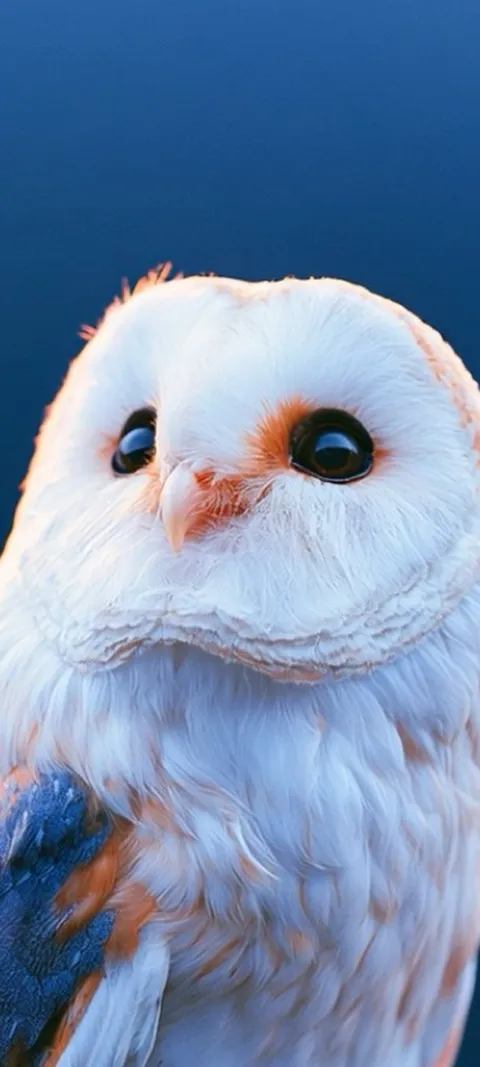 LIVE Barn Owl Gaze
 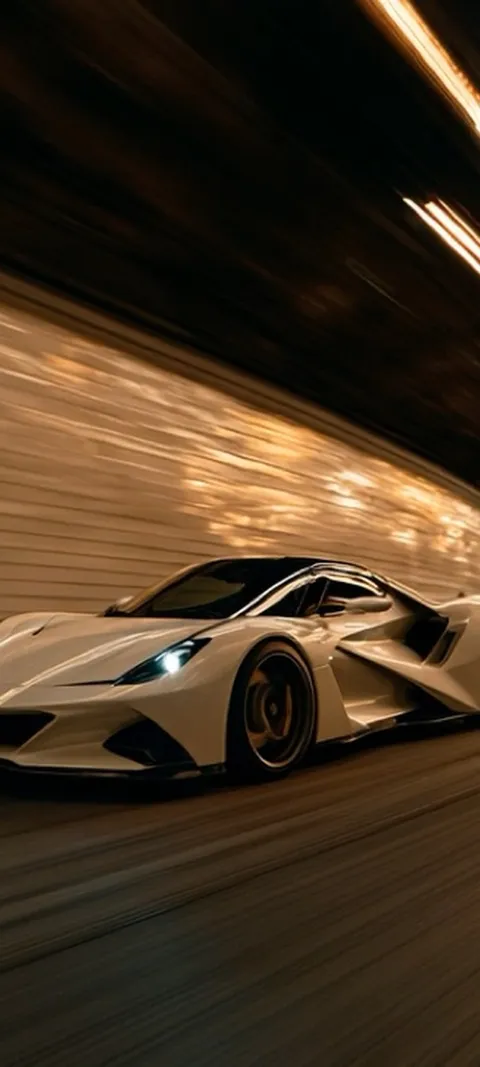 LIVE Blazing Tunnel Ride
 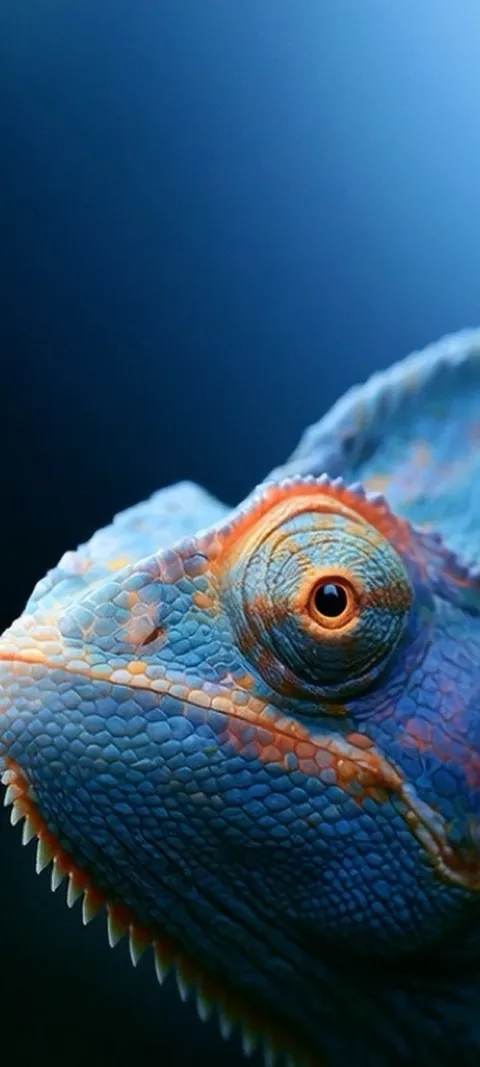 LIVE Blue Chameleon Close-up
 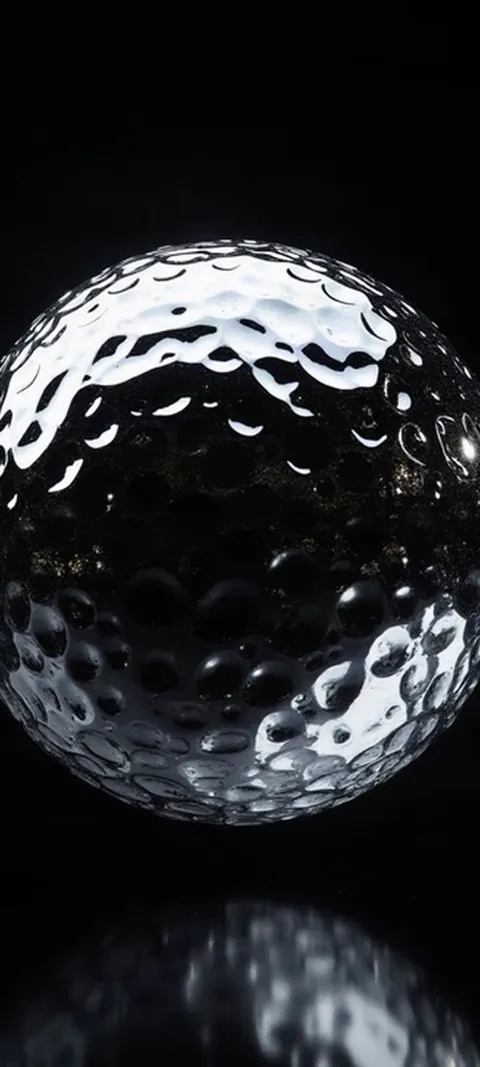 LIVE Dimpled Chrome Orb
 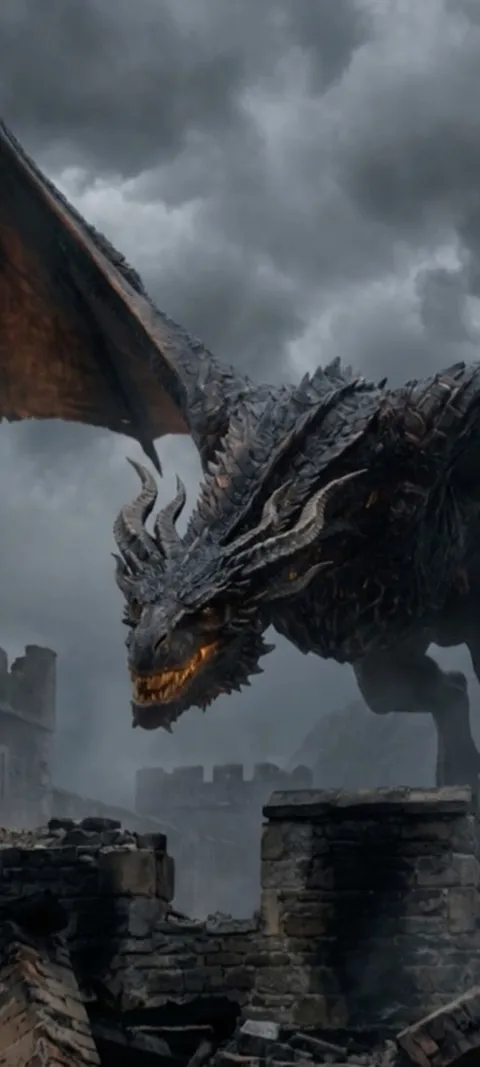 LIVE Dragon Over Ruins
 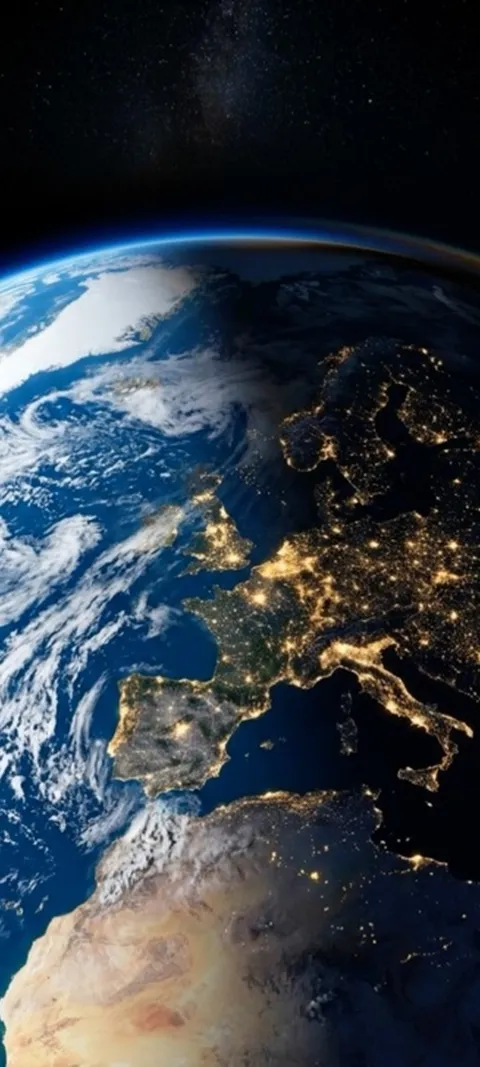 LIVE Earth City Lights
 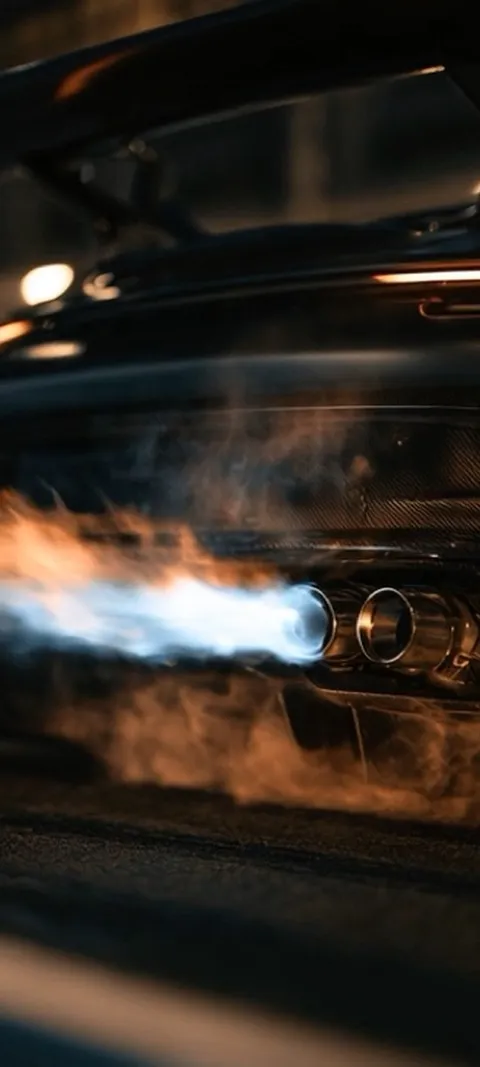 LIVE Exhaust Flame Burst
  LIVE Giant Robot Stroll
 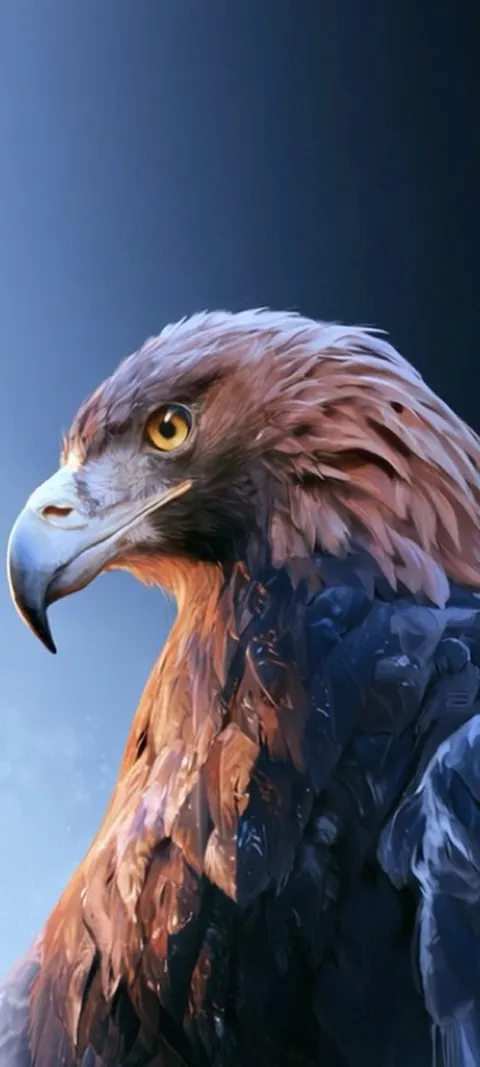 LIVE Golden Eagle Gaze
  LIVE Golden Ocean Wave
 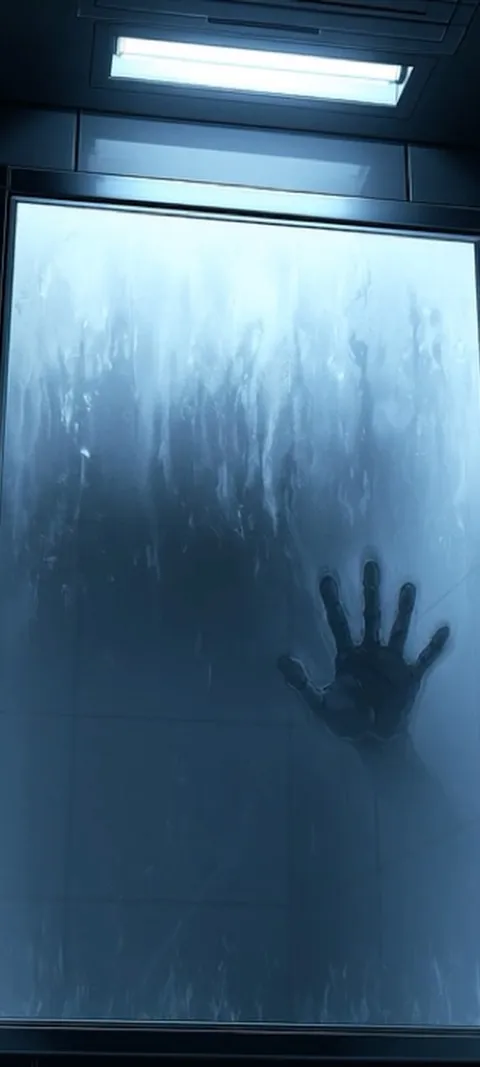 LIVE Hand On Glass
 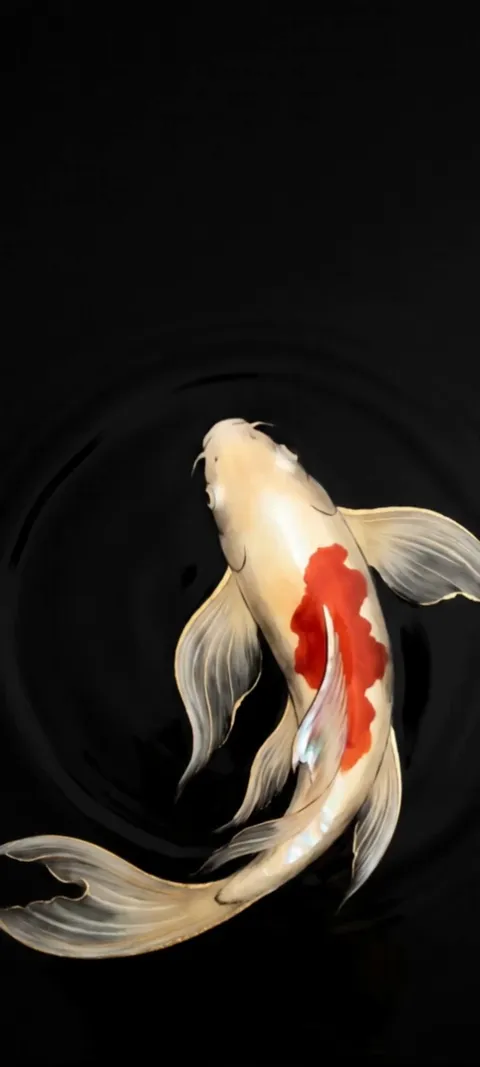 LIVE Koi Pond
 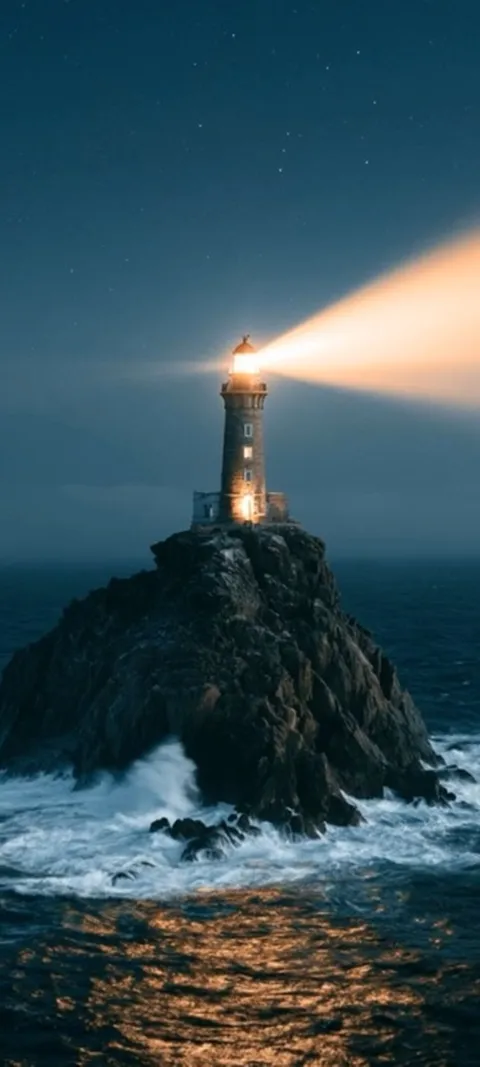 LIVE Lighthouse Night Beacon
 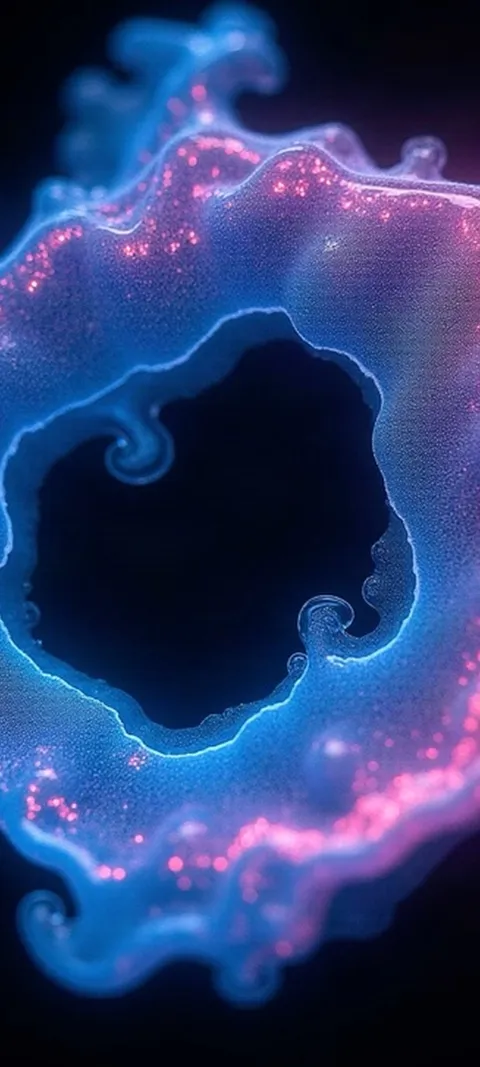 LIVE Luminous Abstract Swirl
 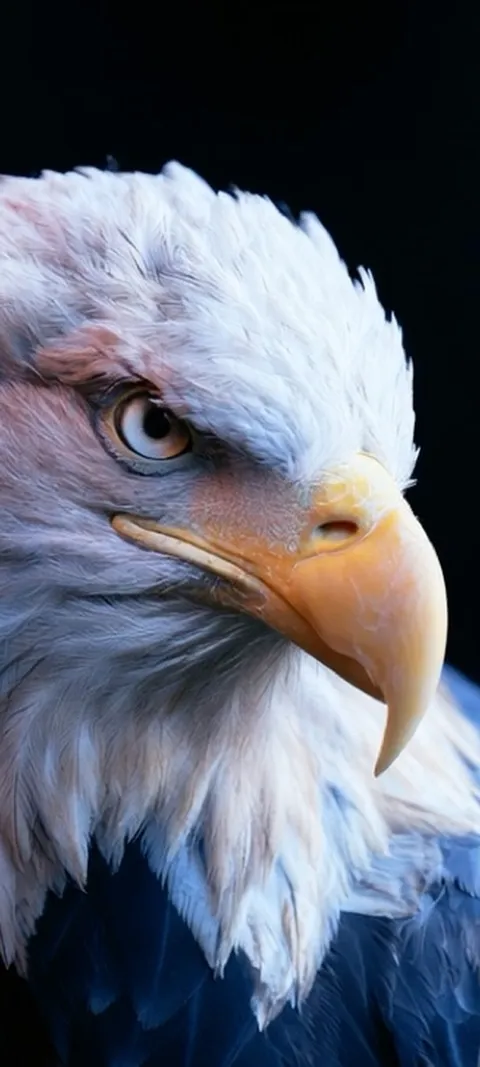 LIVE Majestic Bald Eagle
 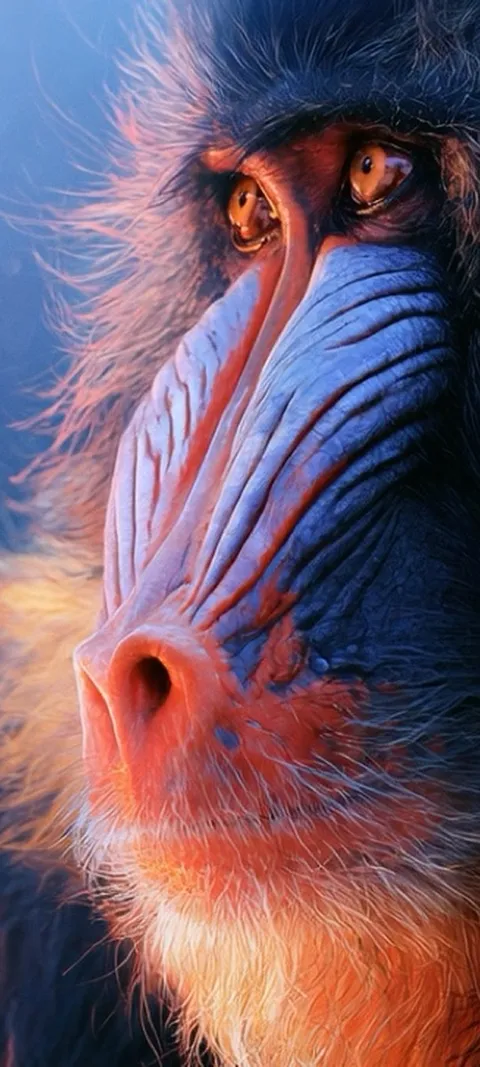 LIVE Mandrill Primate Portrait
 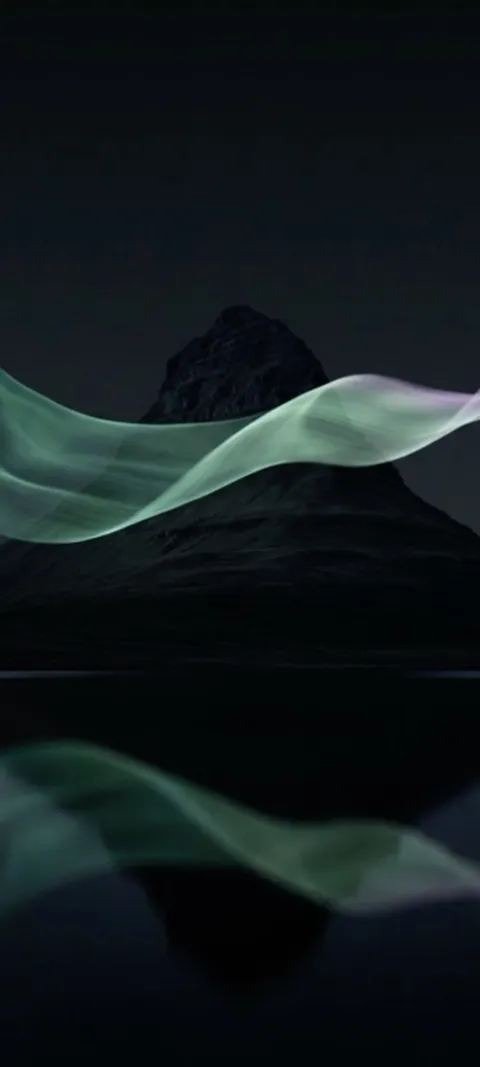 LIVE Mountain Aurora Reflection
  LIVE Mountain Train Journey
 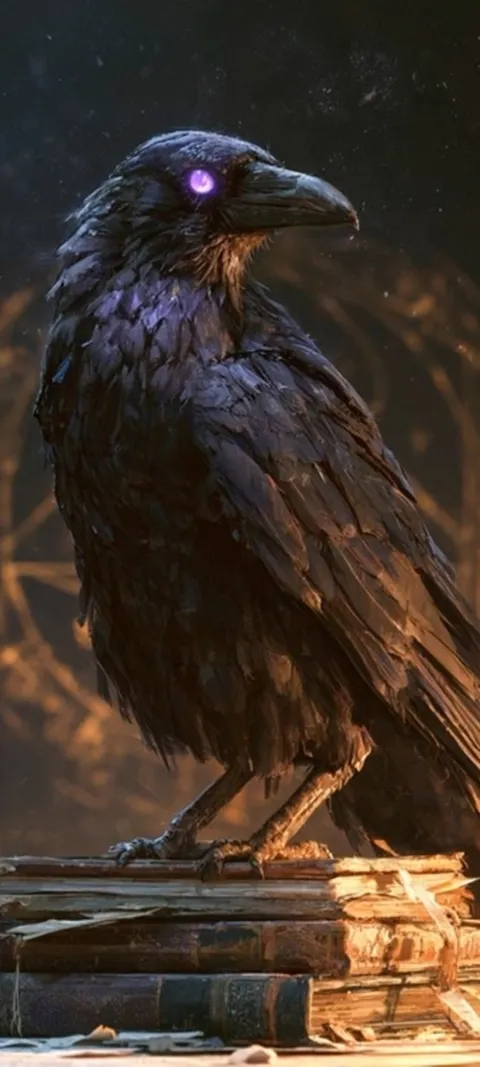 LIVE Mystic Raven Scholar
 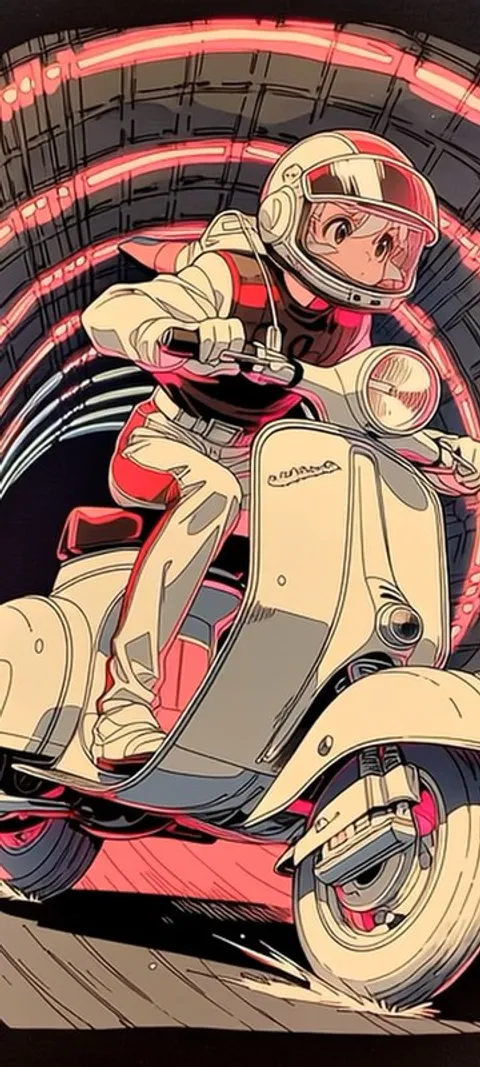 LIVE Neon Scooter
 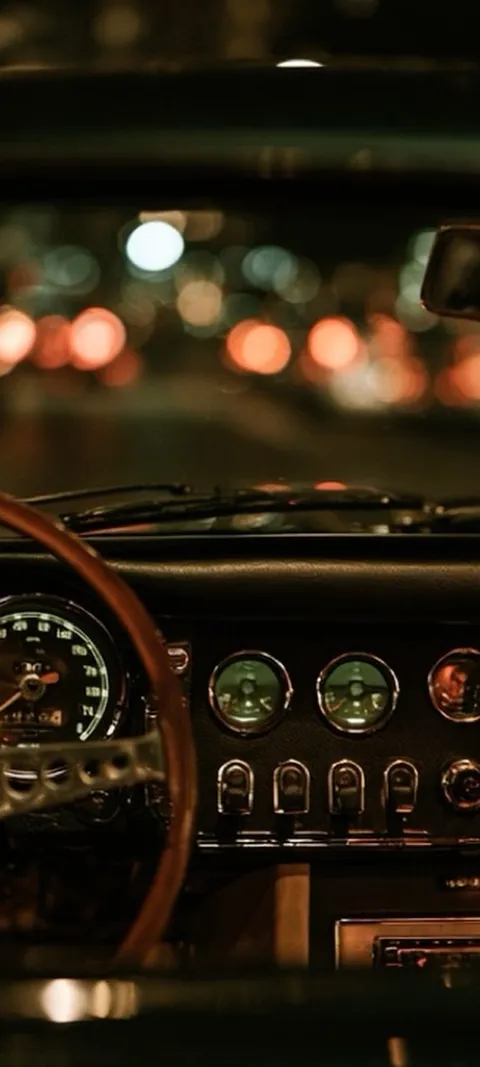 LIVE Night Drive Dashboard
 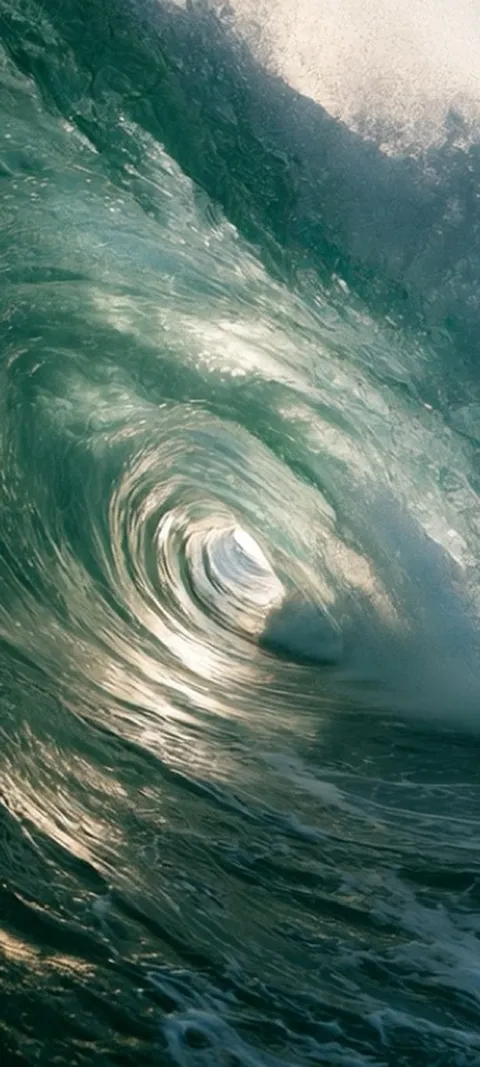 LIVE Ocean Wave Barrel
 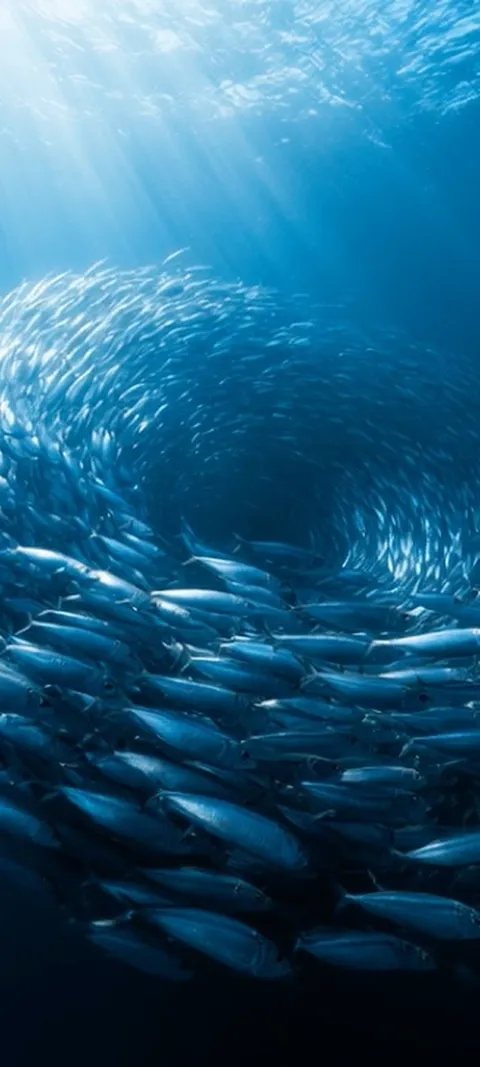 LIVE Oceanic Fish Vortex
 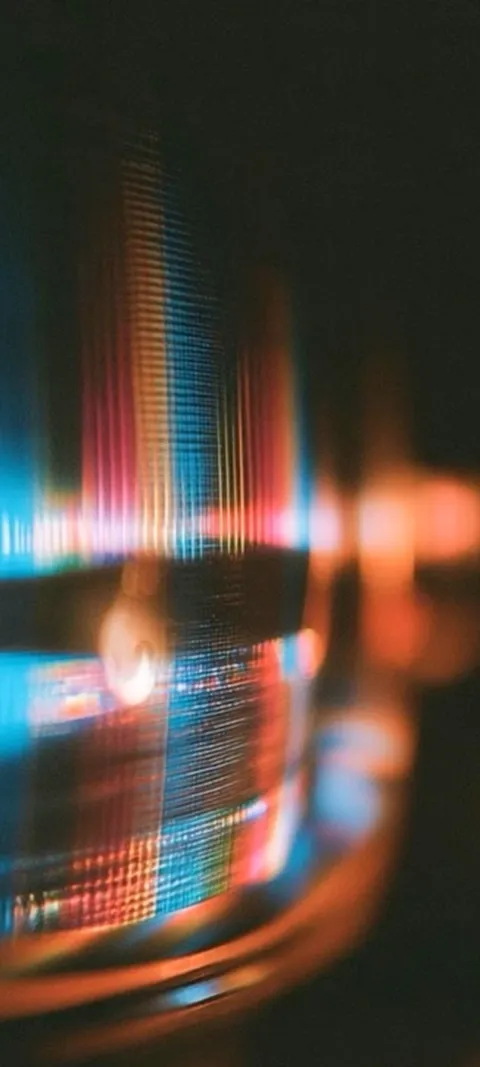 LIVE Prismatic Light Trails
 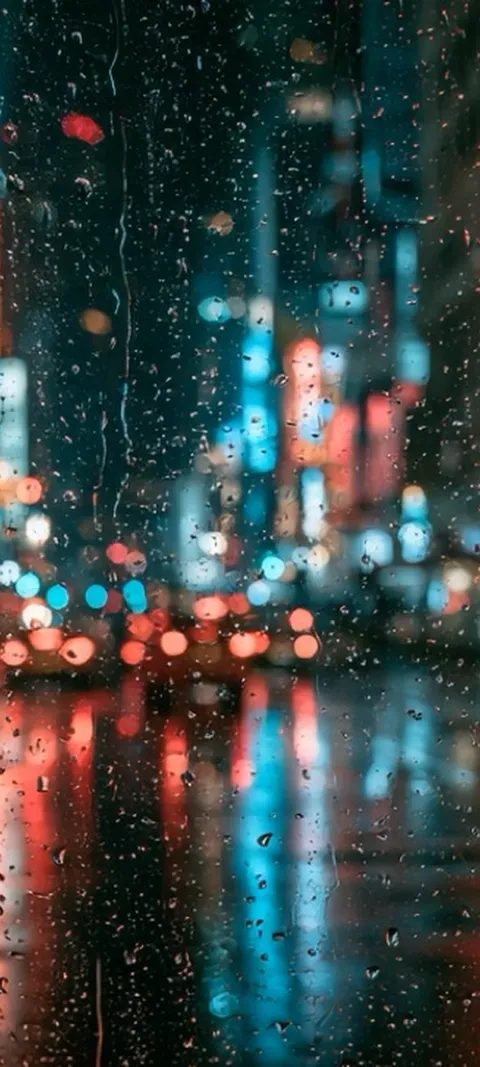 LIVE Rainy City Lights
 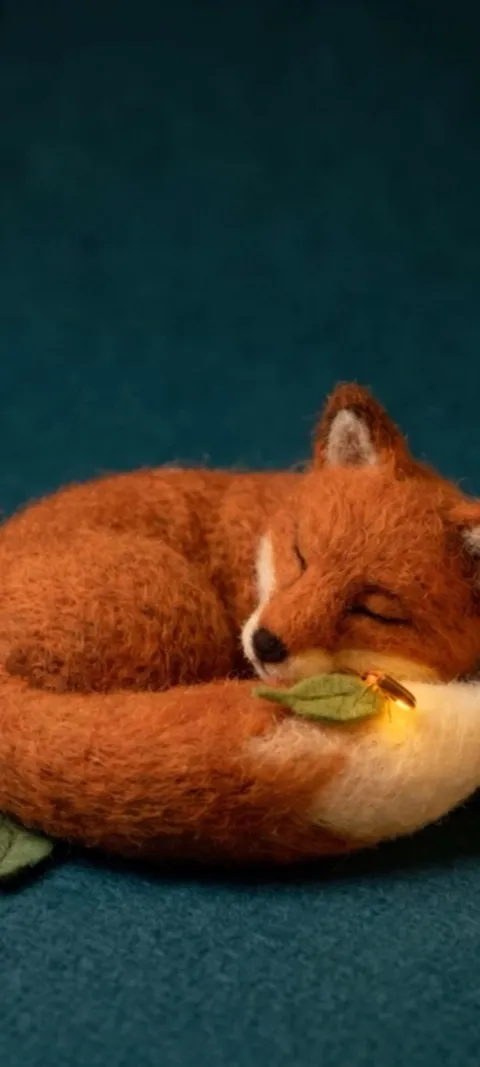 LIVE Sleeping Felt Fox
 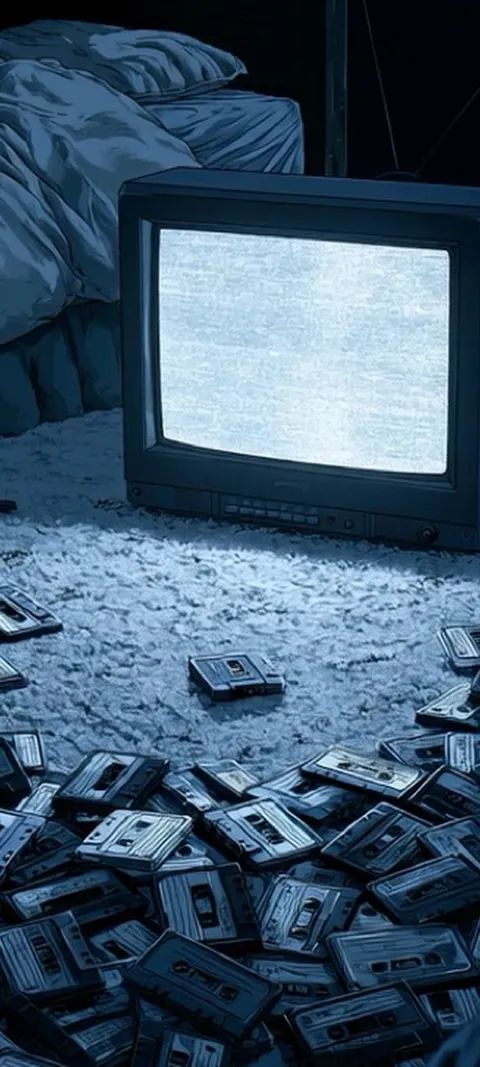 LIVE Static Screen Glow
  LIVE Stormy Cloud Orb
  LIVE Subway Car Reflection
  LIVE Vibrant Light Trails
  LIVE Vibrant Textured Swirls
 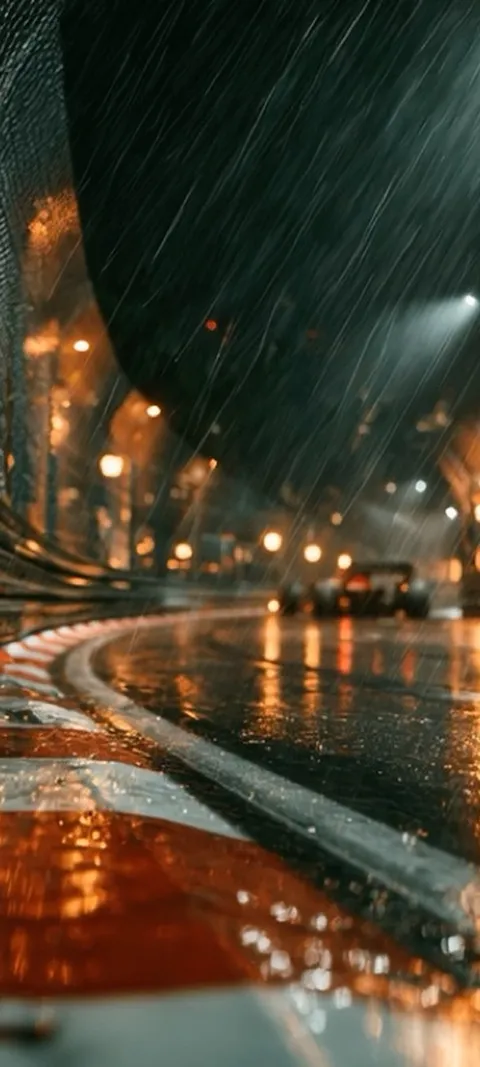 LIVE Wet Urban Circuit
  Abyss Purple
  Blue Blocks
 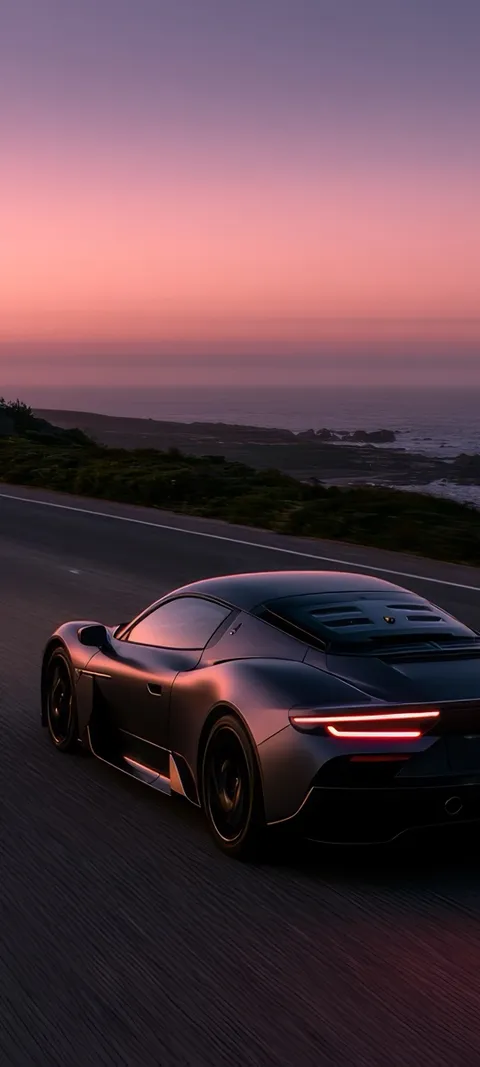 Coastal Sunset Drive
  Dark Panels
  Deep Reflection
  Ember Glowing
  Holographic Hues
  Mechanical Elegance
 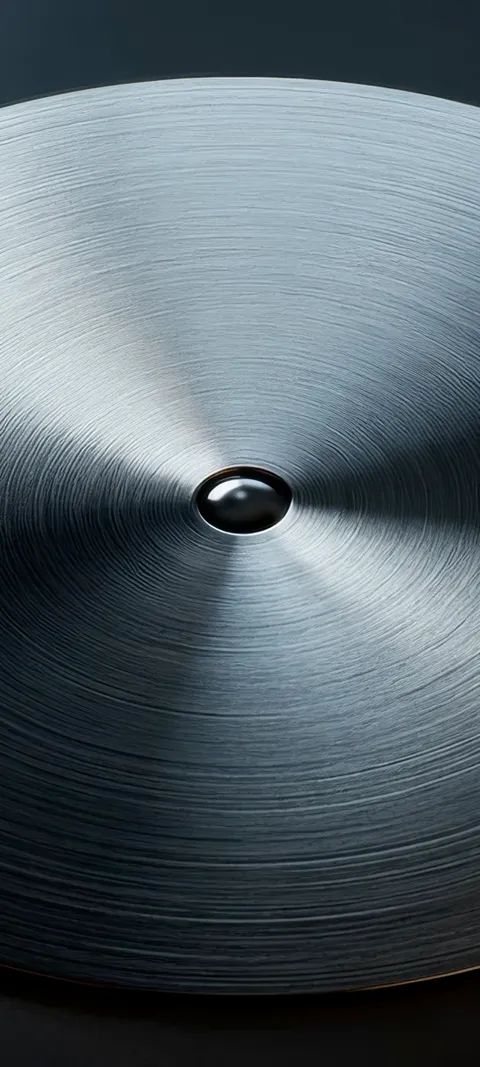 Metal Bloom
 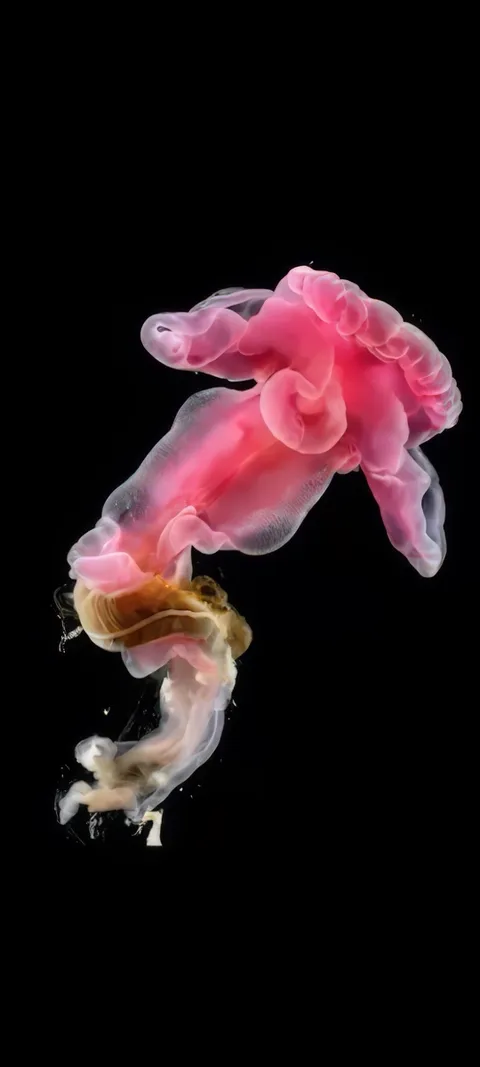 Pink Bloomer
  Pink Hue Sunset
 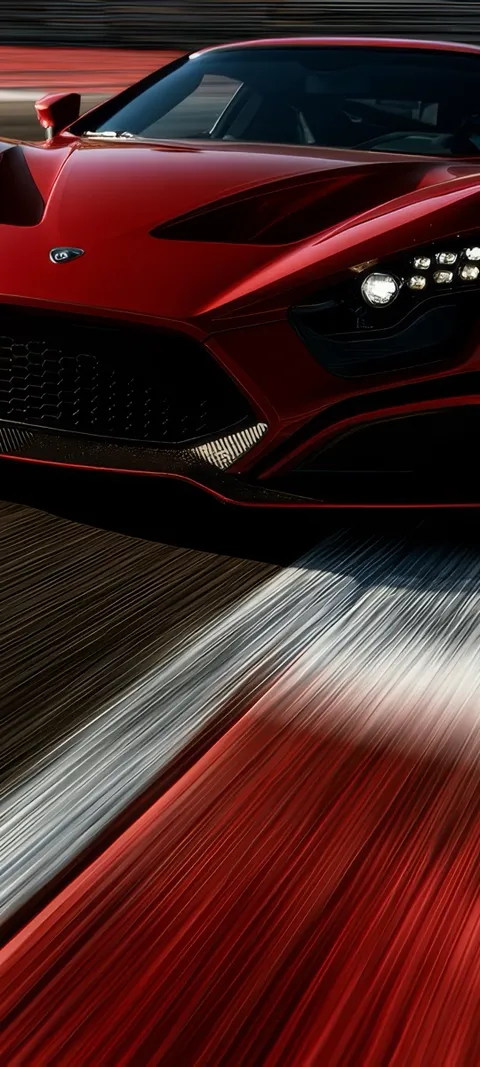 Red Race Car
 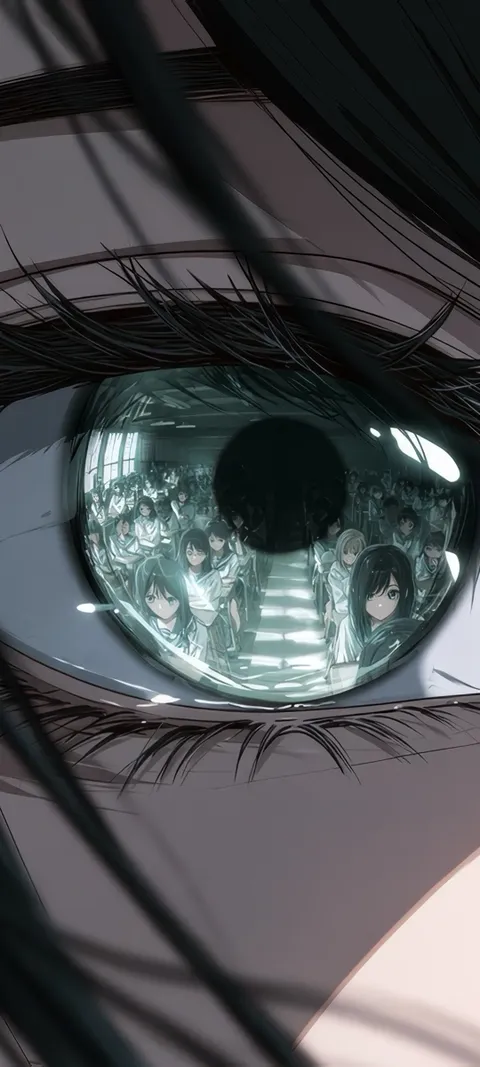 Reflected Anime Crowd
 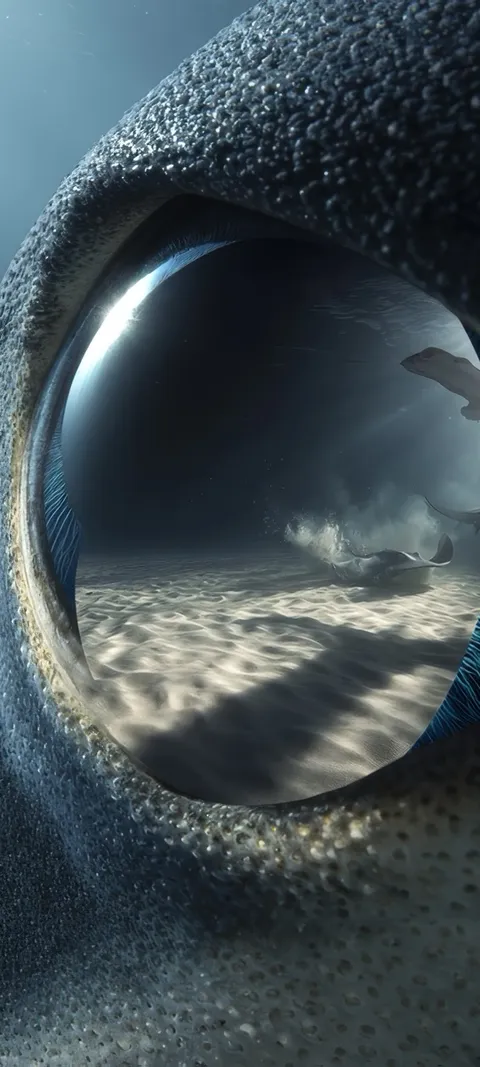 Shark Gaze
 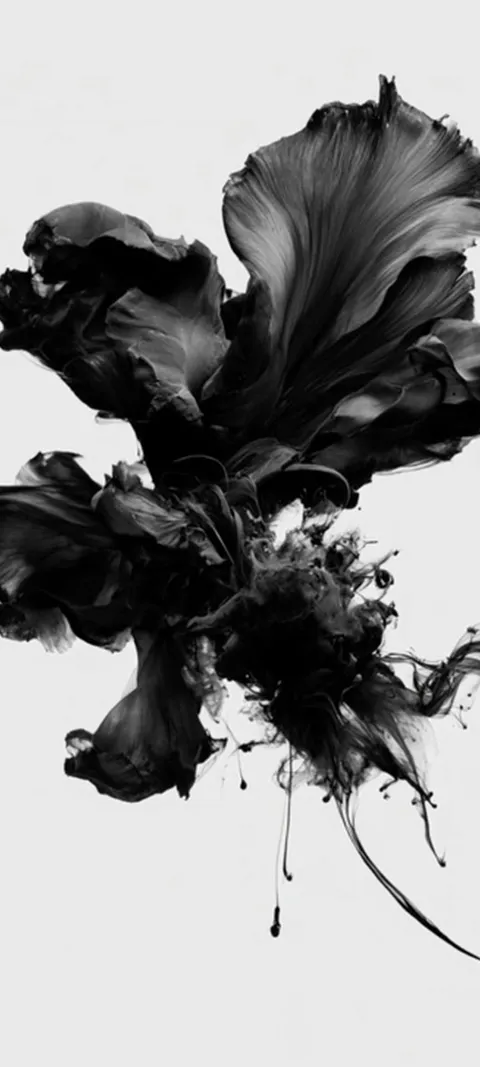 LIVE Abstract Black Form
 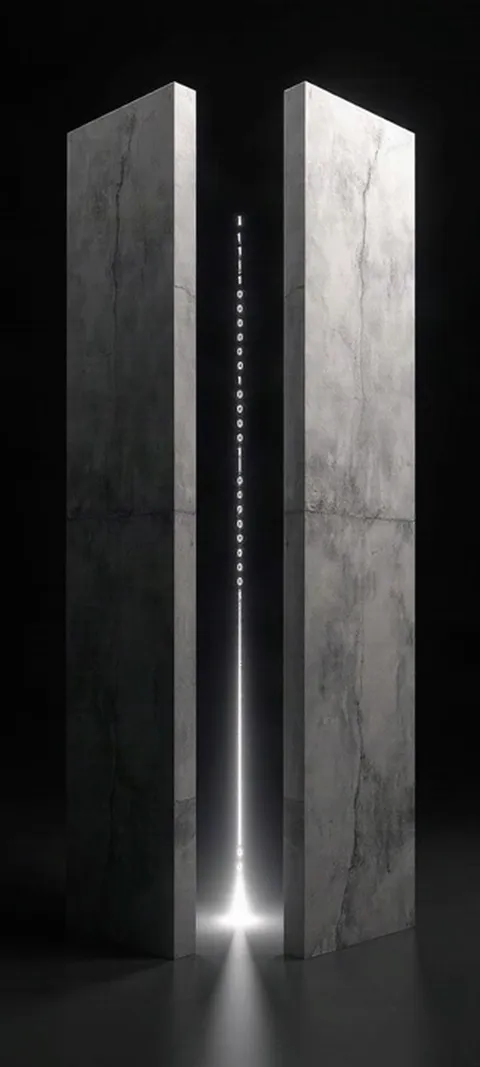 LIVE Binary Code Portal
 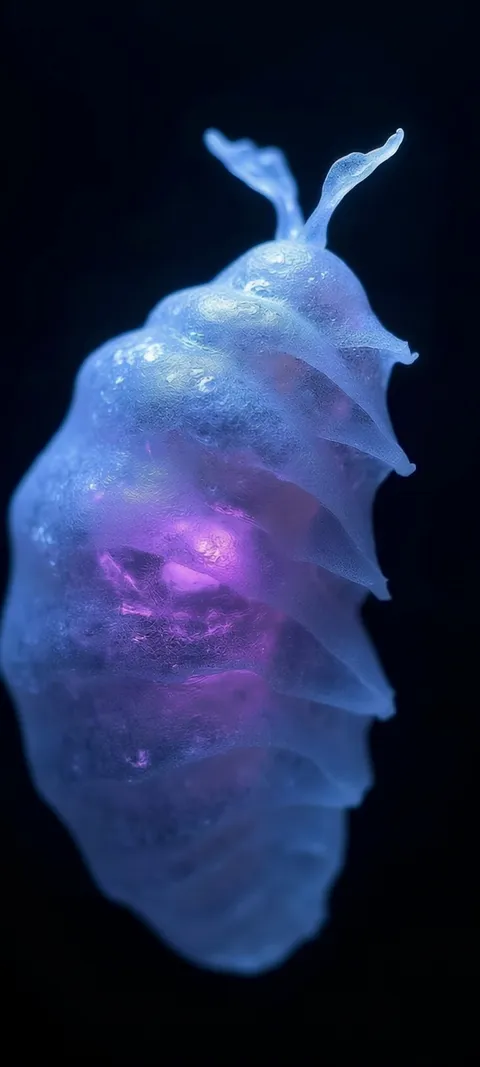 LIVE Bioluminescent Sea Creature
 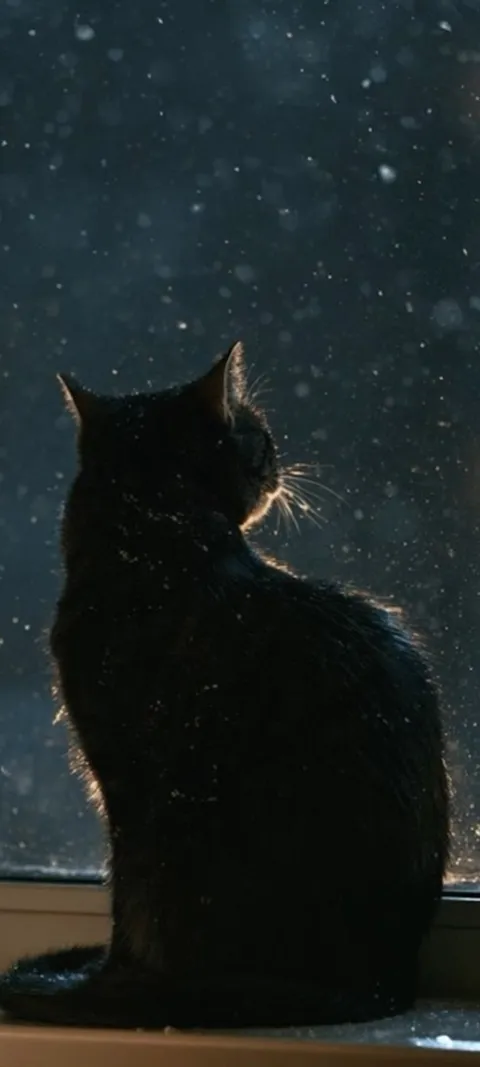 LIVE Black Cat Window
 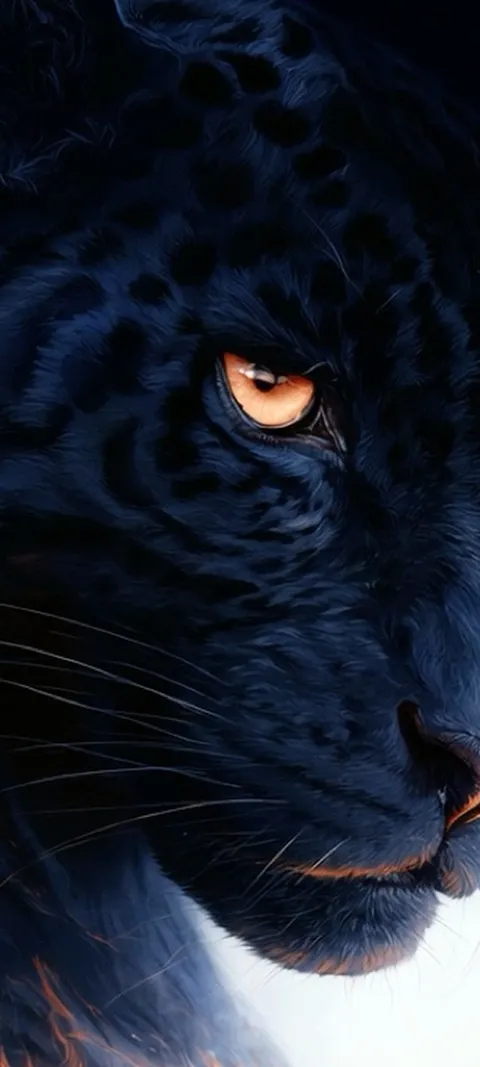 LIVE Black Panther Gaze
 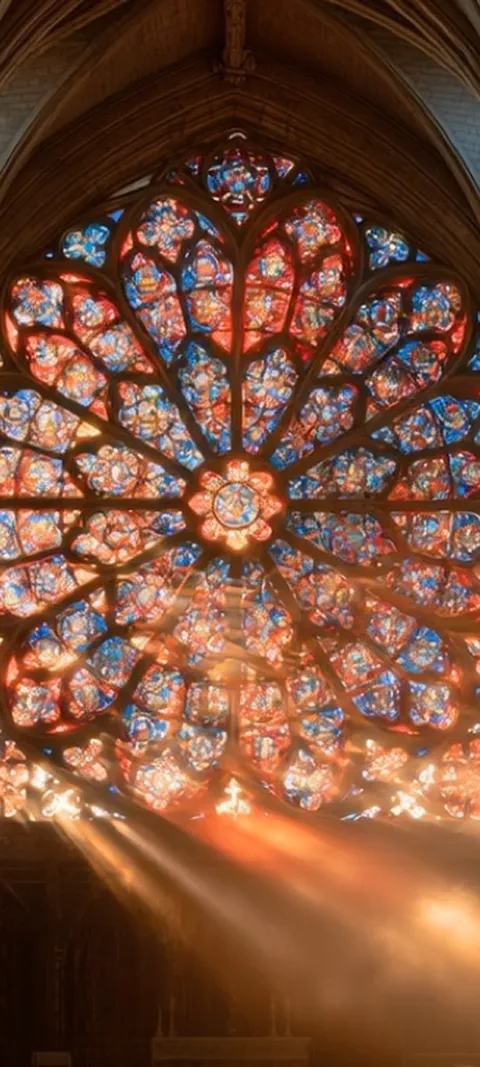 LIVE Cathedral Rose Window
 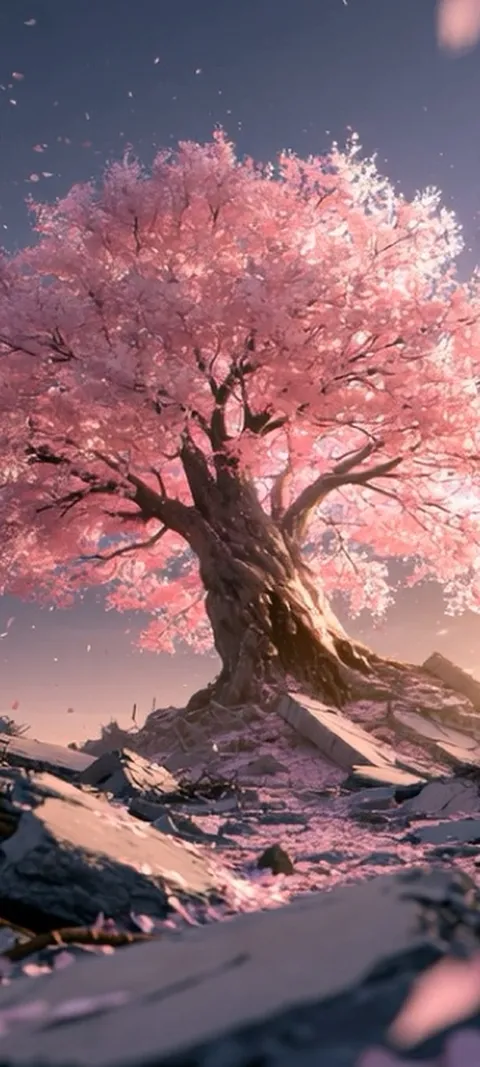 LIVE Cherry Blossom Ruins
  LIVE Cloudy
  LIVE Coral Glow
  LIVE Cosmic Cauldron
  LIVE Cosmic Energy Vortex
  LIVE Crashing Sea Tunnel
  LIVE Crocodile Eye
  LIVE Crystal Cube Glow
  LIVE Crystal Light Path
 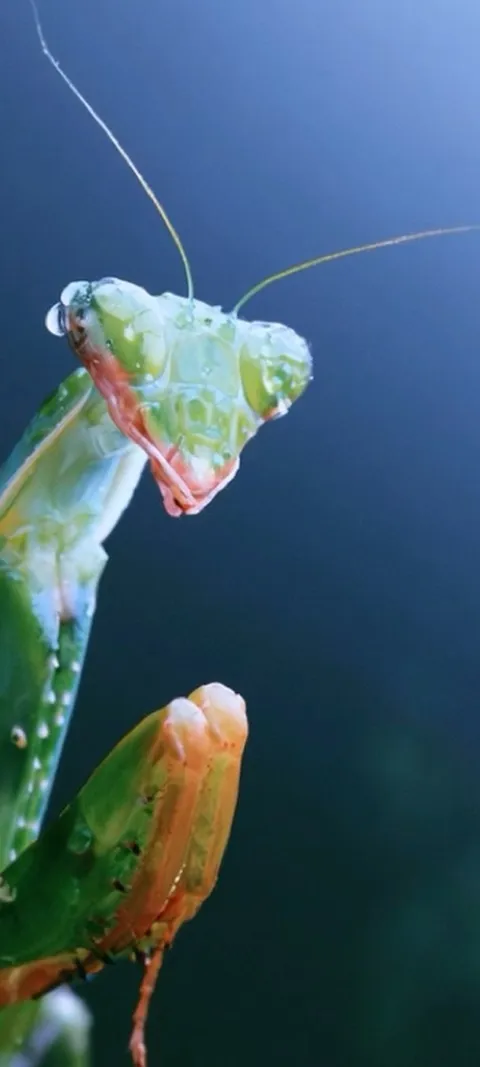 LIVE Dewy Mantis Portrait
 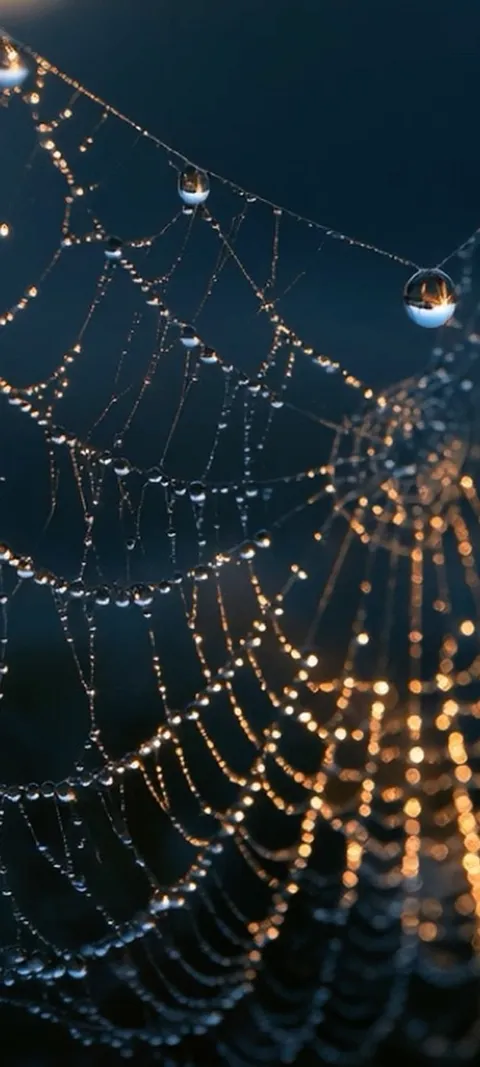 LIVE Dewy Spiderweb Glow
 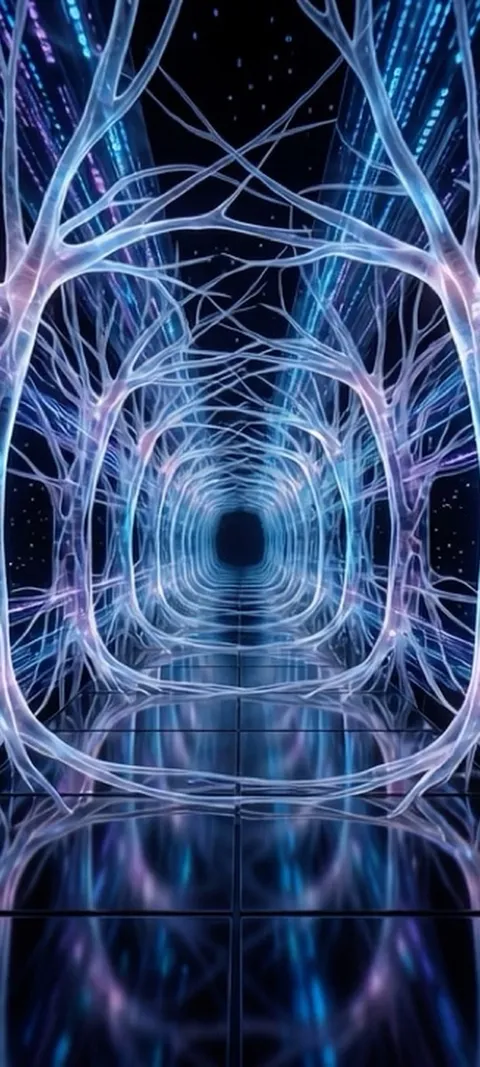 LIVE Digital Neuron Tunnel
 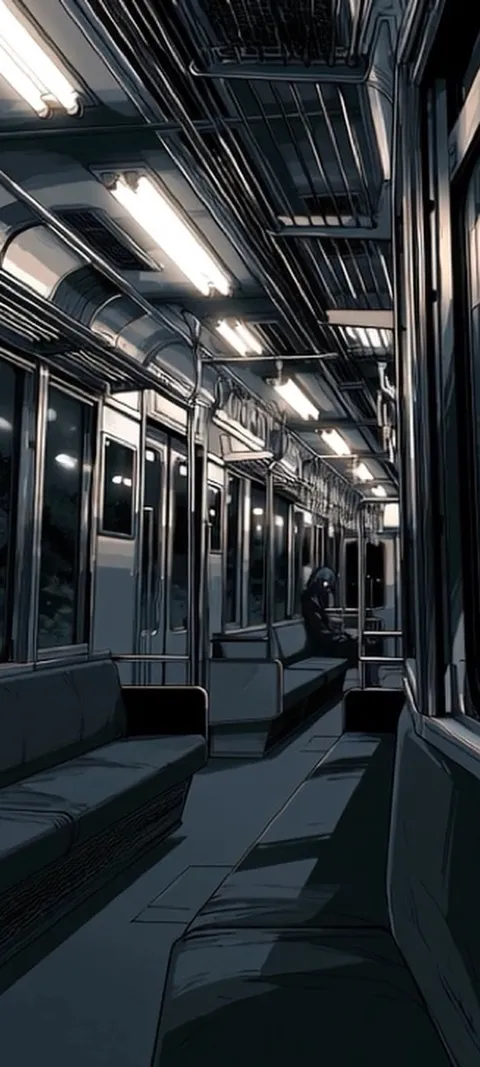 LIVE Empty Subway Car
 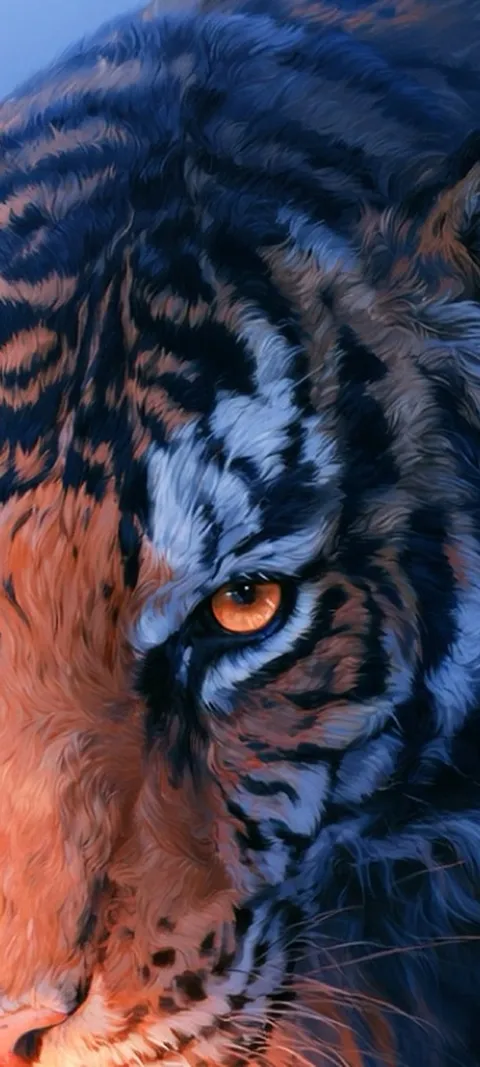 LIVE Feline Power
  LIVE Fiery Ember Burst
 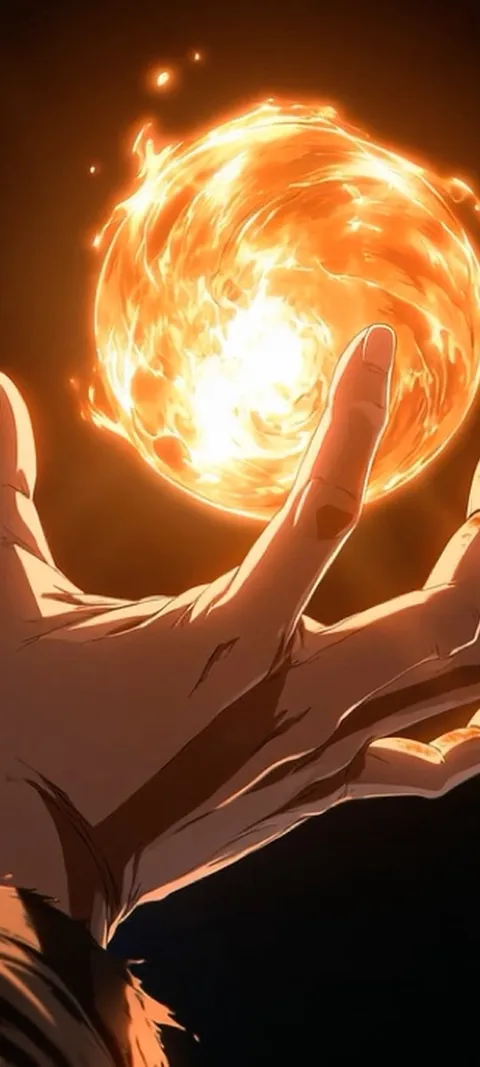 LIVE Fiery Orb Hand
 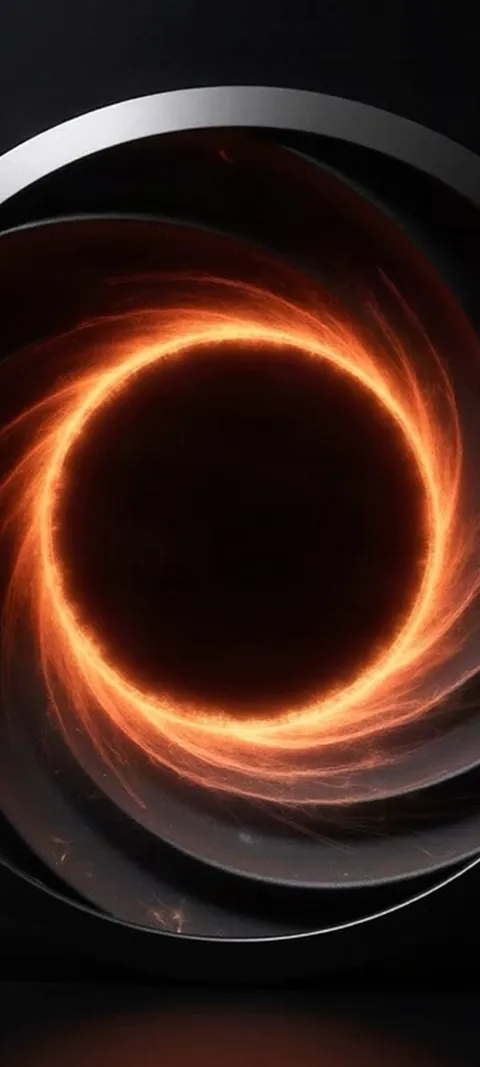 LIVE Fiery Vortex
 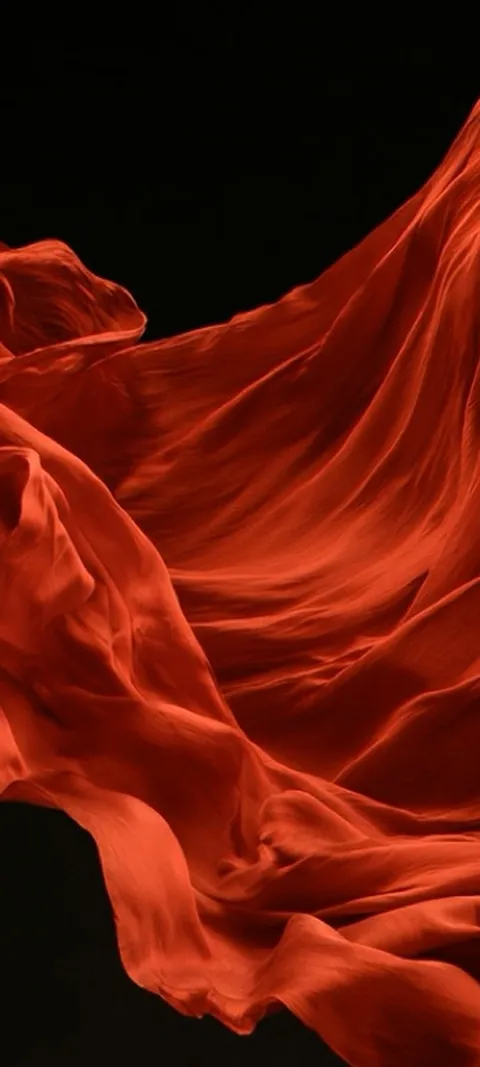 LIVE Flowing Red Fabric
 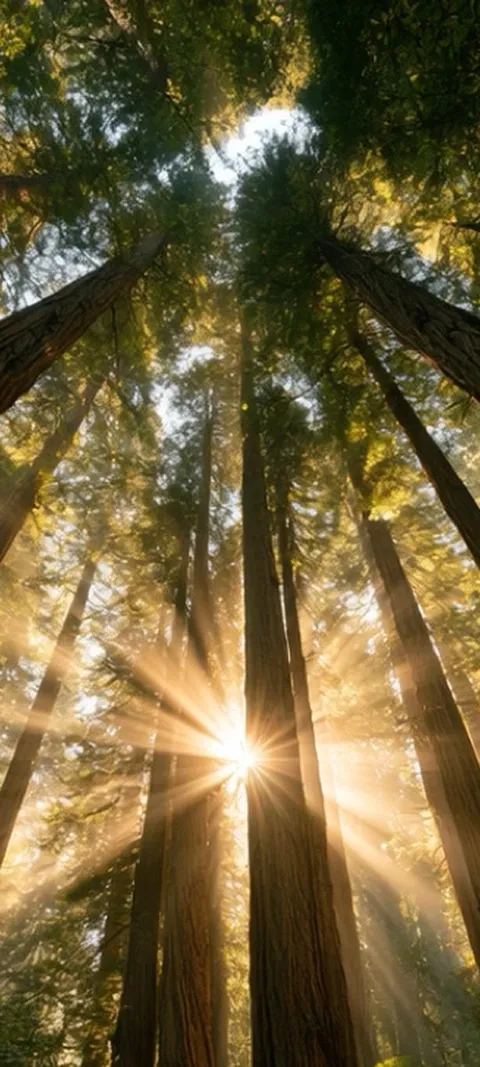 LIVE Forest Sunburst
 104 ios 27 wallpapers in the live ScreenLux catalog — 90 of them live; showing 72 here, the rest are in the app.
How to set a Live Photo Lock Screen on iOS 27
- Save a Live Photo from ScreenLux. Open a live pick, watch the loop in the preview and tap Save. ScreenLux+ unlocks the save.
- Open Settings → Wallpaper. Tap Add New Wallpaper, choose Photos and select the Live Photo you saved.
- Position it under the clock. Drag so the subject sits below the time, then tap Add.
- Choose the Home Screen. Pick Set as Wallpaper Pair for a matching still, or Customize Home Screen for something else.
- Wake the phone. The loop plays on the Lock Screen each time you wake it.
Frequently asked
Can I set a Live Photo as my wallpaper on iOS 27?
Yes. Save the Live Photo from ScreenLux, open Settings → Wallpaper → Add New Wallpaper, choose Photos and pick it; the Live badge shows in the picker. Once added to the Lock Screen it plays its loop each time you wake the phone or tap the screen, then settles on the still frame. The Home Screen uses the still only. The 90 Live Photos on this page are composed as short loops at 1080 × 2400 so the motion reads at Lock Screen size.
Why did Apple get rid of live wallpaper?
Apple retired its own bundled set of Live wallpapers when it redesigned the Lock Screen, and it has never offered continuous Home Screen animation, partly to protect battery life. What stayed is the useful part: any Live Photo in your library can be a Lock Screen wallpaper, and it animates when you wake the phone. That is exactly what ScreenLux relies on, so its motion wallpapers work on every current iOS release, iOS 27 included.
Do I need iOS 27 to use these wallpapers?
No. ScreenLux runs on iOS 17 or later, and Live Photo wallpapers work on the Lock Screen across all of those releases. This page groups the picks that suit the current Lock Screen, but the files are the same 1080 × 2400 stills and Live Photos as the rest of the catalog. If you are on iOS 26 or later, Depth Effect and Spatial Scene apply where the image allows; older releases simply skip those extras.