 SCREEN
How to Make a Picture Fit as Wallpaper on Android
To make a picture fit as wallpaper on Android, give it the same shape as the screen before you set it. Crop the photo to a tall 9:20 frame, about 1080 × 2400 pixels, and it fills the display with nothing unexpected cut off. If you want the whole picture, add borders above and below so the file itself is tall. Android's wallpaper picker always fills the screen and cannot zoom out past the edges, so the fix happens in the image, not in a setting.
Fit a picture to the screen in six steps
This works on any Android phone. Only the button names change.
- Check the shape. If the picture is wider than it is tall, or close to square, the phone has to cut a lot away to fill a tall screen.
- Decide: crop or keep everything. Crop when one part matters, such as a face or a pet. Keep everything when the whole scene matters, and accept borders.
- Crop to a tall frame. In your gallery app's editor, use the crop tool and drag the frame to a tall rectangle around the subject. Aim for 9:20, or 1080 × 2400 pixels if the editor shows dimensions. Save a copy.
- Or pad it instead. In an editor that can add borders or change the canvas size, extend the picture above and below until the shape is tall. Save a copy.
- Open the wallpaper picker. Long-press an empty spot on the Home Screen and tap Wallpaper & style, or Wallpaper and style on Samsung. Choose the copy you saved.
- Position and apply. Drag to frame the image and leave the zoom alone. Choose Home Screen, Lock Screen or both, then confirm.
What goes wrong, and the fix for each
Nearly every fitting problem traces back to shape, size or a launcher setting.
| What you see | Cause | Fix |
|---|---|---|
| The sides of the photo are cut off | A landscape or square picture on a tall screen | Crop to a tall frame around the subject, or add borders above and below |
| The subject hides behind the clock | The subject sits in the top third of the image | Drag the image lower in the picker, or crop with empty space above the subject |
| The picture looks soft | A small image enlarged to fill the screen, or too much pinch zoom | Use a file at least 1080 pixels wide and do not pinch in while positioning |
| The picture slides sideways between Home Screen pages | Wallpaper scrolling in the launcher | Switch scrolling off in the launcher settings, where the launcher offers it |
| The Lock Screen and Home Screen frame it differently | Each screen keeps its own crop | Apply the picture to one screen at a time and position it twice |
| It fits the cover screen but not the inner screen of a foldable | Two displays with two different shapes | Use a separate image for each screen |
Foldables need the last row most. The inner screen of a book-style foldable is close to square, so a tall phone image loses its top and bottom there. The Samsung Galaxy wallpapers page notes which shapes suit the Galaxy S, A and Z lines.
Wallpapers that already fit a tall screen
Four wallpapers from the ScreenLux catalog, each composed at 1080 × 2400 so there is nothing to crop or pad. Every wallpaper previews free in the app on a Lock Screen and Home Screen mockup; downloads are part of ScreenLux+, which is $19.99 once or $14.99 a year with a 7-day free trial when the store offers one.
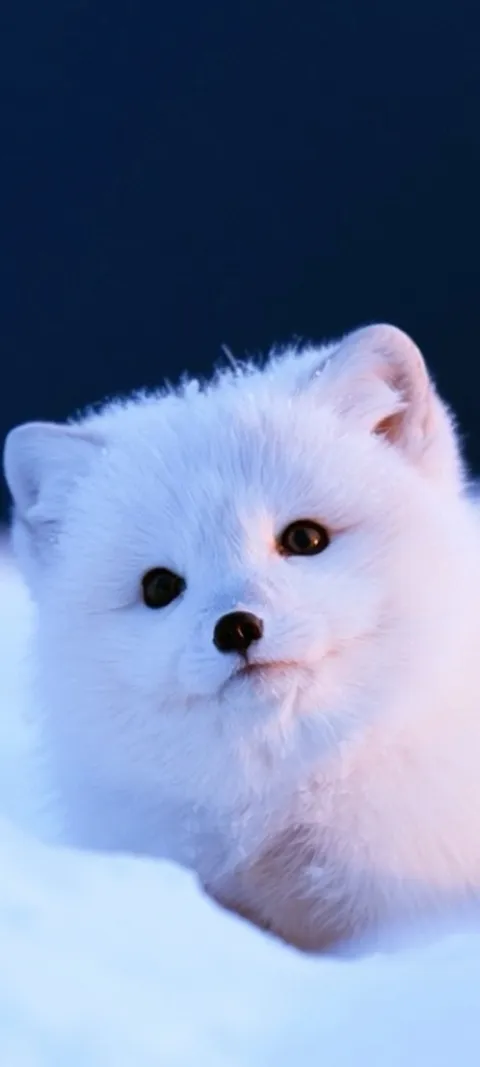
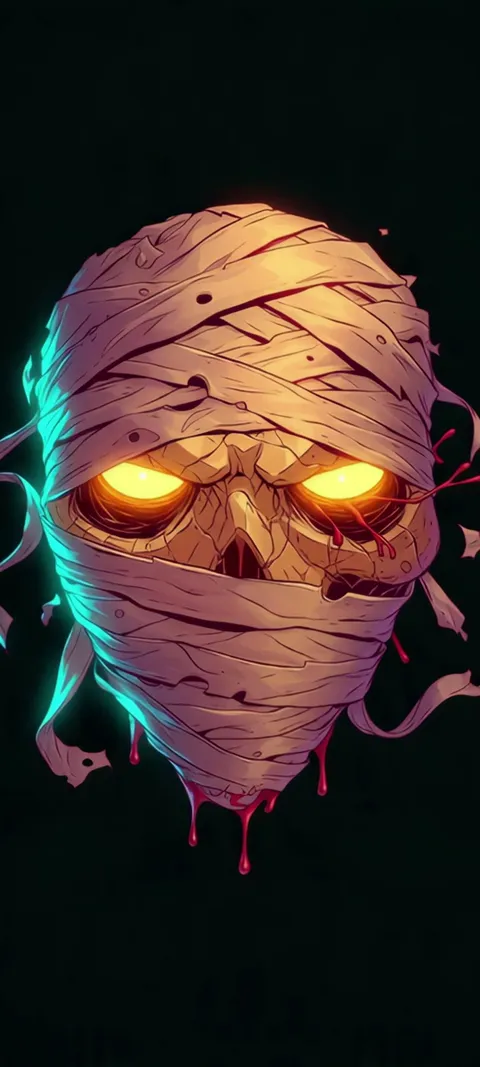
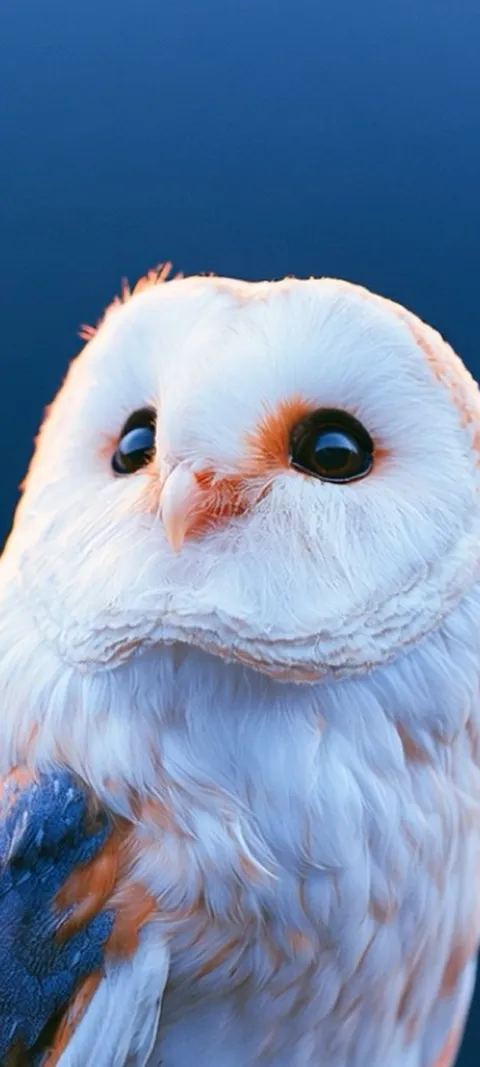

How do I make a photo fit my phone wallpaper?
Match the photo to the shape of the screen before you set it. Most Android phones have a tall display close to 9:20, so crop the picture to that shape, or to 1080 × 2400 pixels, with the subject in the middle. Then open the wallpaper picker, choose the photo and apply it without pinching in. If the picture is wide and you want all of it, add borders above and below so the finished image is tall. The picker always fills the screen, so the fitting has to happen in the file.
The picker itself is the same on every phone: long-press the Home Screen and tap Wallpaper & style. The full walkthrough, with the Pixel and One UI differences, is in how to change the wallpaper on Android.
Why won't my picture fit as a wallpaper?
Because the picture and the screen are different shapes, and Android fills the screen rather than leaving gaps. A camera photo is usually 4:3. Held sideways, it is far wider than a tall phone display, so the phone enlarges it until the height is covered and trims the rest. On a 9:20 screen, a landscape 4:3 photo keeps only about a third of its width. A portrait 4:3 photo keeps about 60 percent. Nothing is wrong with the phone or the file; the two shapes just do not match.
A portrait 9:16 image, the shape of most vertical video, keeps about 80 percent of its width, which is why it looks nearly right and still loses its edges.
How do I resize a picture for my Android phone's wallpaper?
Crop it rather than shrink it. Open the picture in your gallery app's editor, choose the crop tool and drag the frame into a tall rectangle, a little taller than 9:16. If the editor lets you type dimensions, use 1080 × 2400 pixels. Save it as a copy so the original stays intact. Changing only the pixel count does not help, because a wide photo stays wide at any size. What the wallpaper picker cares about is shape first and resolution second.
Keep at least 1080 pixels of width after the crop. A tight crop from a small photo leaves too few pixels, and the phone has to enlarge them. Everything on the Android wallpapers page is composed at 1080 × 2400, with the subject clear of the clock and the dock.
How do you stop a wallpaper from zooming in on Android?
Start with an image that is already the shape of the screen, because the picker only zooms as far as it needs to fill the display. A 1080 × 2400 file needs almost none. While positioning, do not pinch outward. If the picture still shifts or looks enlarged on the Home Screen, check the launcher settings for a wallpaper scrolling option and switch it off. Recent Android versions also add a small zoom animation when you unlock the phone or pull down the notification shade. On many phones there is no switch for that effect.
Because of that animation, keep faces and text a little way in from every edge. On a Galaxy, the Lock Screen and Home Screen previews are positioned separately; the Samsung wallpaper guide covers the One UI screens.
Can you set a 4K image as a wallpaper on Android?
Yes, but it rarely looks the way you expect. A 4K image is 3840 × 2160 pixels and landscape, built for a television or monitor. A phone held upright shows a tall slice of it, roughly 970 pixels of the 3840 width, and discards the rest. The phone then scales that slice to its own panel, so the extra resolution never reaches your eyes. Most phone screens are 1080 or 1440 pixels wide. Crop the image to a tall frame around the part you want, or pick a portrait image made for phones.
ScreenLux phone files are 1080 × 2400 for that reason: a still like Sakura Kitsune or Blue Blocks fills a tall screen edge to edge with at most a sliver trimmed from the top and bottom.
How do you set a whole picture as wallpaper without cropping it?
Give the picture a tall canvas. In a photo editor, place the image on a 1080 × 2400 background, or add equal borders above and below until the shape is tall, then set that new file as the wallpaper. Choose black for the borders on an OLED screen, a colour sampled from the photo, or a blurred copy of the picture itself. A landscape 4:3 photo treated this way fills the full width and about a third of the height, which leaves room for the clock above and icons below.
Any editor that can change the canvas size or add a border does this. The trade is size: the whole picture shows, but small, so it suits group photos and landscapes better than a single face.
Wallpapers made for the phone
470+ original live and still wallpapers composed at 1080 × 2400, so they fit a tall Android screen as they are. The app is free to download and every wallpaper previews free; ScreenLux+ unlocks downloads.
Get ScreenLux FreeFree to download · No account required · iOS 17+ · Android 8+