 SCREEN
 Lock Screen Wallpapers
This page is the ScreenLux lock screen wallpaper set: 79 picks framed with quiet space at the top for the clock and contrast at the edges so notifications stay readable. It mixes stills like Abyss Purple and Dark Panels with dark portraits and 38 Live Photos like Barn Owl Gaze that animate on the iPhone Lock Screen. Every file is 1080 × 2400 for iPhone and Android; on iPhone you set it in Settings → Wallpaper, on Android you tap Apply and choose Lock. Preview free; ScreenLux+ unlocks downloads.
Get ScreenLux Free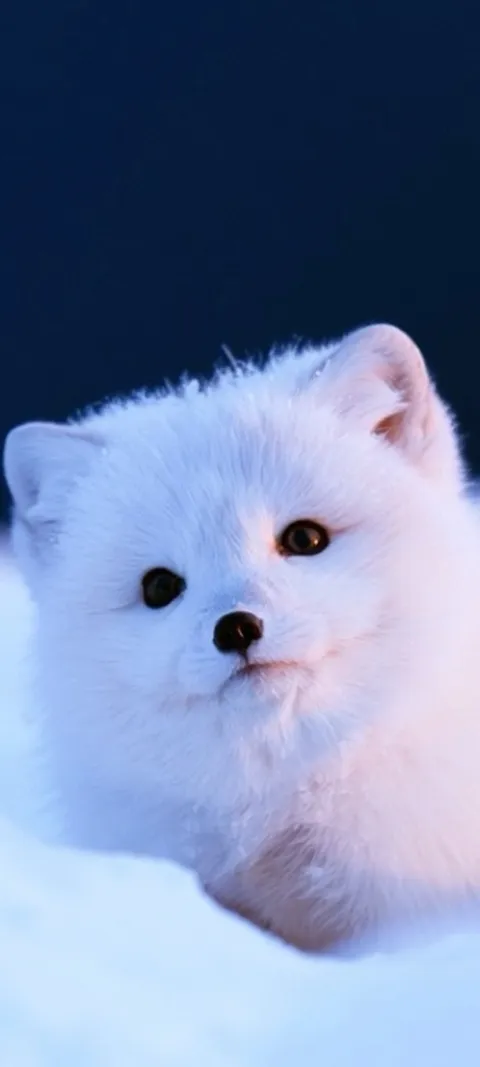 LIVE Arctic Fox Cub
 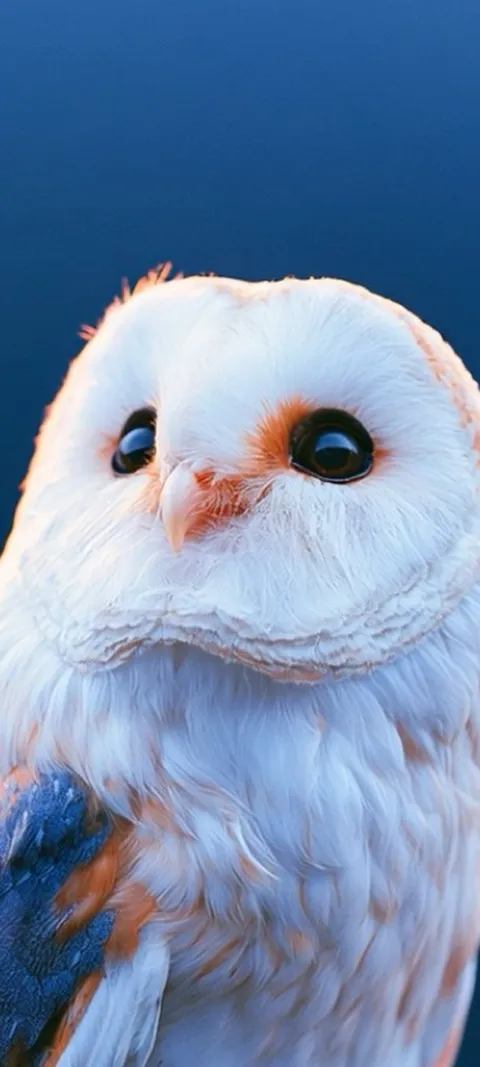 LIVE Barn Owl Gaze
 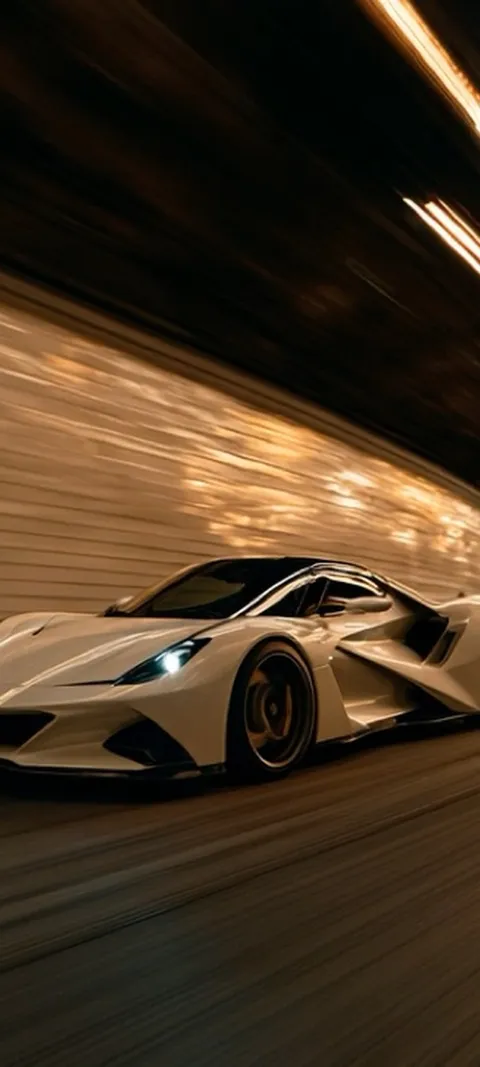 LIVE Blazing Tunnel Ride
 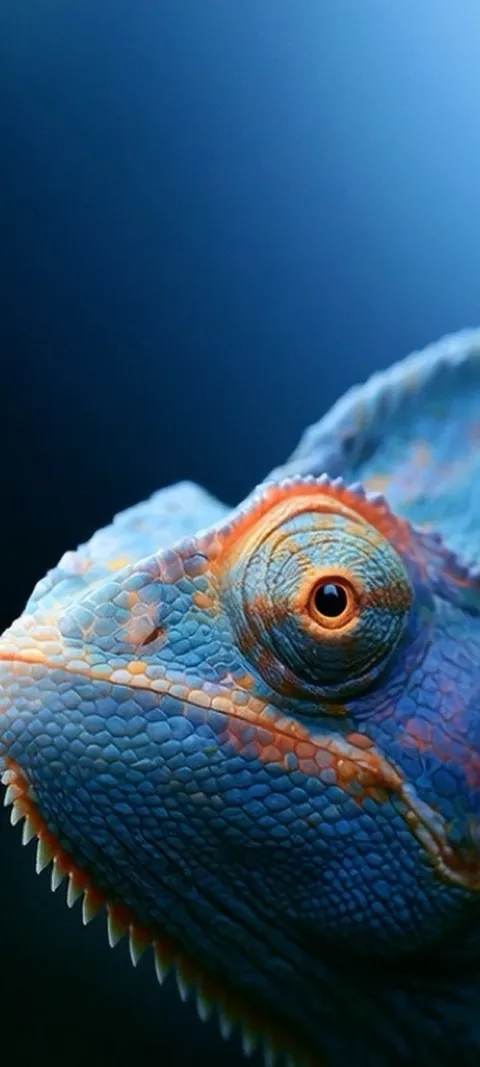 LIVE Blue Chameleon Close-up
 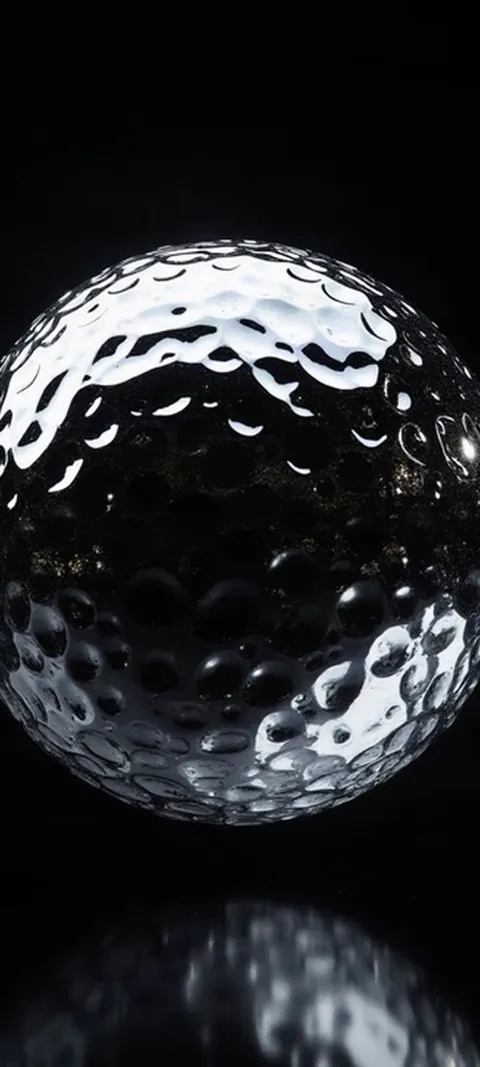 LIVE Dimpled Chrome Orb
 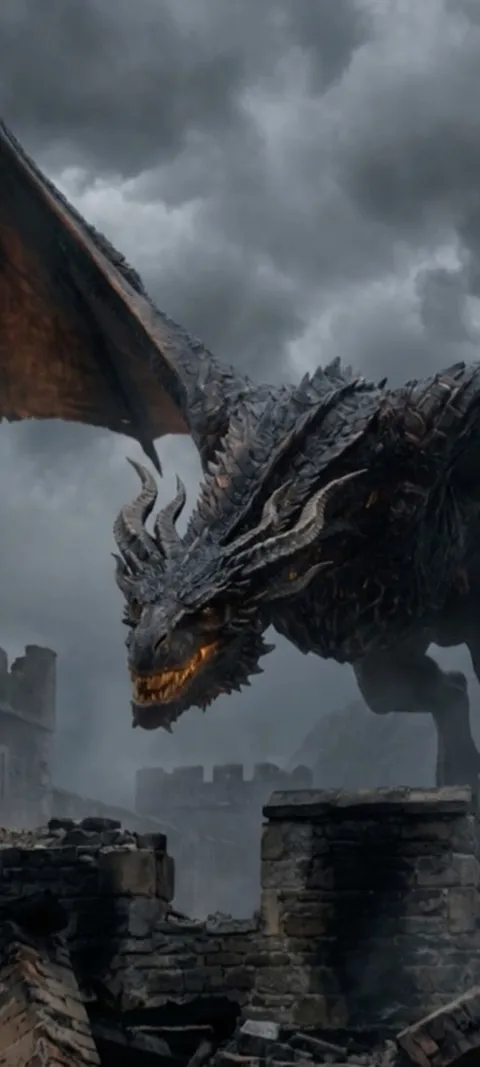 LIVE Dragon Over Ruins
 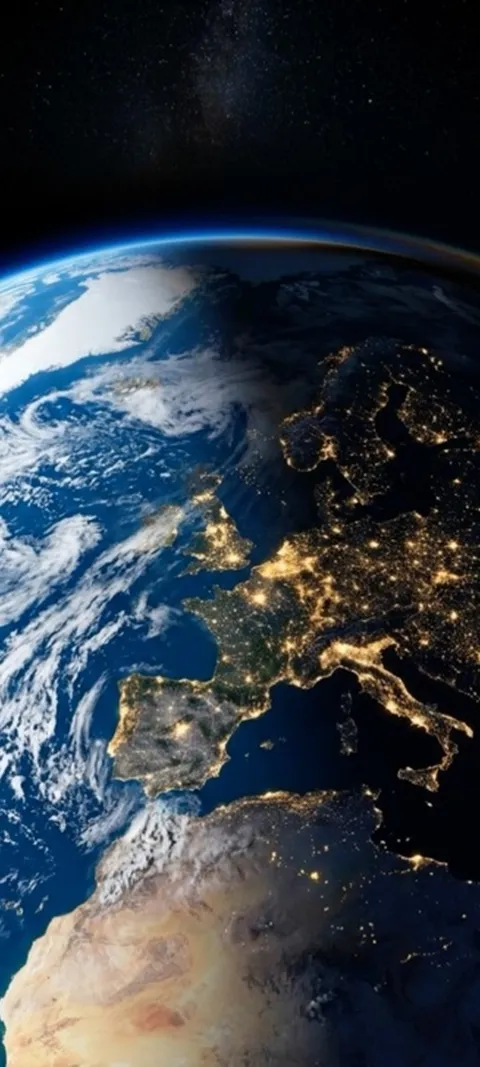 LIVE Earth City Lights
 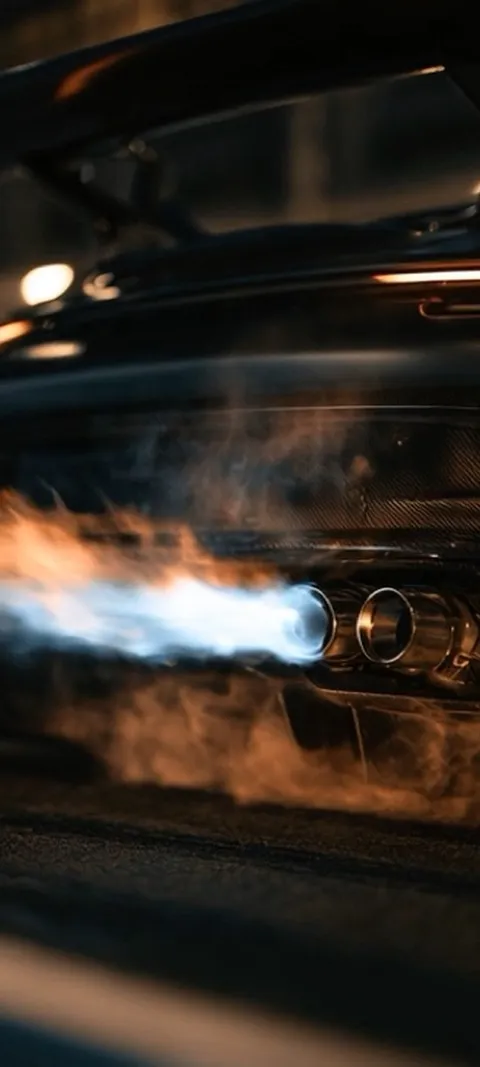 LIVE Exhaust Flame Burst
  LIVE Giant Robot Stroll
 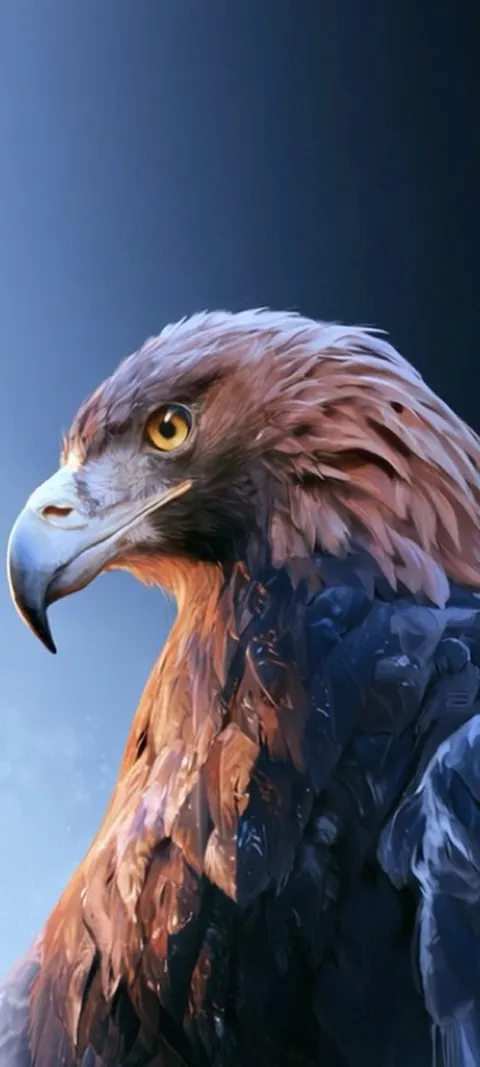 LIVE Golden Eagle Gaze
 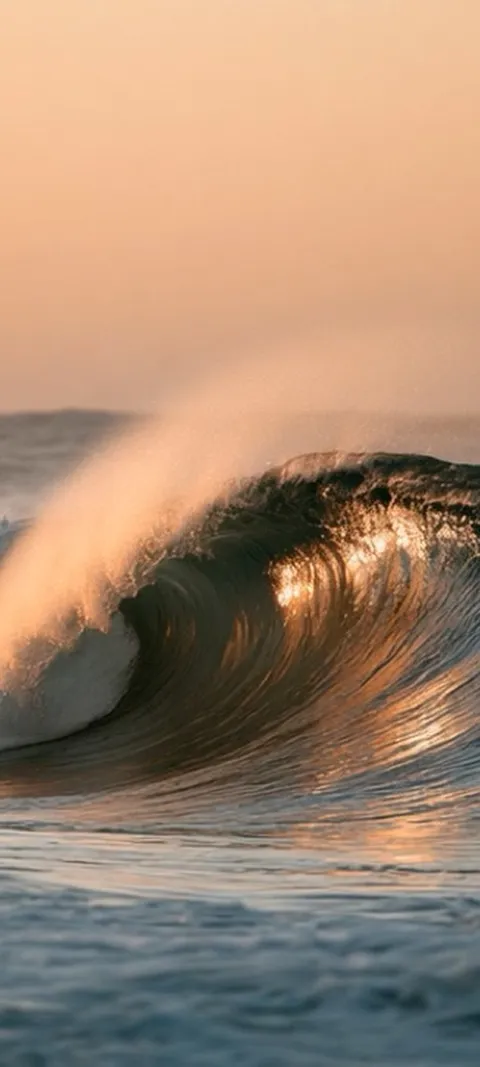 LIVE Golden Ocean Wave
 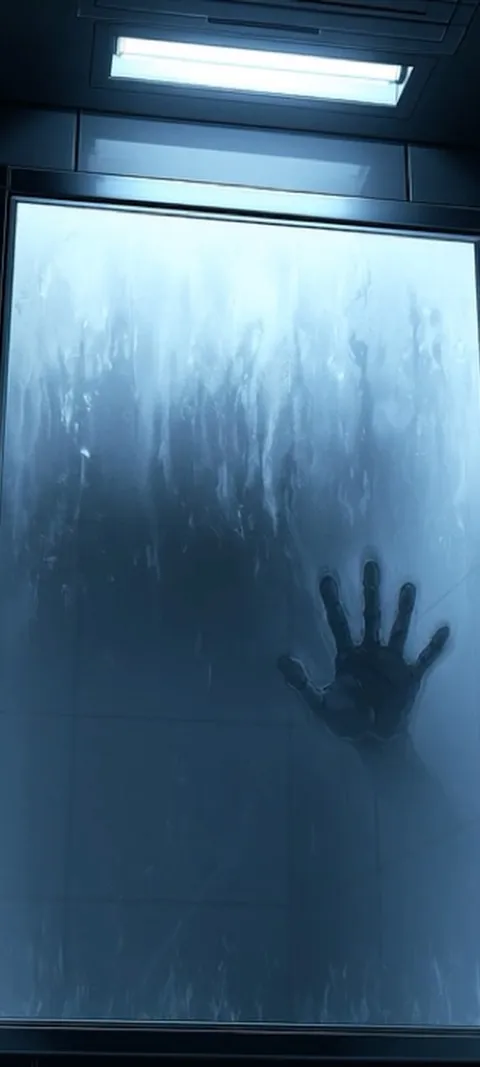 LIVE Hand On Glass
 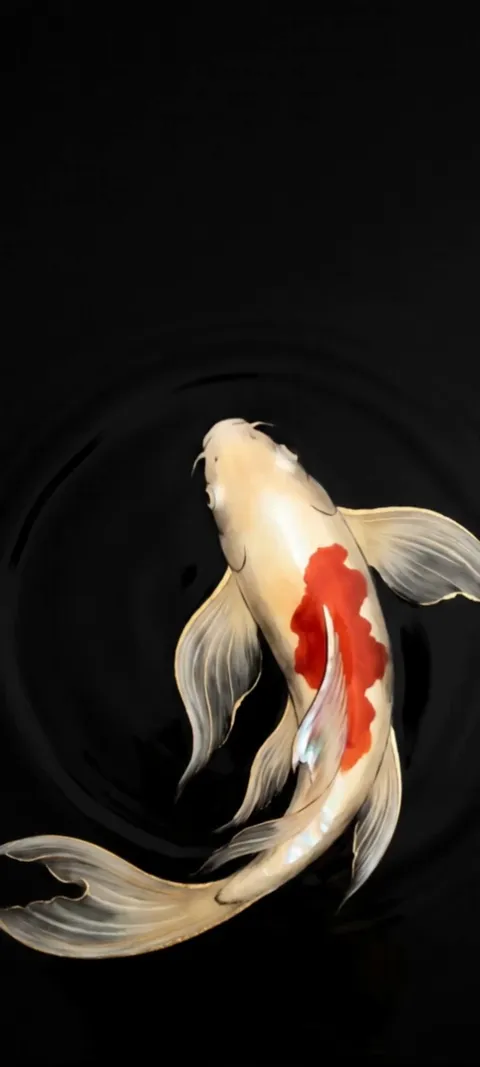 LIVE Koi Pond
  LIVE Lighthouse Night Beacon
  LIVE Luminous Abstract Swirl
 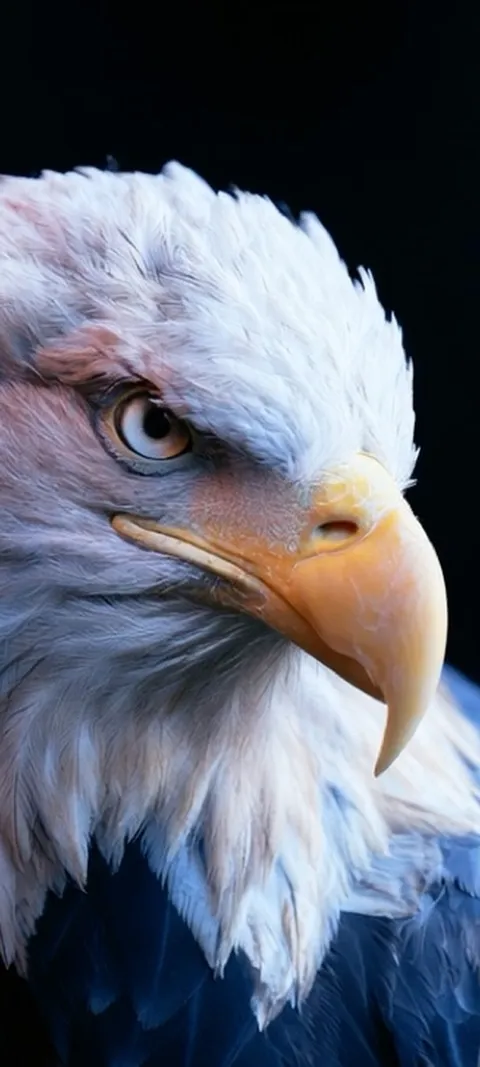 LIVE Majestic Bald Eagle
 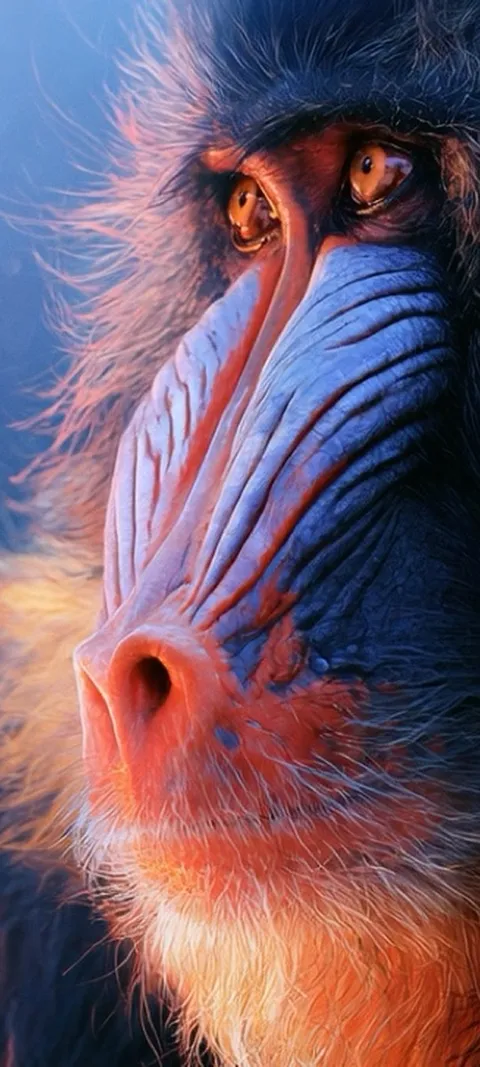 LIVE Mandrill Primate Portrait
 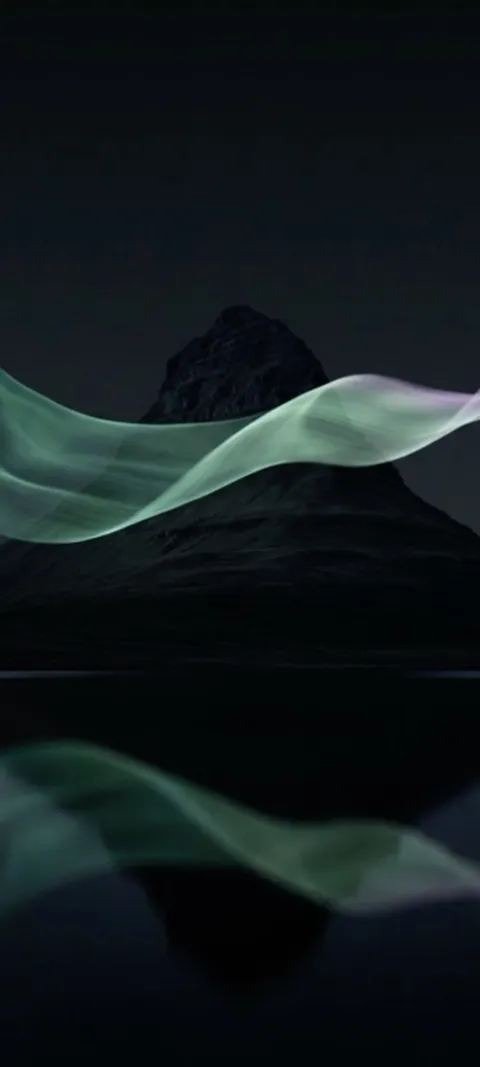 LIVE Mountain Aurora Reflection
  LIVE Mountain Train Journey
 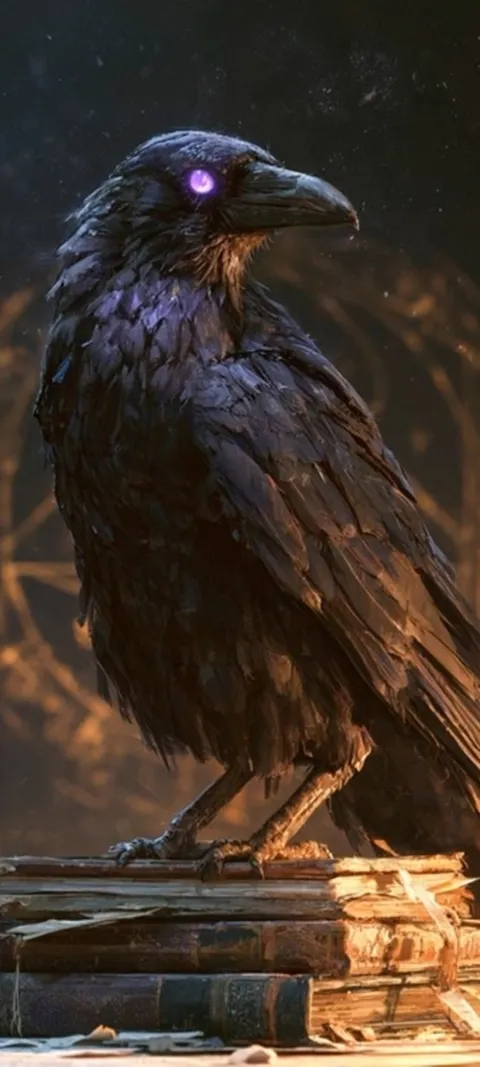 LIVE Mystic Raven Scholar
 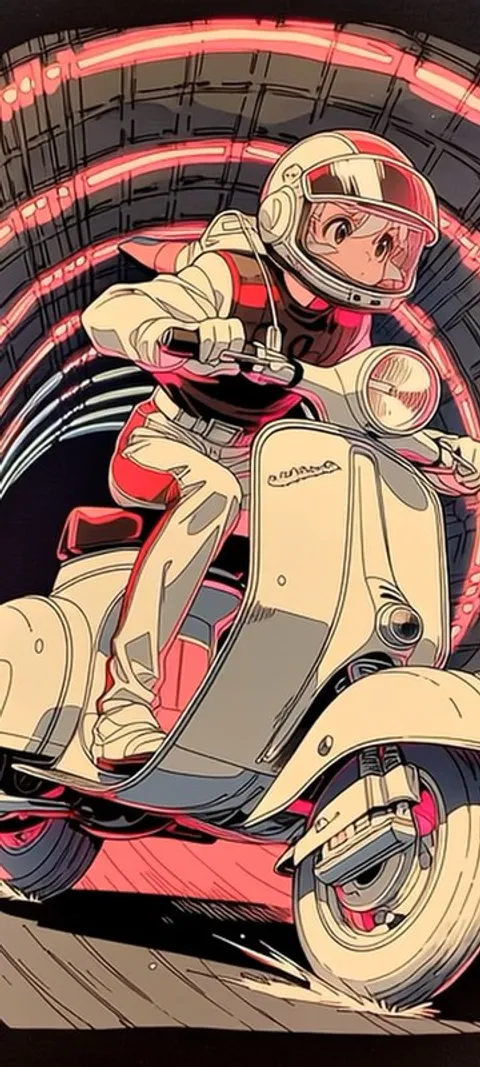 LIVE Neon Scooter
 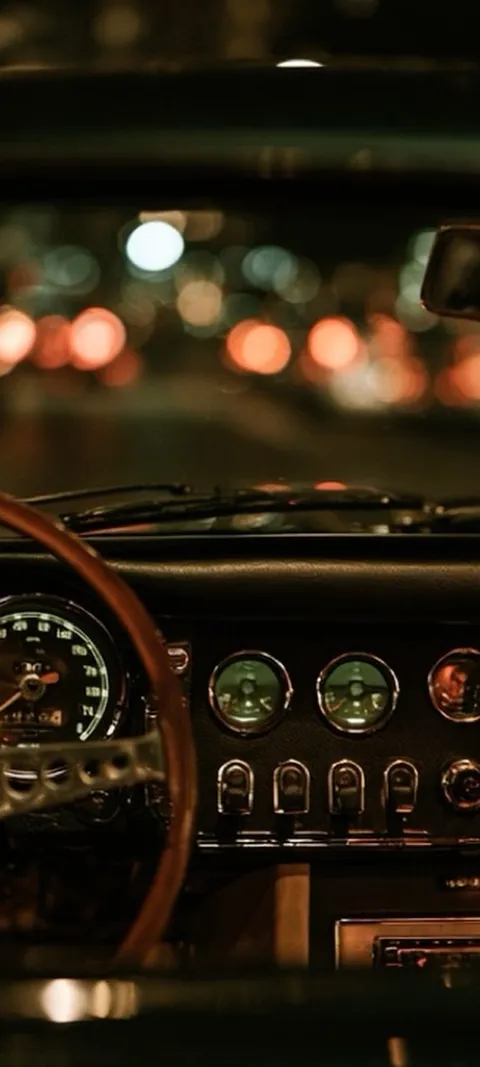 LIVE Night Drive Dashboard
 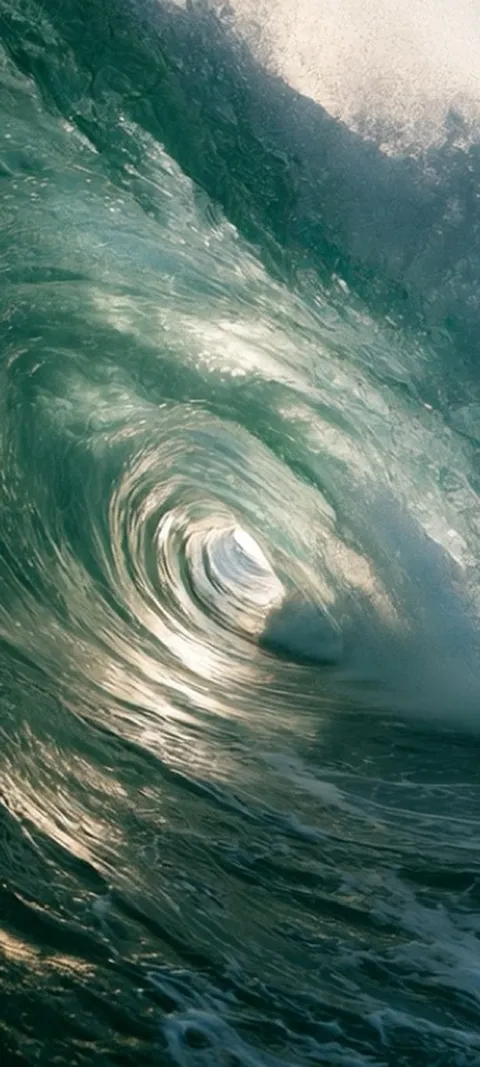 LIVE Ocean Wave Barrel
  LIVE Oceanic Fish Vortex
 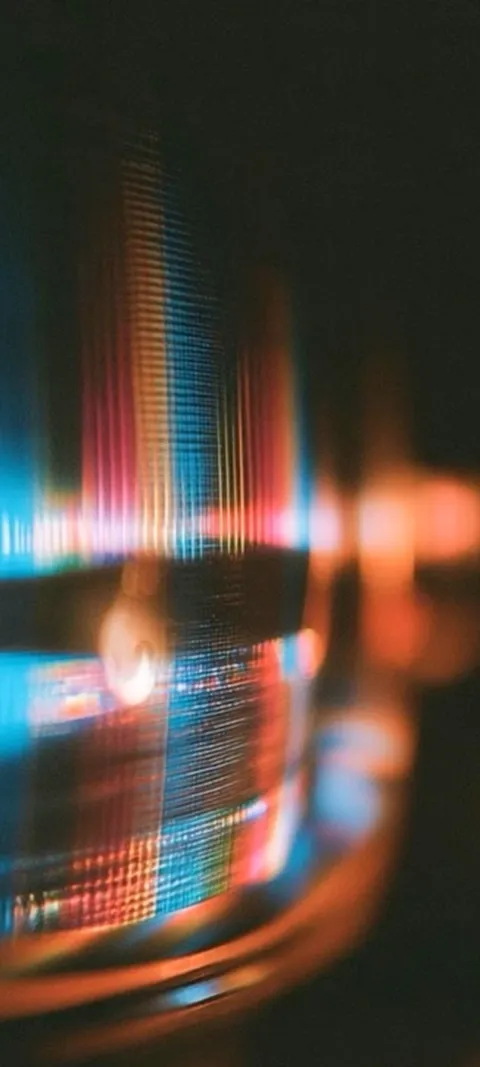 LIVE Prismatic Light Trails
 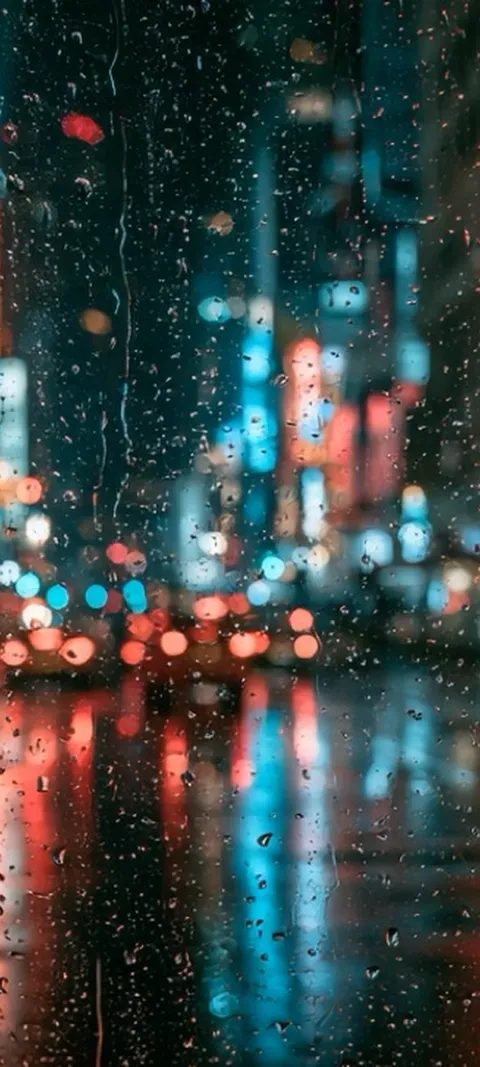 LIVE Rainy City Lights
 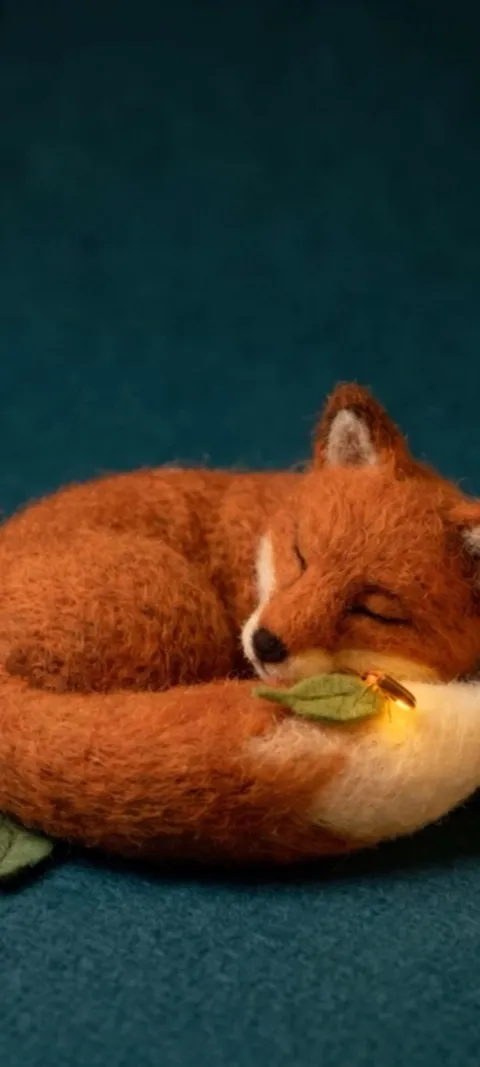 LIVE Sleeping Felt Fox
 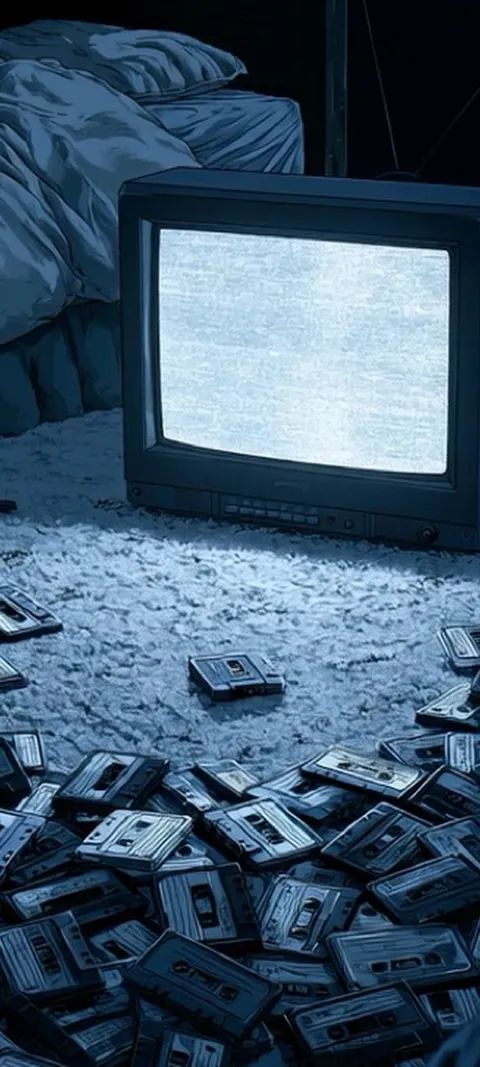 LIVE Static Screen Glow
 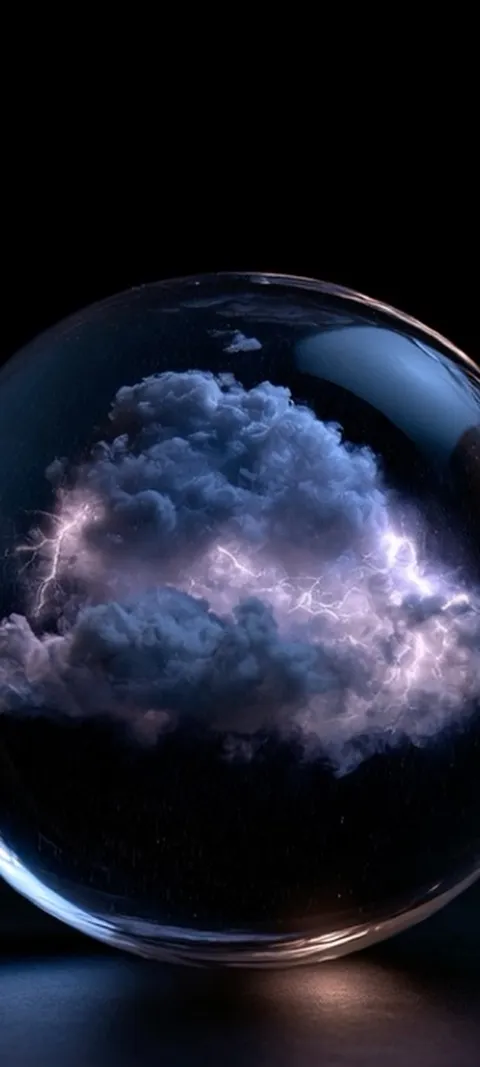 LIVE Stormy Cloud Orb
 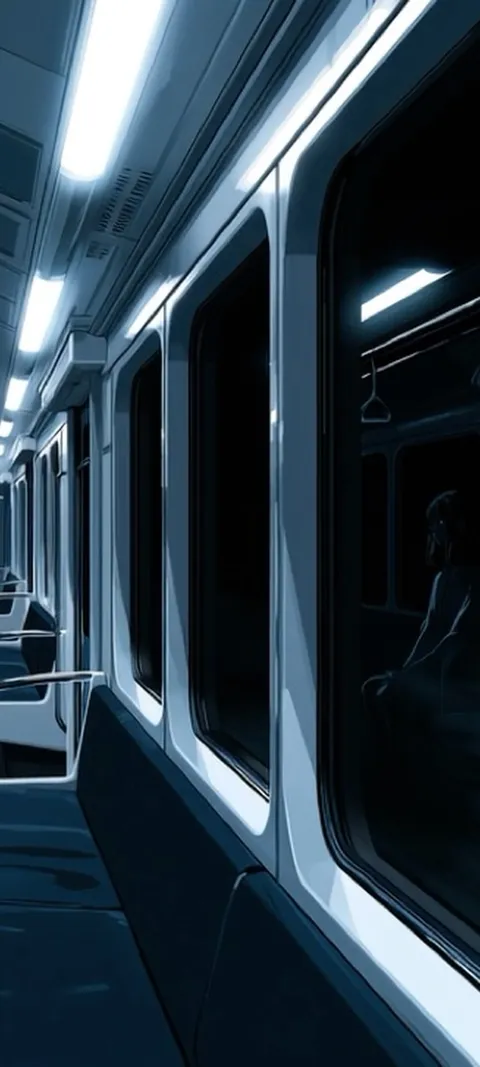 LIVE Subway Car Reflection
 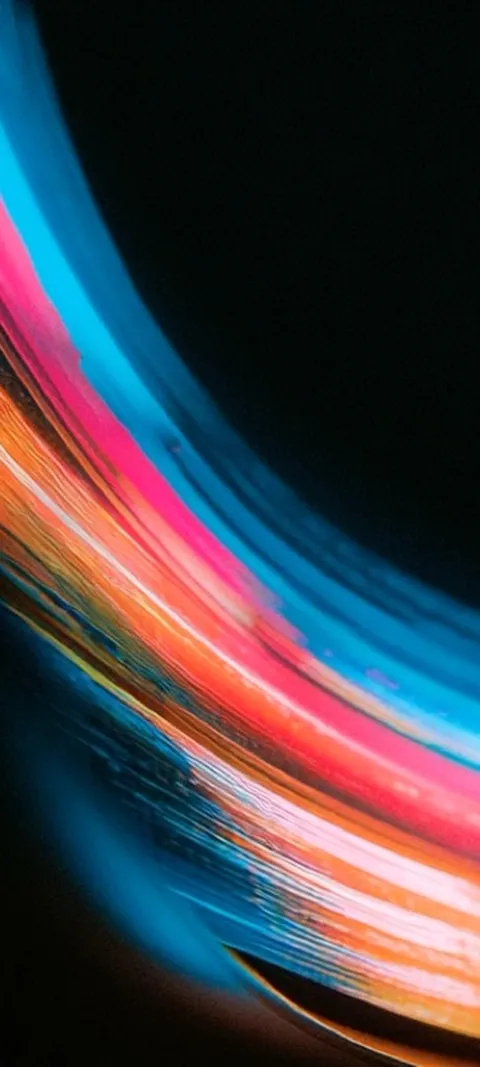 LIVE Vibrant Light Trails
 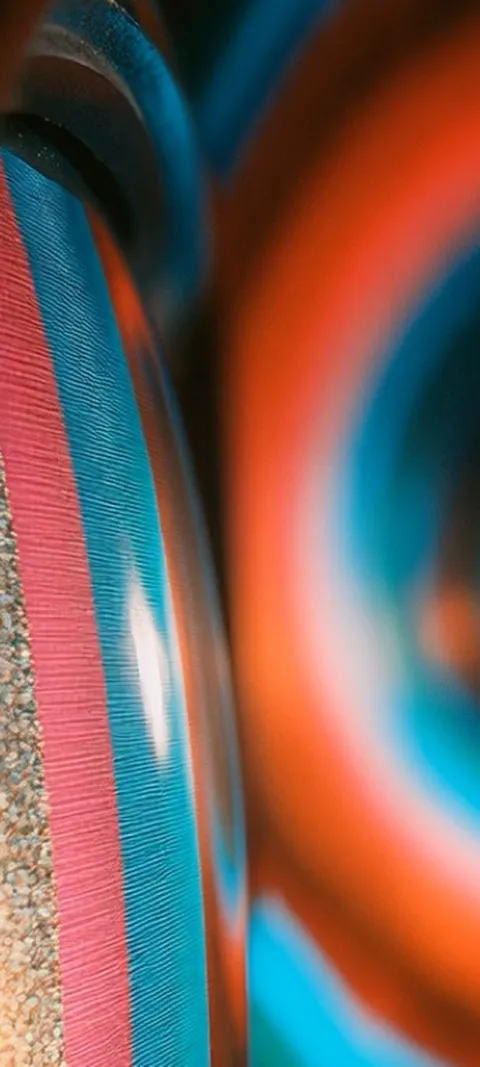 LIVE Vibrant Textured Swirls
 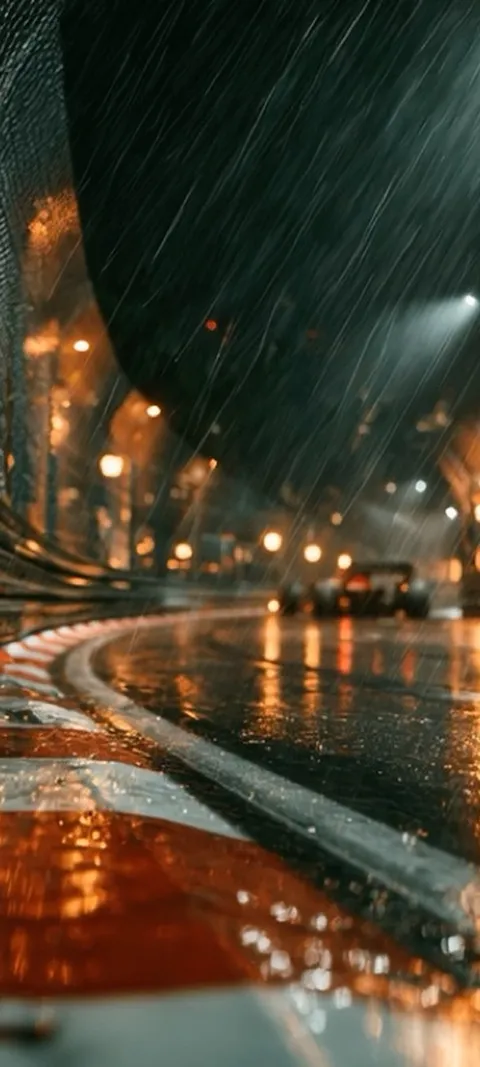 LIVE Wet Urban Circuit
 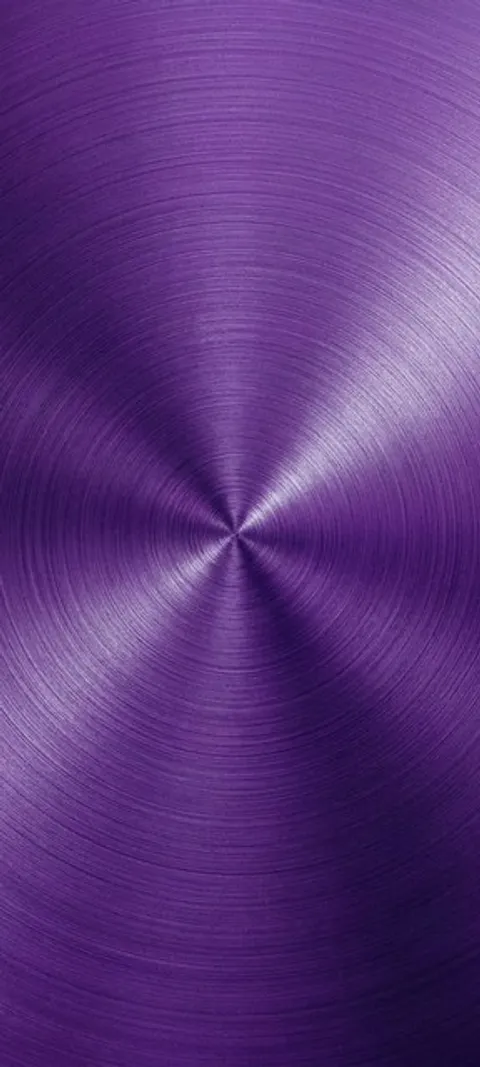 Abyss Purple
 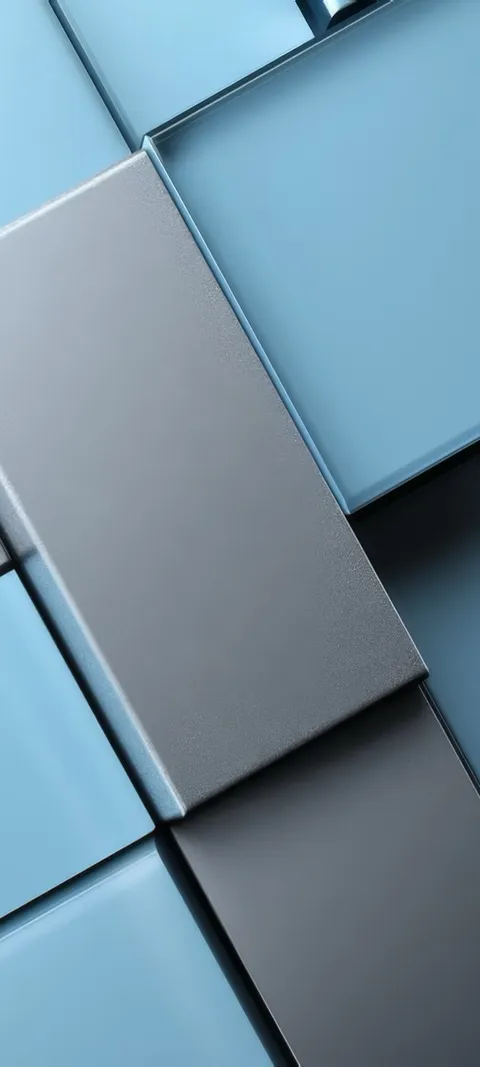 Blue Blocks
 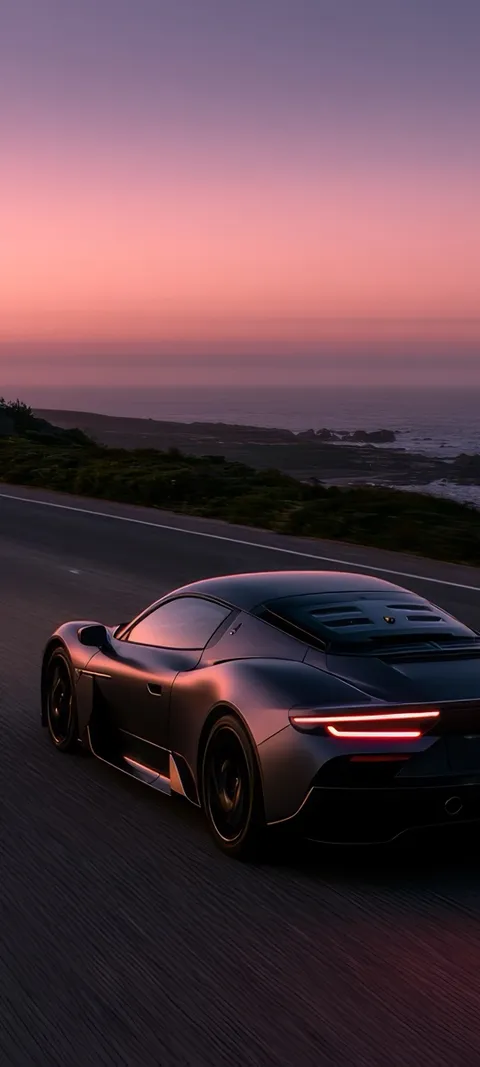 Coastal Sunset Drive
 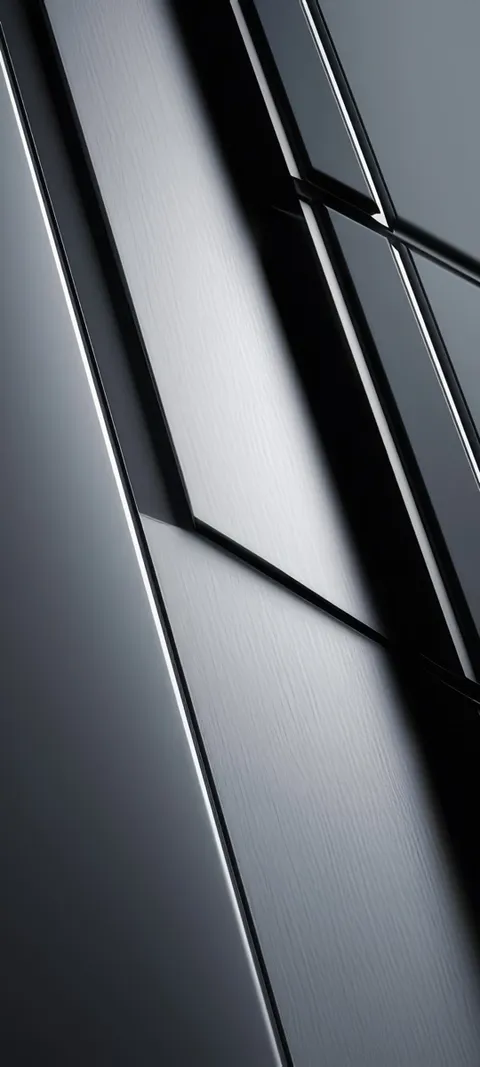 Dark Panels
 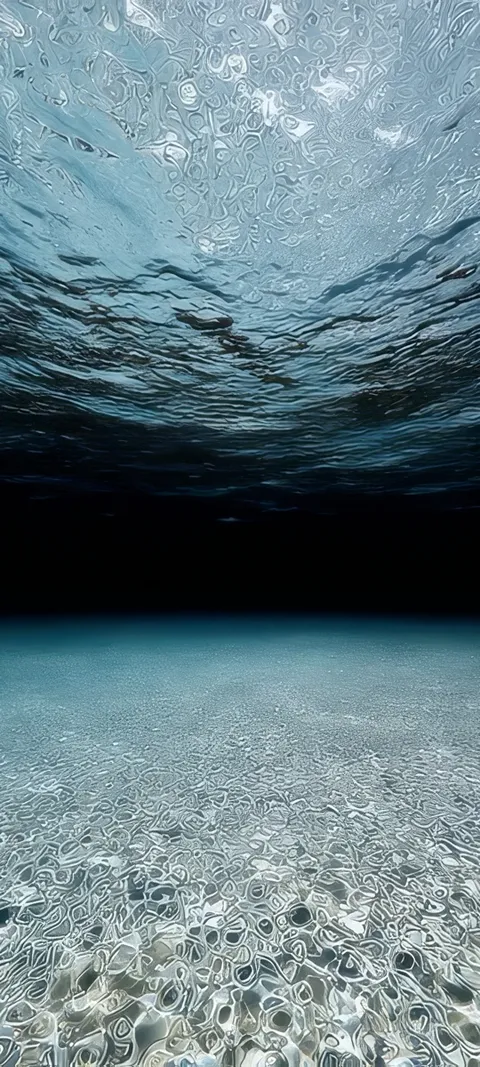 Deep Reflection
  Ember Glowing
  Holographic Hues
 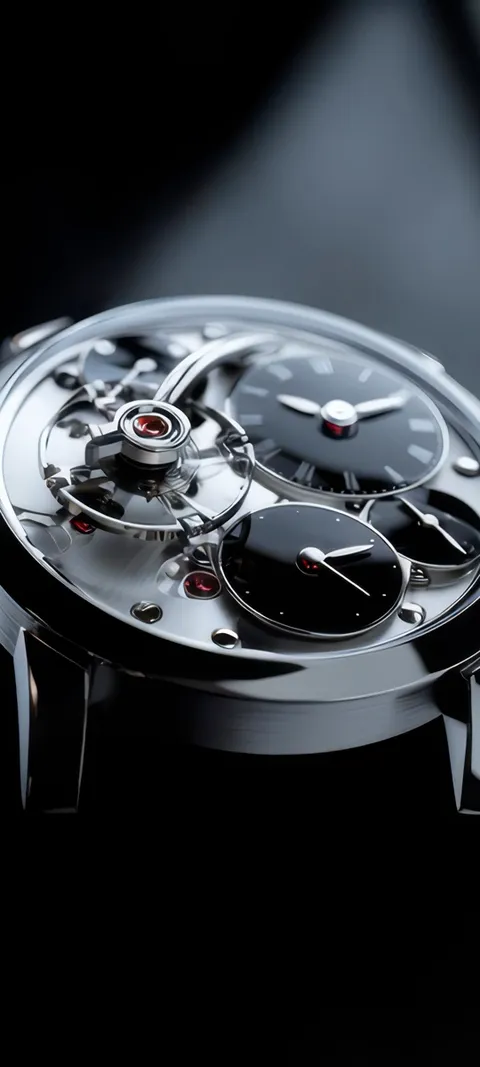 Mechanical Elegance
 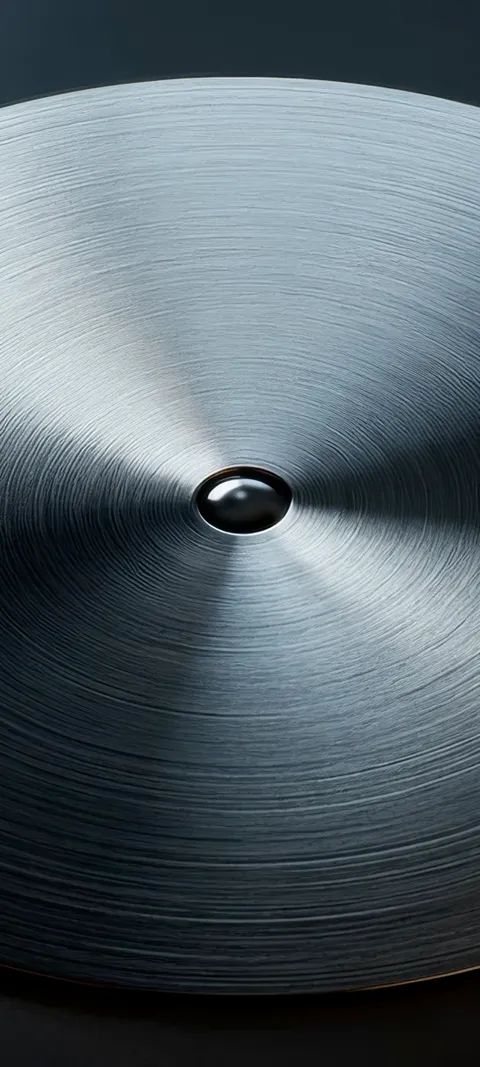 Metal Bloom
 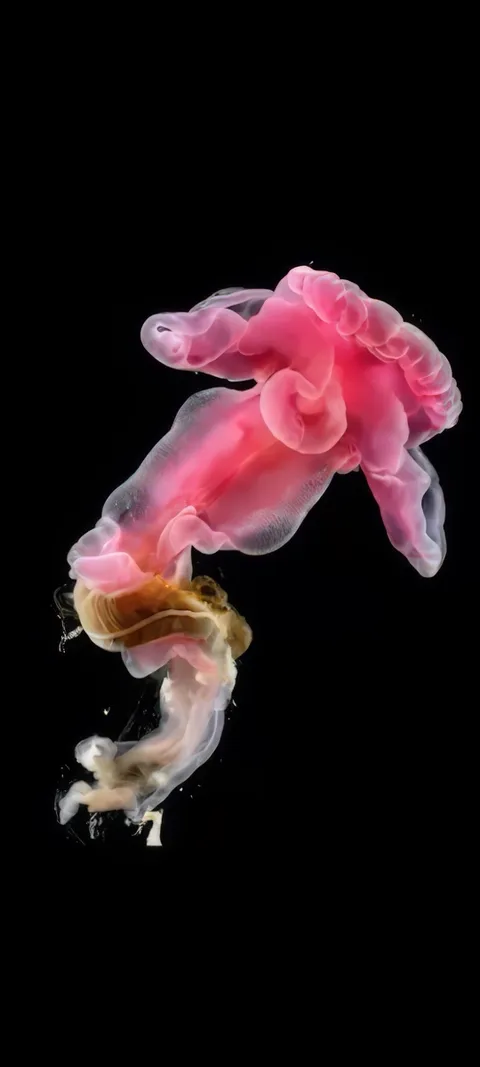 Pink Bloomer
  Pink Hue Sunset
 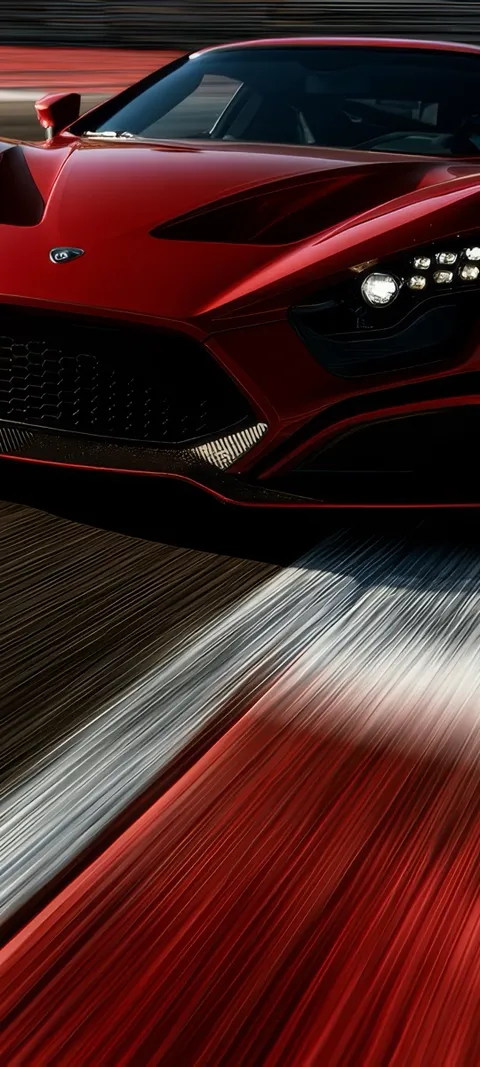 Red Race Car
 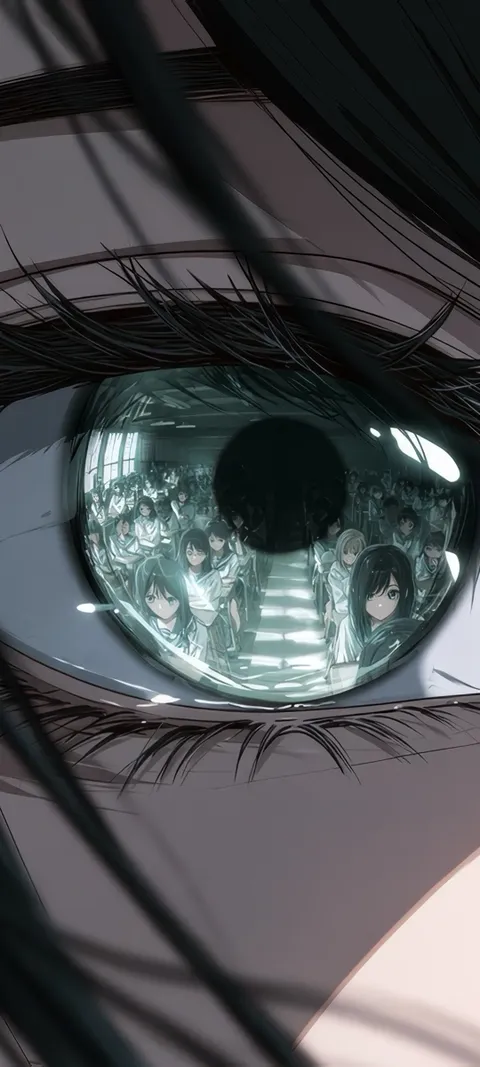 Reflected Anime Crowd
 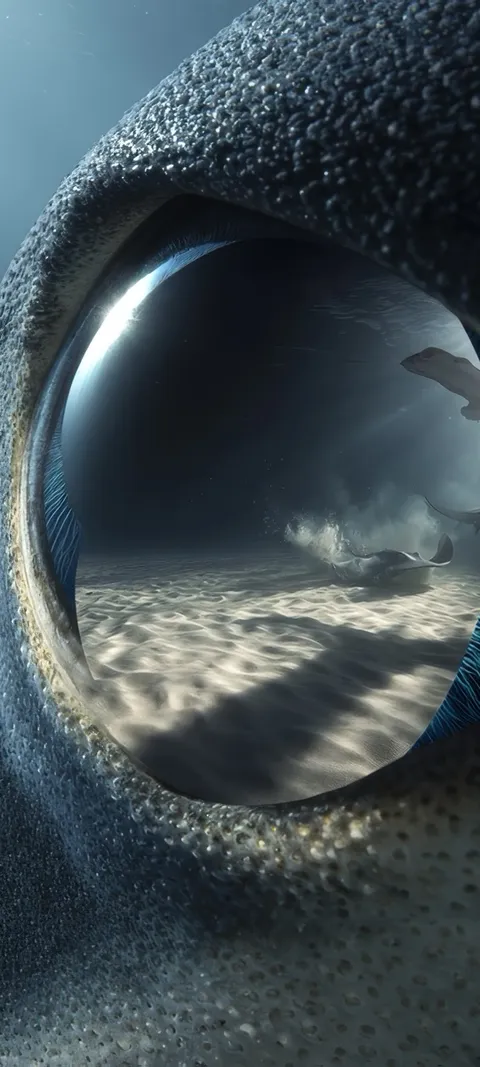 Shark Gaze
 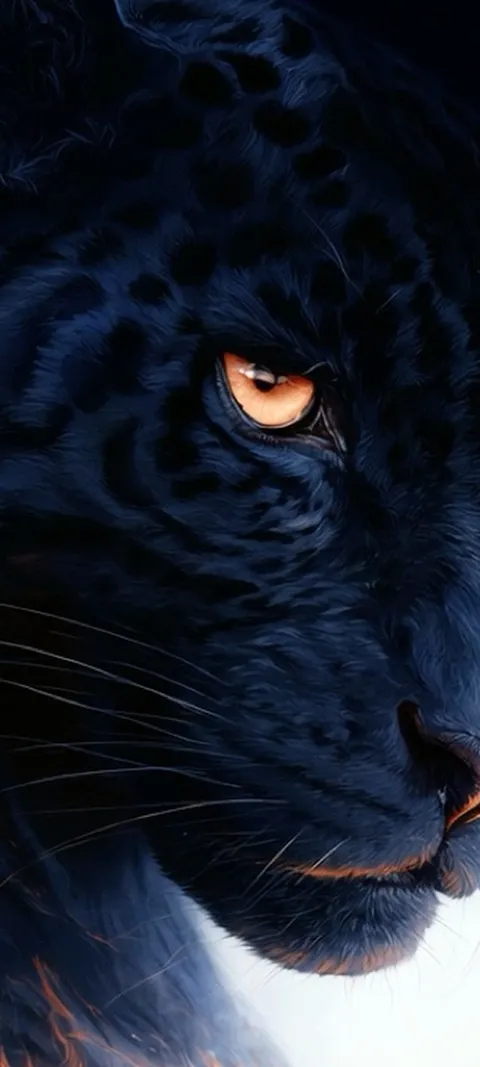 LIVE Black Panther Gaze
 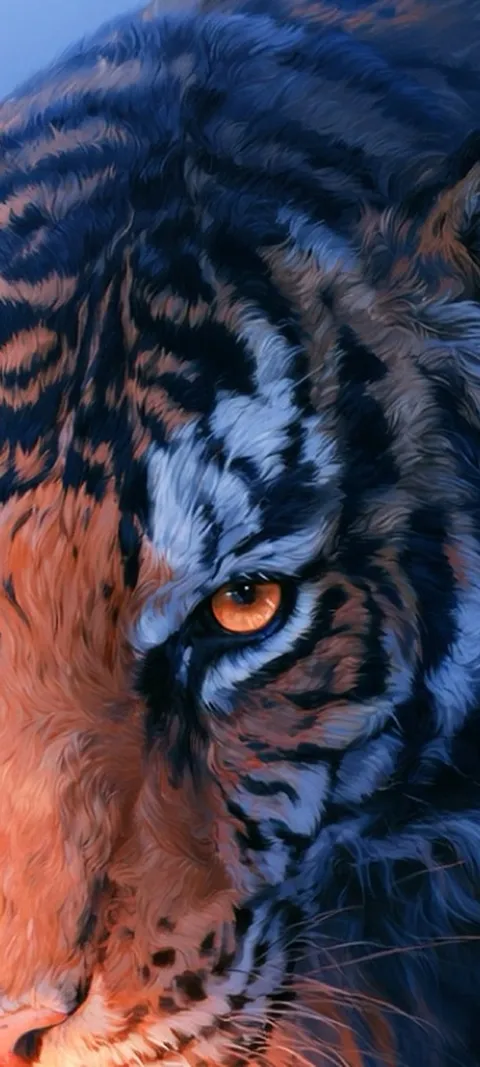 LIVE Feline Power
 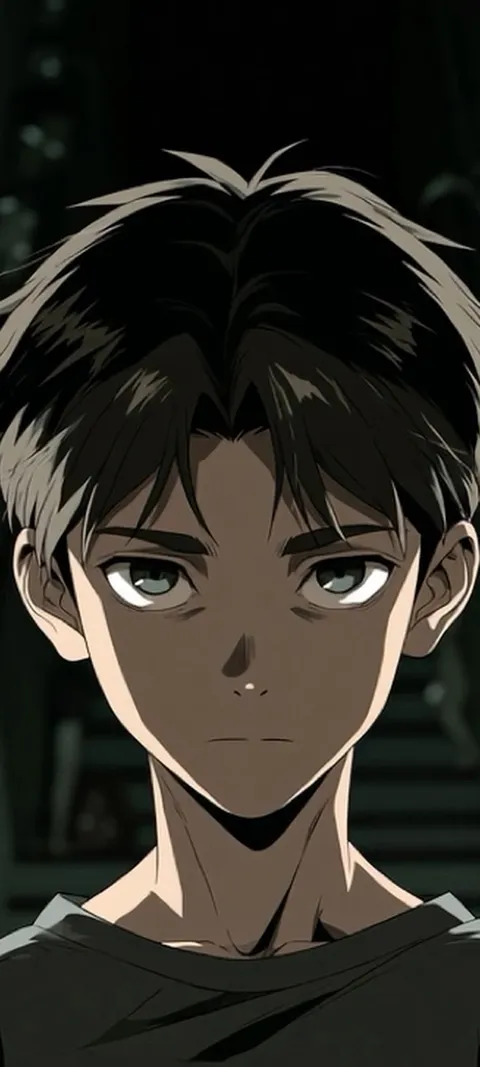 LIVE Haunted Anime Gaze
 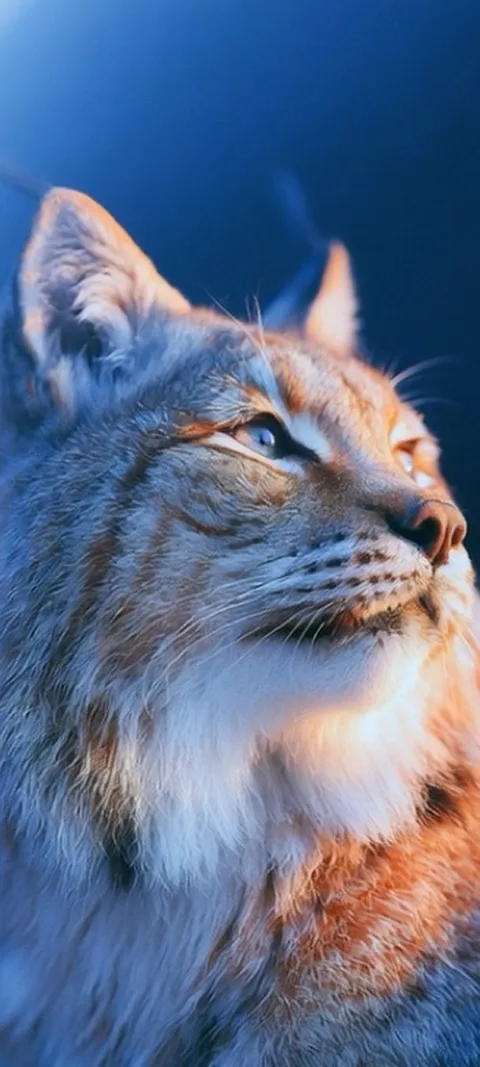 LIVE Lynx Golden Gaze
 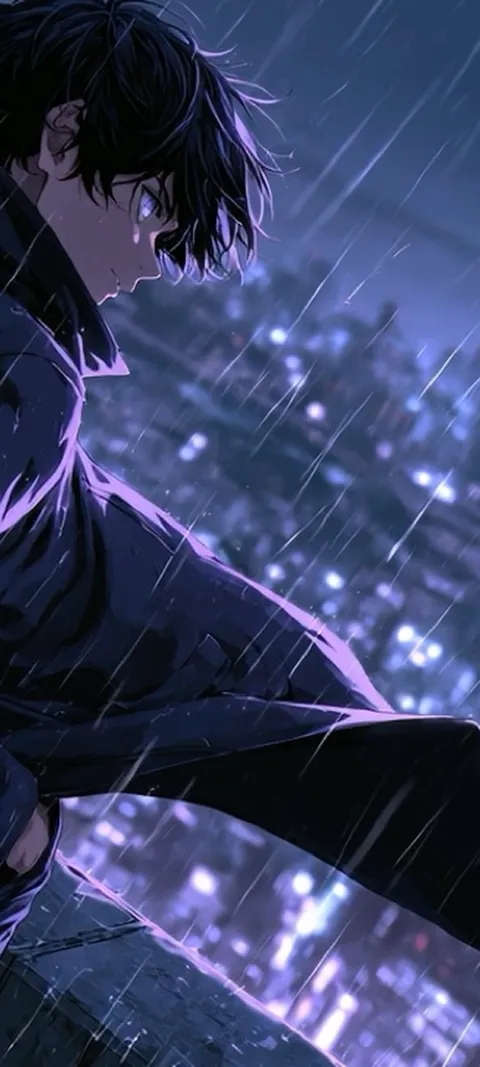 LIVE Rainy City Night
 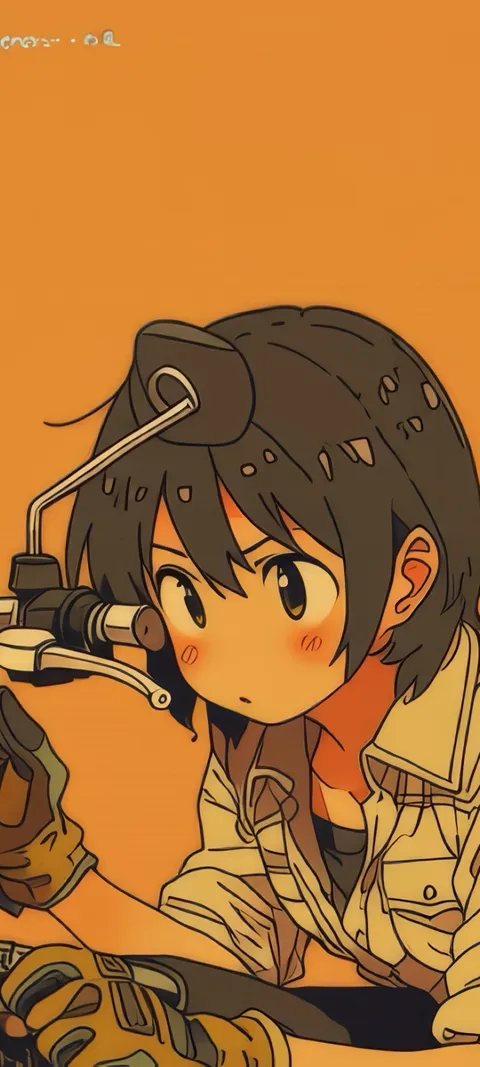 Bike Mechanic
 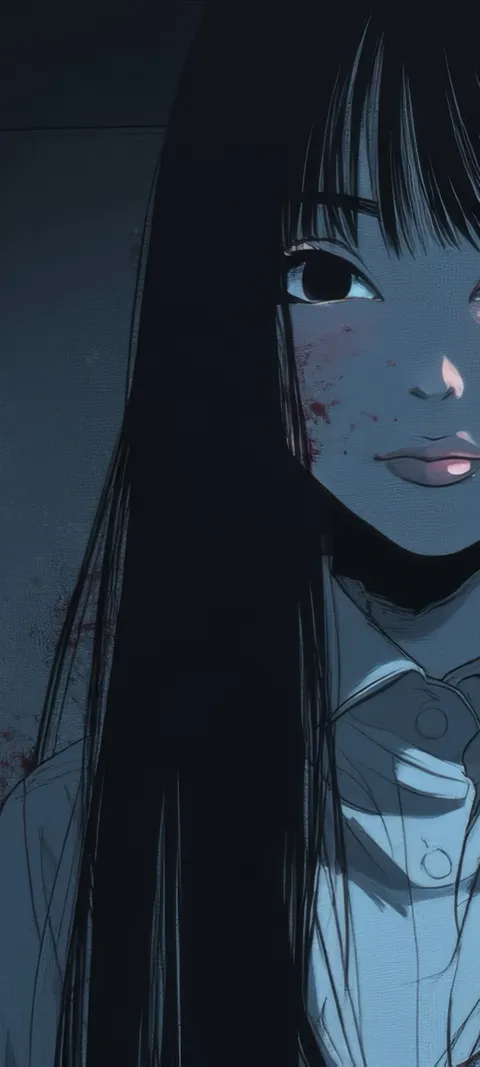 Bloody Beauty
 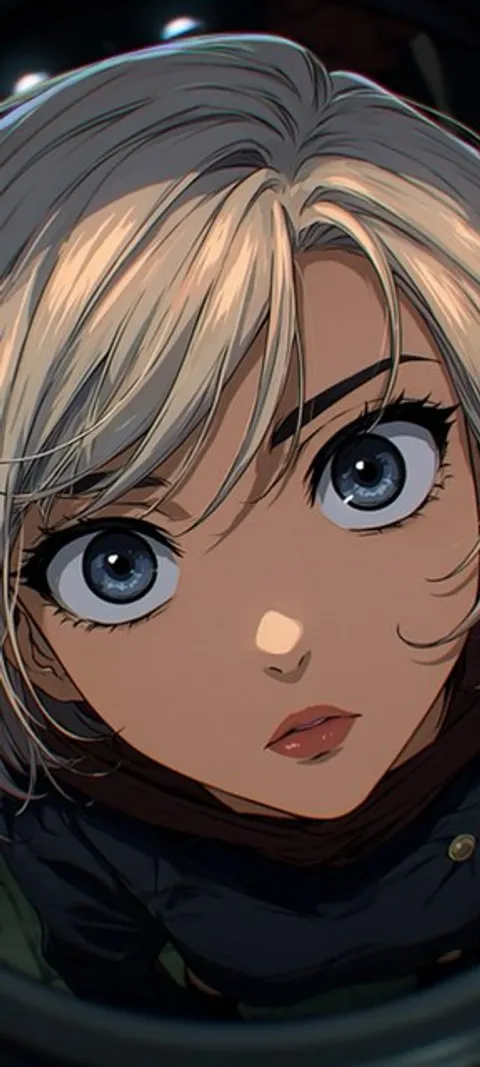 Blue Eyes
 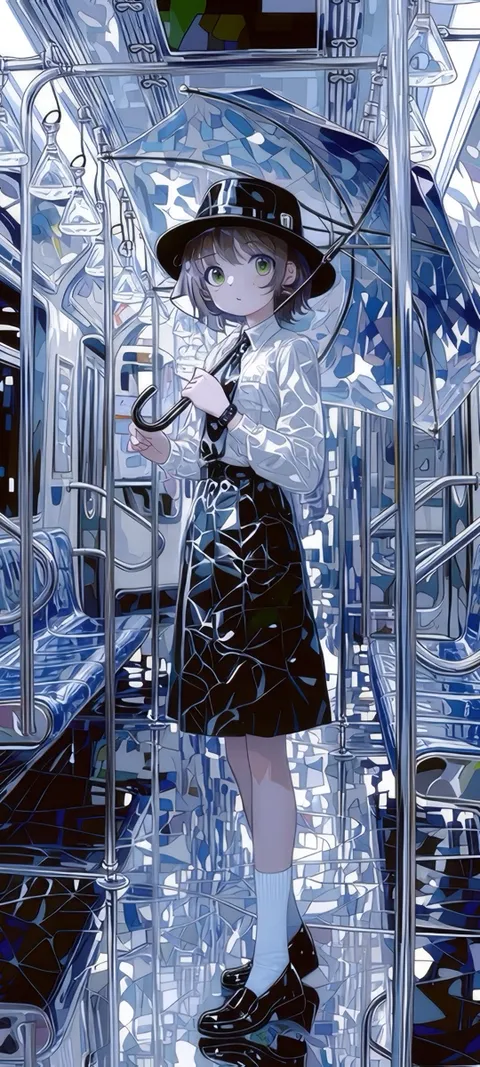 Blue Umbrella
 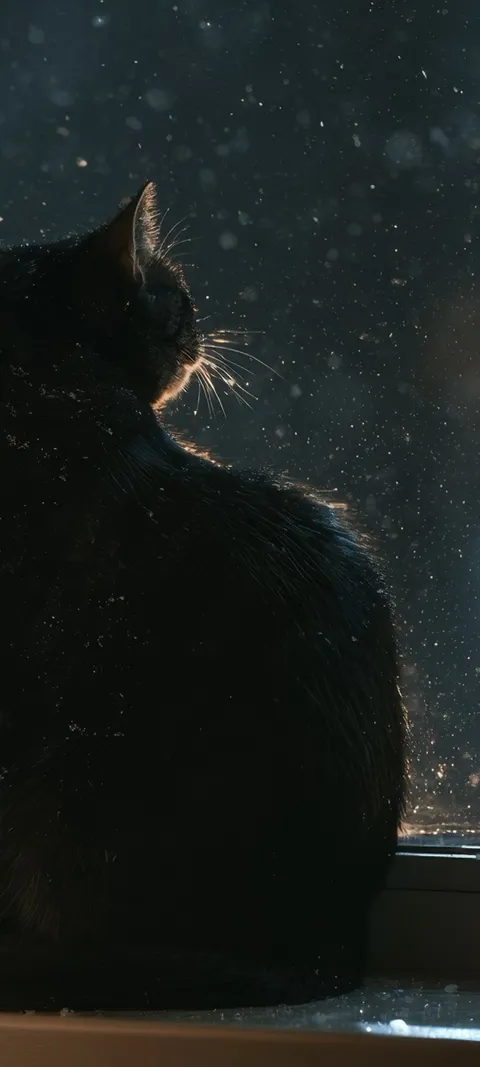 Cat Staring Out
  Cat Watching Snow
 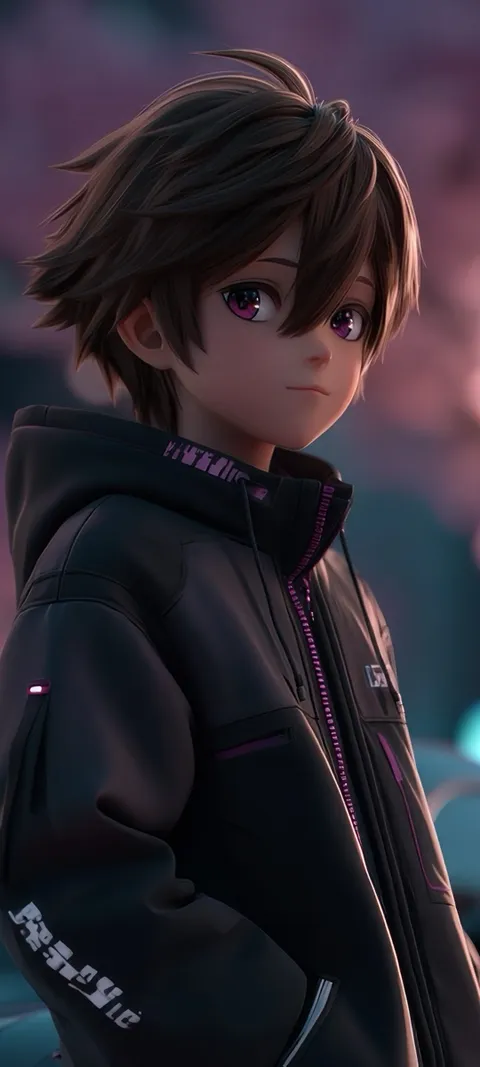 Cherry Blossom Drive
 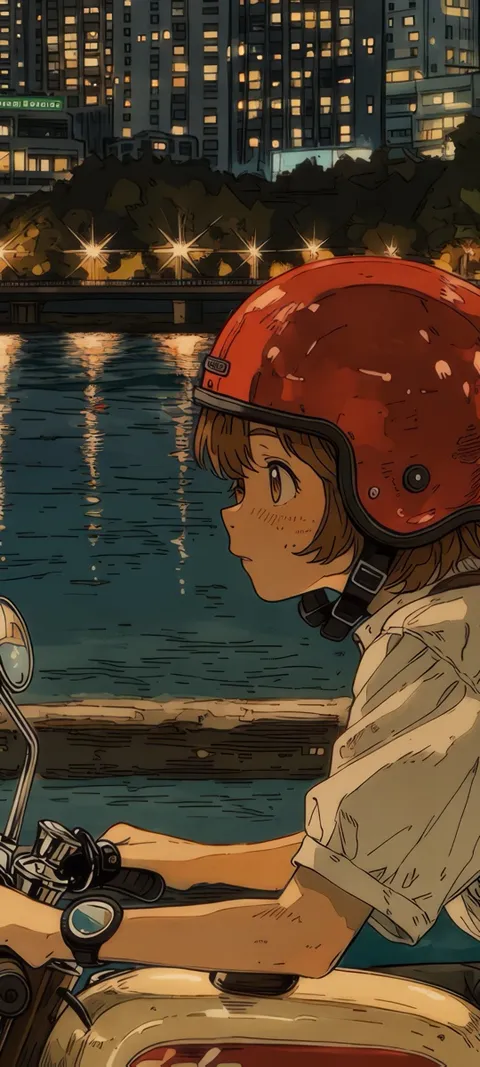 City Ride
 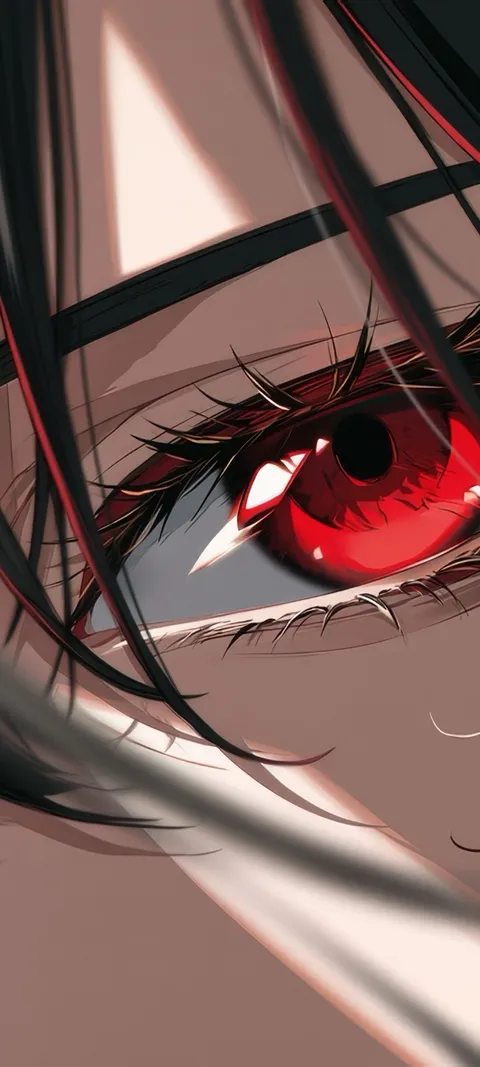 Crimson Gaze
 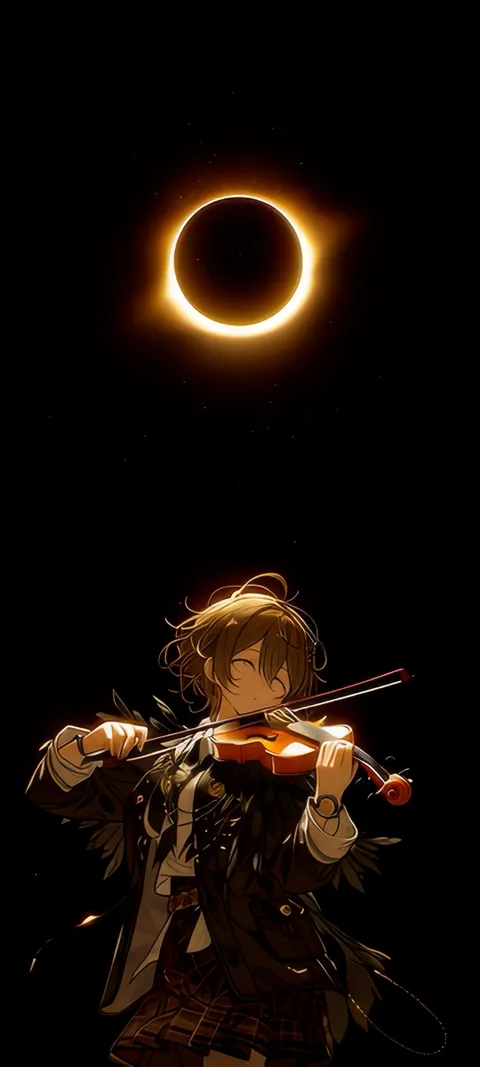 Eclipse Melody
 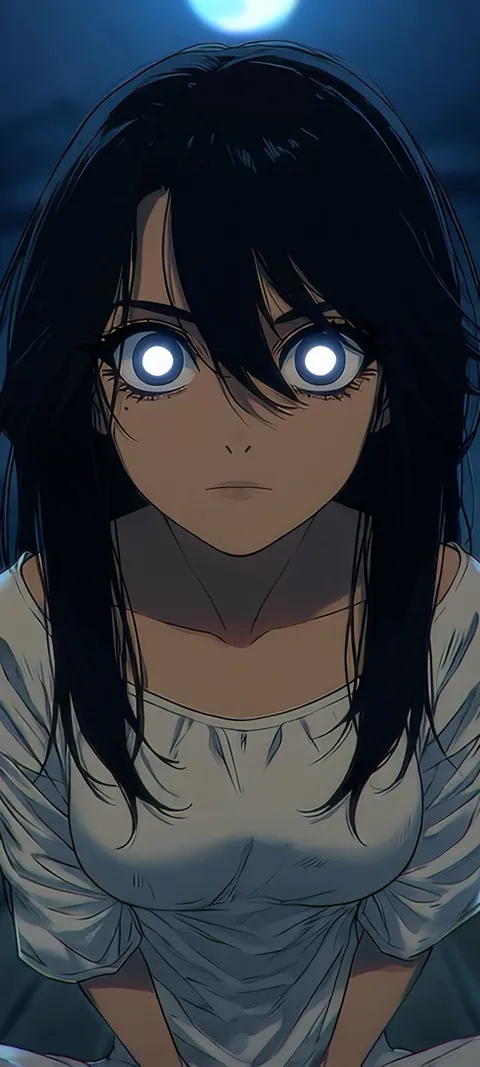 Ember Eyes
 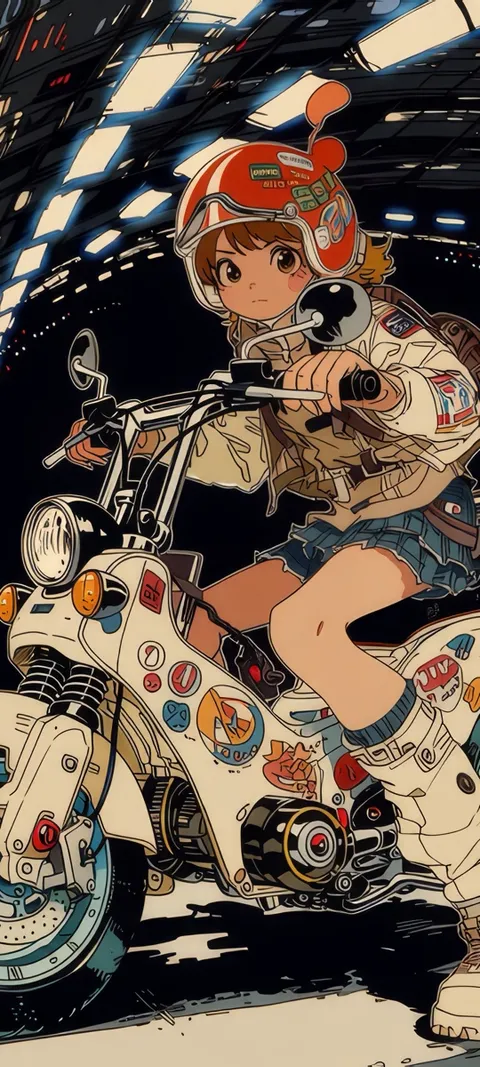 Girl Rider
 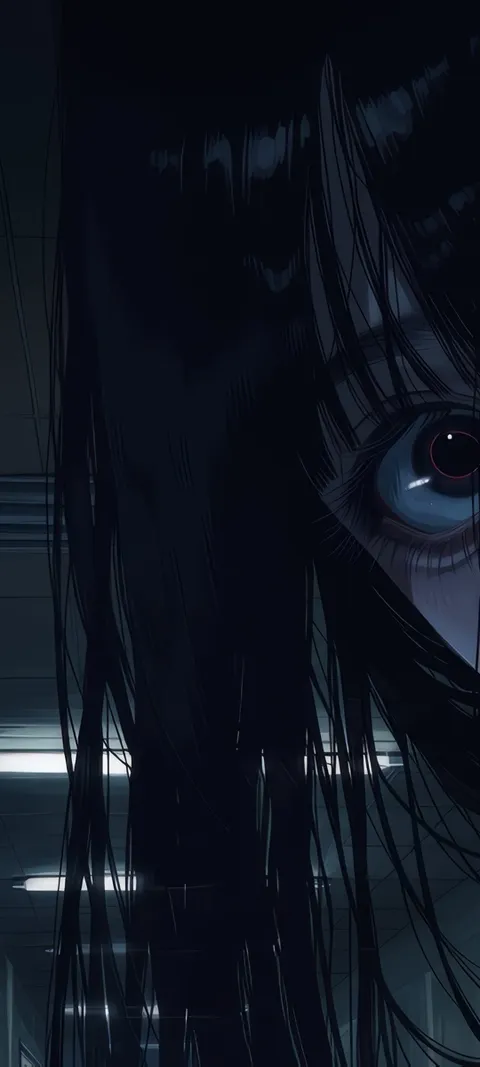 Haunted Look
 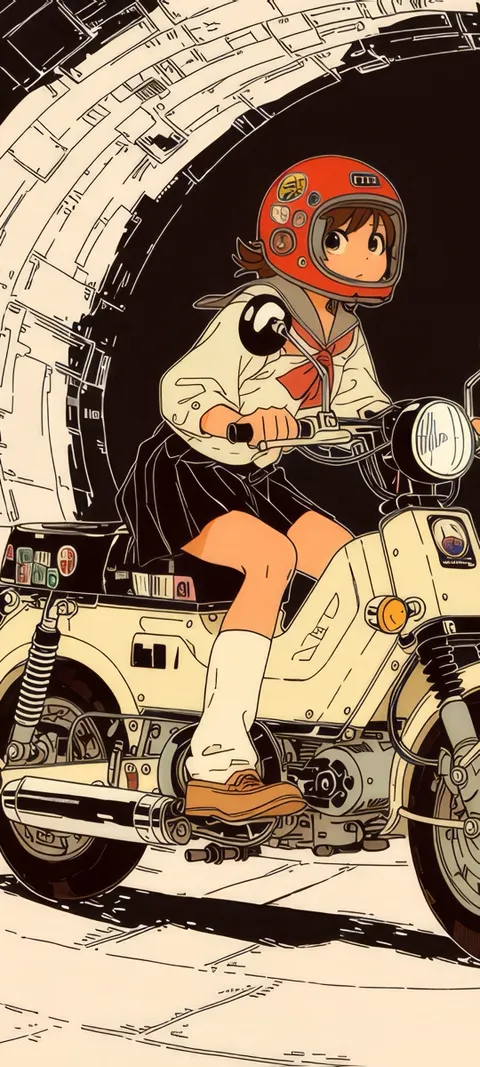 Lunar Ride
 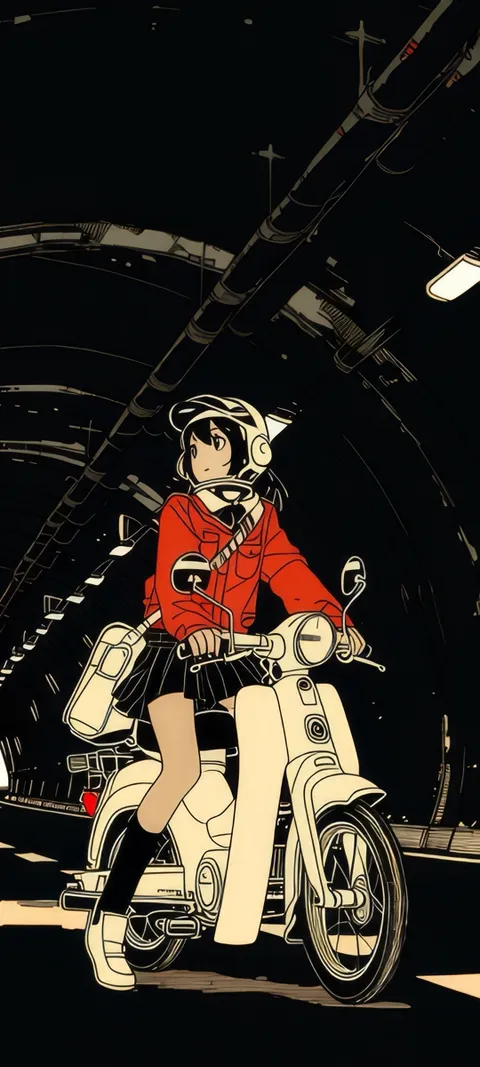 Manga Rider
 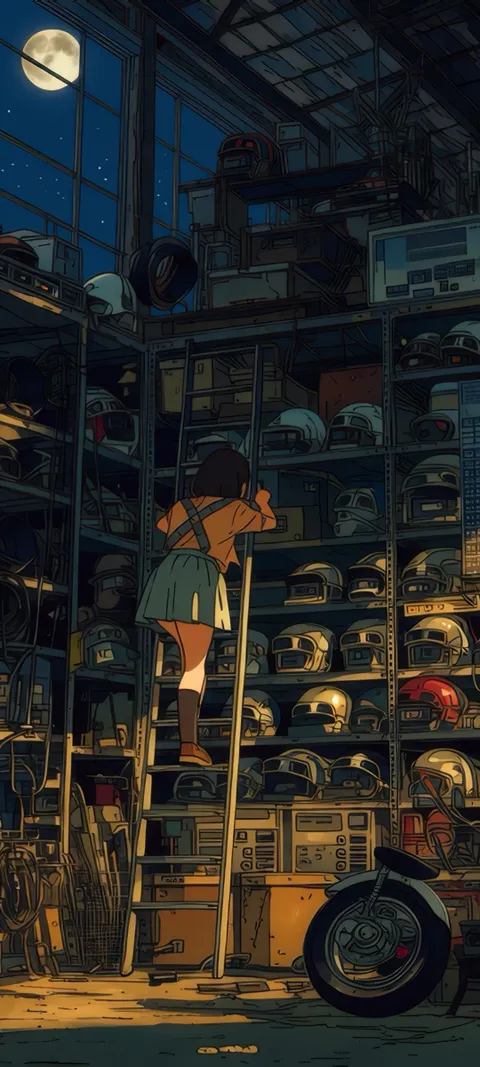 Midnight Garage
 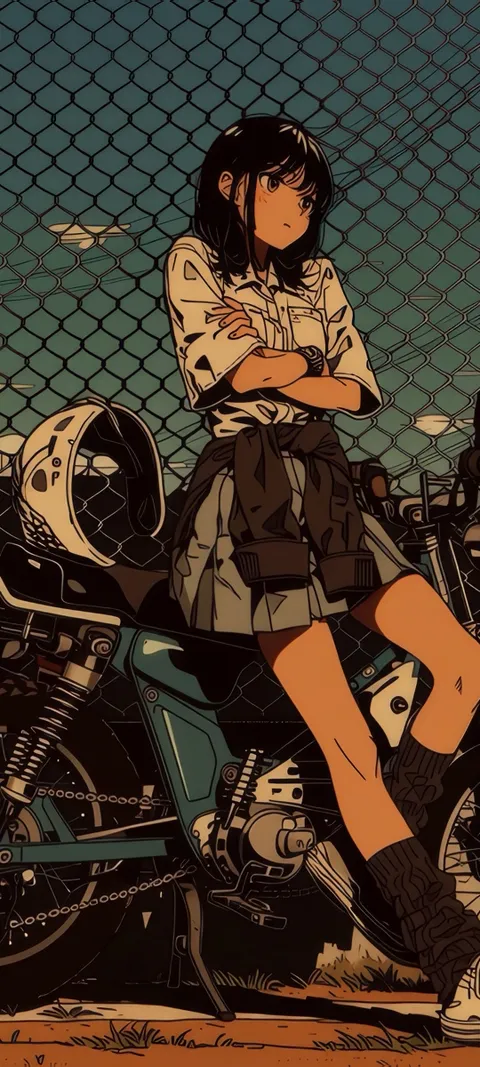 Motorcycle Girl
 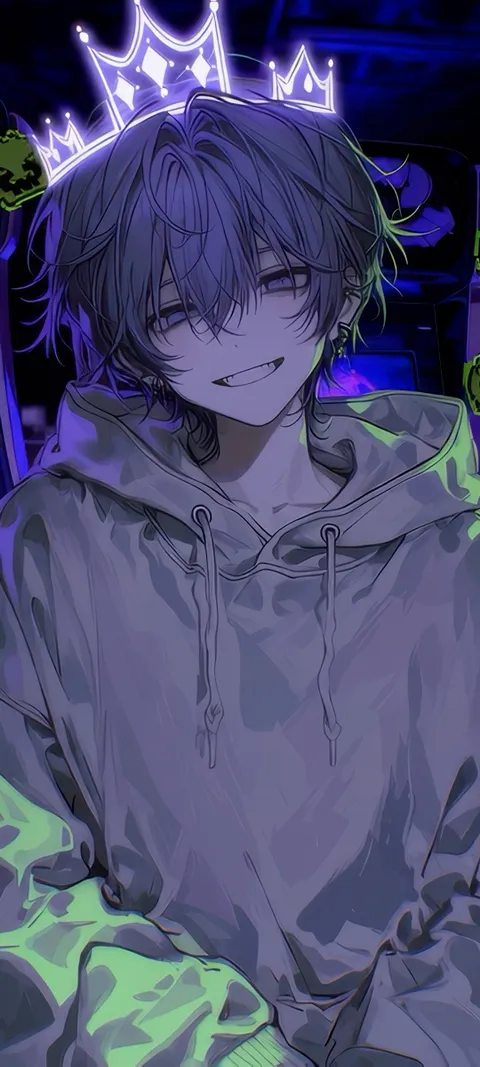 Neon Arcade
 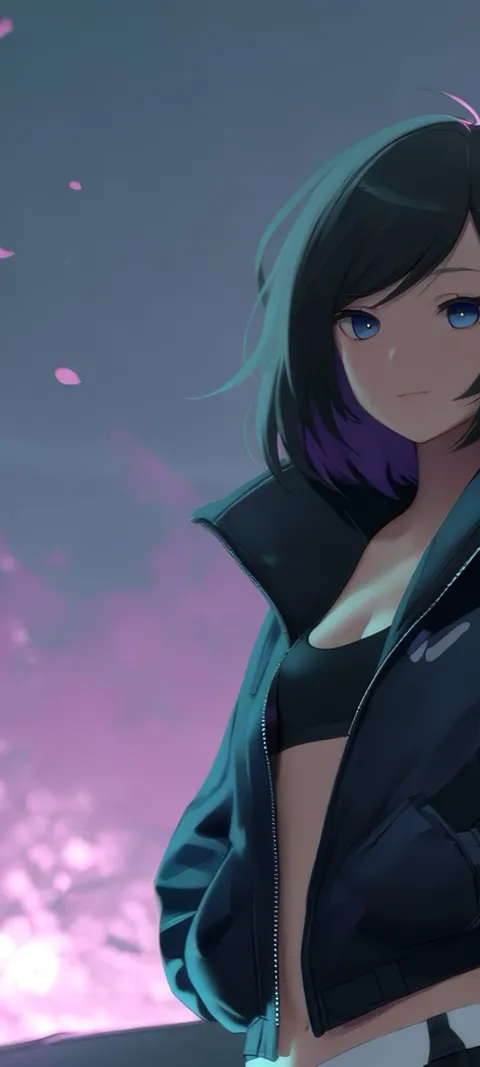 Neon Gaze
 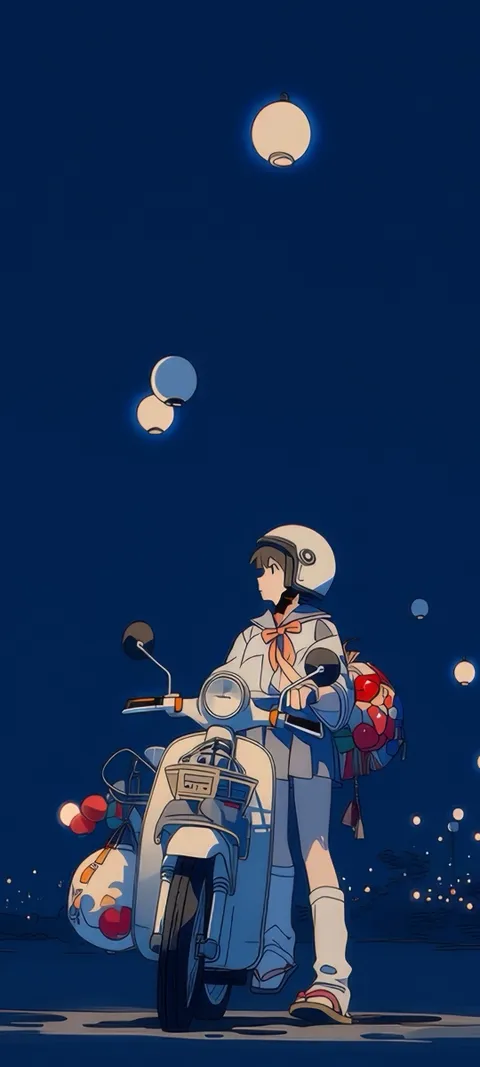 Night Delivery
 79 lock screen wallpapers in the live ScreenLux catalog — 38 of them live; showing 72 here, the rest are in the app.
How to set a Lock Screen wallpaper on iPhone and Android
- Choose a wallpaper with clock room. In ScreenLux, check the Lock Screen mockup and pick one where the subject sits below the time.
- On iPhone, save it. Tap Save so it lands in Photos. ScreenLux+ unlocks the save.
- On iPhone, add it in Settings → Wallpaper. Tap Add New Wallpaper, choose Photos, position the image and tap Add. Choose Customize Home Screen to keep a different Home Screen.
- On Android, tap Apply and choose Lock. ScreenLux sets the Lock Screen directly; choose Both if you want the Home Screen to match.
- Check notifications. Lock the phone and let a notification arrive to confirm the text stays readable over the image.
Frequently asked
How do I set a different wallpaper on the Lock Screen and Home Screen?
On iPhone, add the Lock Screen wallpaper in Settings → Wallpaper → Add New Wallpaper, tap Add, then choose Customize Home Screen instead of Set as Wallpaper Pair; pick a photo, a color or a blur for the Home Screen there. On Android, open a wallpaper in ScreenLux, tap Apply and choose Lock, then apply a second wallpaper with Home. Both platforms keep the two independent afterwards, so you can change one without touching the other.
What makes a good Lock Screen wallpaper?
Room for the clock, a subject that sits below it, and edges that do not fight with notifications. On iPhone the time occupies the top quarter of the screen, so a wallpaper with sky, shadow or a plain area there stays readable, and a single subject in the middle can use Depth Effect. Darker edges help notification cards stand out. That is why this page favors portraits, animals and dark scenes composed at 1080 × 2400 with the clock in mind.
Why does my Lock Screen wallpaper look zoomed in or blurry?
Usually the image is smaller than the screen or the wrong shape, so the phone scales and crops it. A 1080 × 2400 file matches the tall 9:20 frame of current phones and needs no upscaling; a square or landscape image will be zoomed until it fills the height. On iPhone, pinch in the wallpaper editor to reposition, and turn off Perspective Zoom if the edge movement bothers you. On Android, adjust the crop in the preview before you apply.