 SCREEN
How to Change the Wallpaper on iPad (and Set a Live Photo)
To change the wallpaper on an iPad, open Settings, tap Wallpaper, then tap Add New Wallpaper and pick a photo or one of Apple's styles. Position it, tap Add, and choose whether to use it on both the Lock Screen and Home Screen or set the Home Screen separately. On iPadOS 17 and later you can also pick a Live Photo, which plays on the Lock Screen each time you wake the iPad.
How to change the wallpaper on iPad, step by step
These steps are for iPadOS 17 and later, which covers every iPad that gets current updates. Older versions are covered in the first question below.
- Open Settings and tap Wallpaper. Your current Lock Screen and Home Screen appear side by side.
- Tap Add New Wallpaper. The gallery opens with your photo options at the top and Apple's own styles, such as Weather, Astronomy, Emoji and Color, below.
- Choose the picture. Tap Photos and select an image from your library, or tap one of the built-in styles.
- Position it. Pinch to zoom and drag to frame the subject. Rotate the iPad to check that it still works in the other orientation.
- Adjust the extras. Swipe sideways for photo filters, tap the clock to change its font and color, and add widgets if you want them.
- Tap Add. iPadOS asks how to use it.
- Choose Set as Wallpaper Pair or Customize Home Screen. The first uses the same image on both screens. The second lets you pick a different photo, a color, a gradient or a blurred version for the Home Screen.
You can also start from a picture: open it in Photos, tap Share, then Use as Wallpaper. You land in the same editor at step 4. To switch back to an older wallpaper later, press and hold the Lock Screen and swipe between the ones you have saved.
Where to change each part of the iPad wallpaper
iPadOS splits wallpaper settings across a few places. This is where each one lives.
| What you want | Where to do it | Good to know |
|---|---|---|
| A new wallpaper for both screens | Settings → Wallpaper → Add New Wallpaper | Choose Set as Wallpaper Pair at the end |
| Only the Home Screen | Settings → Wallpaper, tap the Home Screen preview | Pick a photo, color, gradient or a blurred copy |
| Only the Lock Screen | Press and hold the Lock Screen → Customize | Tap the Lock Screen side to edit it alone |
| A photo you are looking at | Photos → Share → Use as Wallpaper | Fastest route for a single picture |
| A Live Photo that moves | Add New Wallpaper → Photos → pick the Live Photo | Plays on the Lock Screen when you wake the iPad |
| A rotating set of photos | Add New Wallpaper → Photo Shuffle | Changes on tap, on lock, hourly or daily |
The Lock Screen route is often quicker than Settings. Press and hold the Lock Screen until it zooms out, then tap Customize to edit the current one, or tap the plus button to start a new one. Saved Lock Screens stay in that list, which makes it easy to keep a few and change between them.
How do I change the background picture on my iPad?
Open Settings, tap Wallpaper, then tap Add New Wallpaper. Choose Photos to use your own picture, or pick one of the built-in styles. Pinch and drag to position the image, tap Add, then choose Set as Wallpaper Pair to use it on both the Lock Screen and Home Screen. On iPadOS 16 and earlier the path is Settings, Wallpaper, Choose a New Wallpaper, followed by Set Lock Screen, Set Home Screen or Set Both.
How do I change just the Home Screen wallpaper on my iPad?
Open Settings and tap Wallpaper. You will see your current Lock Screen and Home Screen side by side. Tap the Home Screen preview, then choose Photos for a different picture, Color or Gradient for a plain background, or keep the Lock Screen image and turn on Blur. Tap Done. The Lock Screen stays exactly as it was, so you can keep a detailed picture there and a calmer one behind your apps.
A blurred or plain Home Screen is worth trying on an iPad. The Home Screen holds more icons and wider widgets than a phone, and in landscape the dock and app rows cover most of the picture. A busy image gets chopped up behind them. Detailed art earns its place on the Lock Screen, where only the clock sits on top.
How do you set a different wallpaper on the iPad Lock Screen and Home Screen?
Add the wallpaper you want for the Lock Screen first: Settings, Wallpaper, Add New Wallpaper, pick the image, then tap Add. When iPadOS asks, choose Customize Home Screen instead of Set as Wallpaper Pair. Tap Photos, choose the second picture, position it and tap Done. Each Lock Screen you create keeps its own Home Screen, so switching Lock Screens later brings the matching Home Screen along with it.
The logic is the same as on a phone, and the Lock Screen and Home Screen wallpaper guide walks through pairing ideas that carry over to iPad. For a Lock Screen image that holds up next to the clock and widgets, the Lock Screen wallpapers page collects designs with a clear subject and quiet space at the top.
Can you set a Live Photo as your iPad wallpaper?
Yes, on iPadOS 17 and later. Go to Settings, Wallpaper, Add New Wallpaper, tap Photos and select a Live Photo. Make sure the Live Photo button in the editor is on, then tap Add. The motion plays on the Lock Screen when you wake the iPad. The Home Screen shows a still frame and never animates. If it does not move, check that the Live Photo button is on; not every Live Photo can play as a wallpaper.
Apple added Live Photo Lock Screens to iPad with iPadOS 17, the same release that brought the customizable Lock Screen over from the phone. Older iPads that stop at iPadOS 16 can still use a Live Photo as a still image, but it will not move. The iPhone version of this process is covered step by step in how to set a live wallpaper on iPhone; the screens and buttons are close to identical.
Why does my iPad wallpaper look zoomed in or cut off?
An iPad wallpaper has to fill the screen in both portrait and landscape, so iPadOS crops a different part of the image each time you rotate. A tall phone photo loses its top and bottom in landscape, and a wide photo loses its sides in portrait. Perspective Zoom also enlarges the image slightly so it can shift as you tilt. Use a picture with the subject near the center, and turn off Perspective Zoom from the wallpaper editor on versions that offer it.
Resolution matters too. A small or heavily cropped photo is stretched to cover a 13-inch display, and that shows as softness. Files made for a phone are the most common culprit: a 1080 × 2400 phone wallpaper is too narrow for an iPad in landscape. Look for images at least 2048 pixels on the short side, composed for a near-square frame.
How do I customize my iPad Home Screen beyond the wallpaper?
Press and hold an empty part of the Home Screen until the icons jiggle. From there you can drag apps and widgets anywhere on the grid, tap Edit to add widgets, and on recent versions choose an icon style such as Dark, Clear or Tinted. Tinted icons can pick up a color from your wallpaper. Remove apps you rarely open from the Home Screen; they stay in the App Library, one swipe past your last page.
Where to find wallpapers sized for iPad
Most wallpaper sites serve phone files, which is why so many iPad backgrounds end up soft or awkwardly cropped. Your own photos are a good source if they are landscape shots with the subject in the middle. For artwork composed for the larger screen, ScreenLux keeps a separate iPad catalog: stills up to 2208 × 2688, and Live Photos at 2160 × 3840, a full 4K frame, so motion stays sharp on a 13-inch display. The app switches to it automatically when it runs on an iPad.
A few from the iPad wallpapers set, all of which are also Live Photos. Arctic Fox Cub and Barn Owl Gaze keep their subjects near the center, which helps when the iPad rotates. More moving options are on the live wallpapers page.

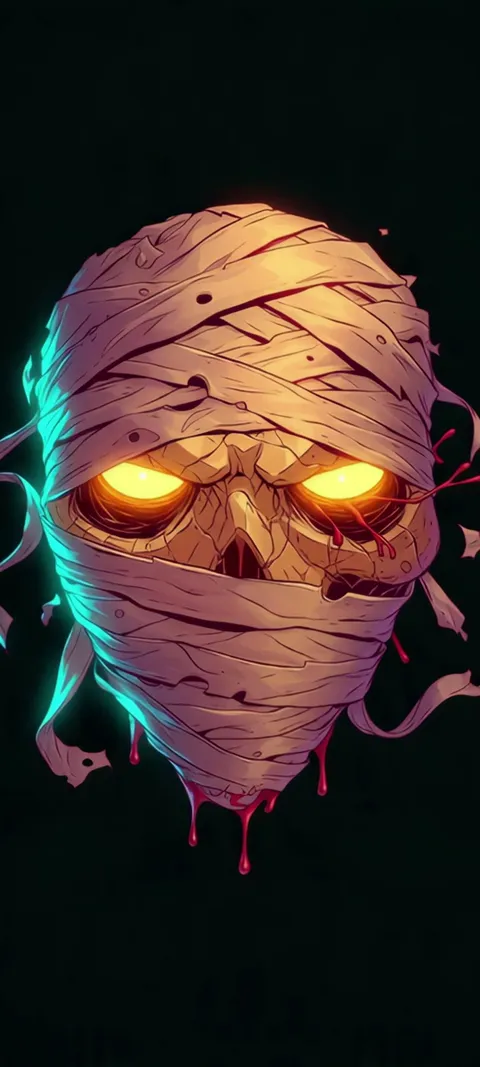
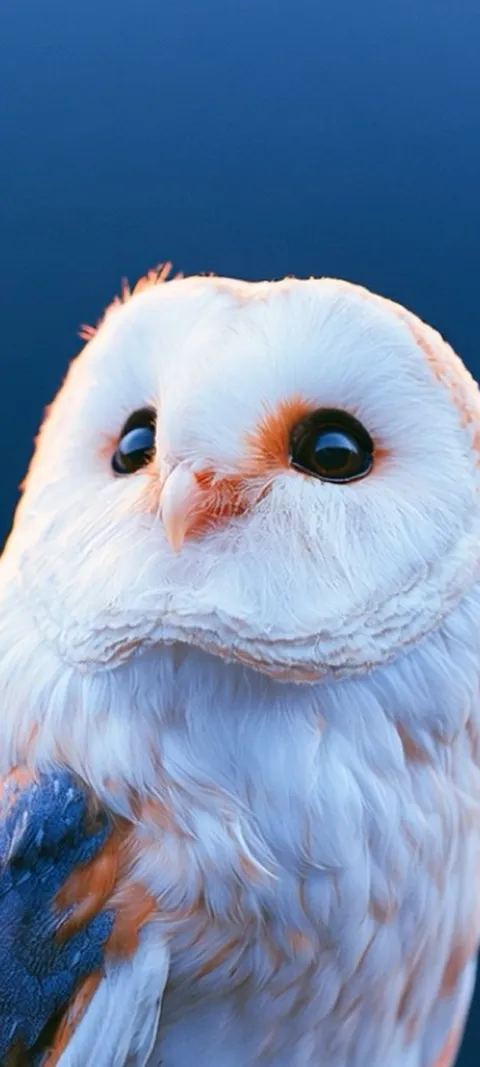

Browsing and previewing in ScreenLux is free. ScreenLux+ unlocks the downloads: $19.99 once for lifetime, $14.99 a year with a 7-day free trial, or $1.99 a week with a 3-day free trial. One purchase covers an iPhone and an iPad on the same Apple ID. Once a wallpaper is saved to Photos, set it with the steps above.
Wallpapers made for the phone
470+ original live and still wallpapers composed at 1080 × 2400 for phones, with a separate large-screen set for iPad. The app is free to download and every wallpaper previews free; ScreenLux+ unlocks downloads.
Get ScreenLux FreeFree to download · No account required · iOS 17+ · Android 8+