 SCREEN
 How to Set a Live Wallpaper on iPhone
On iPhone, a live wallpaper is a Live Photo set as the Lock Screen. Save the Live Photo to your library, open it in Photos, tap Share, choose Use as Wallpaper, make sure the Live toggle is on, and tap Add. It plays a short clip each time you wake the phone or press and hold the Lock Screen. The Home Screen stays still, because iOS has never animated it.
How to set a live wallpaper on iPhone, step by step
Live Photo wallpapers have worked the same way since Apple's Lock Screen redesign, so these steps hold on recent iOS versions, including iOS 26 and iOS 27.
- Get a Live Photo into your library. Shoot one with Camera, or save one from an app. ScreenLux saves its live wallpapers to Photos as Live Photos at 1080 × 2400, already framed for the phone.
- Open it in Photos and confirm it is Live. Look for the Live badge in the top corner. A still image or a video will not animate as a wallpaper.
- Tap Share, then Use as Wallpaper. You can also press and hold the Lock Screen, tap +, and choose the picture from Photos; the Live Photos album keeps them together.
- Check the Live toggle. In the editor, the Live Photo control sits in a bottom corner. If it is crossed out, tap it to turn motion on. If iOS says motion is not available for this photo, pick another.
- Frame the picture and tap Add. Pinch and drag so the moving subject sits below the clock. Adjust the clock style if you want.
- Choose how the Home Screen behaves. Set as Wallpaper Pair puts a still frame of the same image behind your apps. Customize Home Screen lets you pick a color, gradient or different photo instead.
- Lock the phone and wake it. The clip plays as the Lock Screen appears. Press and hold the Lock Screen to replay it.
Live Photo, still image, video or GIF: what iOS does with each
Most confusion comes from expecting iOS to treat a video like a Live Photo. It does not.
| Format | Lock Screen | Home Screen | How to set it |
|---|---|---|---|
| Live Photo | Plays a short clip when you wake the phone or press and hold the Lock Screen | Still frame only | Photos → Share → Use as Wallpaper, with the Live toggle on |
| Still image | Static. Depth Effect can lift the subject in front of the clock on supported photos | Static, with an optional blur | Any route into the wallpaper editor |
| Video (MP4 or MOV) | Not accepted | Not accepted | Convert to a Live Photo first, then set it like one |
| GIF | Saved as a still; no motion | Still | Convert to a Live Photo first |
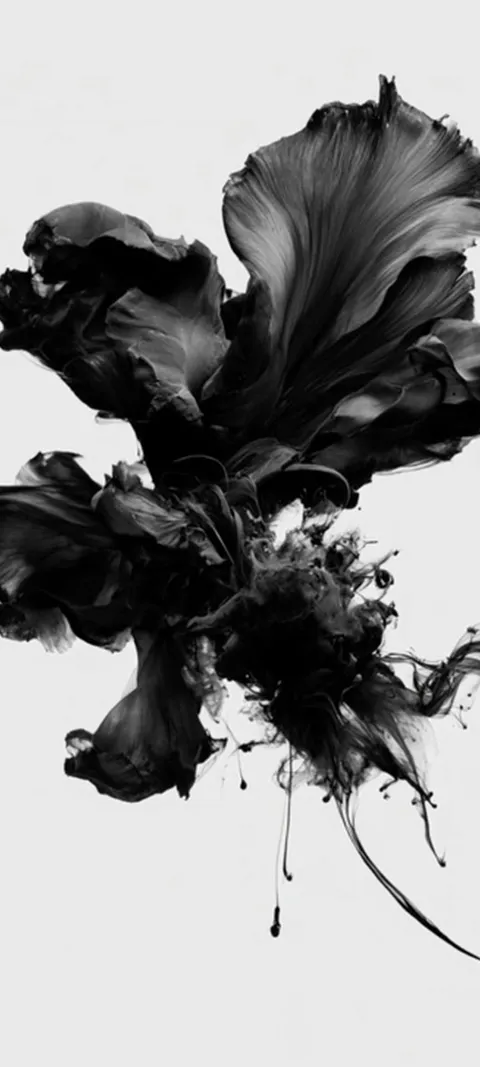
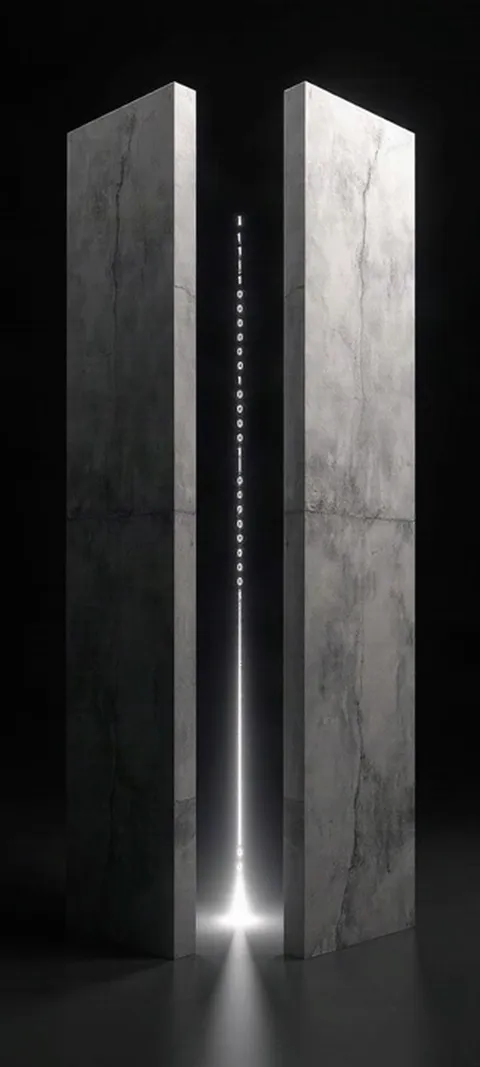
Four of the current live wallpapers for iPhone, each a Live Photo with one clear movement timed to the wake moment.


Does a live wallpaper move on the iPhone Home Screen?
No. iOS animates the Lock Screen only. When you set a Live Photo as a wallpaper pair, the Home Screen gets a still frame from the same image, and it stays still no matter what you do. Apple has never offered continuous Home Screen animation on iPhone, on any iOS version. The motion is a short clip that plays when the phone wakes or when you press and hold the Lock Screen.
That limit shapes what a good iPhone live wallpaper looks like. It needs a moment of motion, not a loop: an owl blinking, a wave curling, a car pulling through a tunnel. ScreenLux composes its live wallpapers for iPhone as Live Photos for exactly that moment, with the subject placed below the clock. Android is a different story, with a real live wallpaper service on the Home Screen; the live hub covers both platforms.
Can you set a video as your wallpaper on iPhone?
Not directly. The wallpaper editor does not accept MP4 or MOV files, and a video in your library will not appear as an option. The workaround is to turn a few seconds of the video into a Live Photo with a converter app, save that to Photos, and set it the normal way. The result plays on the Lock Screen when you wake the phone. Sound is dropped, and only a short segment survives.
Converters vary in quality. Fast motion turns to mush, and the phone sometimes refuses a converted clip with a note that motion is not available. Clips with slow, steady movement convert best. If you would rather skip the conversion, start from an image that is already a Live Photo; everything in the live strip above is delivered that way at 1080 × 2400, so there is nothing to convert.
How do you make a live wallpaper on iPhone from your own footage?
The simplest way is to shoot a Live Photo. Open Camera, make sure the Live icon at the top is on, and take the picture; the phone records a moment before and after the shutter. Open it in Photos, tap Share, choose Use as Wallpaper, and tap Add. For existing video, trim it to a few seconds and run it through a Live Photo converter, then follow the same steps.
Hold the phone still for a second after the shutter, and keep the subject in the lower two thirds of the frame so the clock does not cover it. Vertical footage works; horizontal footage will be cropped hard. If iOS shows the Live toggle crossed out when you set the wallpaper, tap it once to turn motion back on.
Why isn't my live wallpaper moving?
Check five things. You are looking at the Home Screen, which never moves. Low Power Mode is on, which pauses Live Photo wallpapers. Reduce Motion is on in Accessibility settings, which also stops them. The Live toggle was switched off in the wallpaper editor when you set it. Or the photo was edited into a still, trimmed, or refused by iOS with a motion-not-available note. Fix the one that applies and re-set the wallpaper.
The Low Power Mode case catches most people. The wallpaper works in the morning, the battery drops, the phone suggests Low Power Mode, and the Lock Screen goes still for the rest of the day. Charge past the point where Low Power Mode switches itself off and the motion returns on its own.
Do live wallpapers drain the iPhone battery?
Barely. A Live Photo wallpaper plays for roughly a second when you wake the phone and then sits as a still image. It is not looping in the background, and it does not run while the screen is off. The cost is a few frames of video per wake, which is far less than the screen itself uses. iOS also pauses the effect in Low Power Mode, so it cannot make a low battery worse.
Always-On Display shows a dimmed still, not the animation, so there is no ongoing cost there either.
Where do you get live wallpapers that look good on iPhone?
Use Live Photos composed for a tall phone screen, not clips cropped down from widescreen video. ScreenLux has around 90 live wallpapers for iPhone, each an original design delivered as a 1080 × 2400 Live Photo with the motion timed to the wake moment and the subject kept clear of the clock. Previewing on a Lock Screen mockup is free; ScreenLux+ unlocks downloads. New collections land regularly.
Wildlife and water are the safest bets for a moving Lock Screen: Arctic Fox Cub, Barn Owl Gaze and Ocean Wave Barrel each have one clear movement and a calm frame around it. Photos with a clear subject can also use Depth Effect on the Lock Screen; the depth effect picks are the ones that work. The change-wallpaper guide covers the rest of the editor.
Wallpapers made for the phone
470+ original live and still wallpapers composed at 1080 × 2400. Free to download and preview; ScreenLux+ unlocks downloads.
Get ScreenLux FreeFree to download · No account required · iOS 17+ · Android 8+