 SCREEN
How to Make a Live Wallpaper (iPhone and Android)
On iPhone, you make a live wallpaper by shooting a Live Photo or converting a few seconds of video into one, then setting it on the Lock Screen from Photos or Settings. On Android, you set a short video as the wallpaper with the phone maker's own editor or a video wallpaper app, and it loops on the Home Screen. Either way, keep the clip short, shoot it vertical, and put the motion in the lower two thirds of the frame so the clock and icons do not cover it.
How to make a live wallpaper on iPhone
iOS accepts exactly one moving format for wallpapers: the Live Photo. Apple's instructions for setting one apply to iOS 17 and later, so these steps hold on iOS 26 and iOS 27.
- Start with a Live Photo, or make one. The simplest source is the Camera app with the Live control on. For existing video or a GIF, trim it to two or three seconds and run it through a Live Photo converter app from the App Store.
- Check the file in Photos. Look for the Live badge. Without it, the file is a still or a video and will not animate.
- Open the wallpaper editor. Go to Settings, tap Wallpaper, then Add New Wallpaper, then Photos, then Live Photo. Or press and hold the Lock Screen and tap plus.
- Pick the Live Photo and turn motion on. The Live control sits in a bottom corner of the editor; if it is crossed out, tap it. If iOS says motion is not available, trim the clip shorter and convert it again.
- Frame it and tap Add. Pinch and drag so the moving part sits below the clock and date.
- Choose the Home Screen. Set as Wallpaper Pair puts a still frame of the same image behind your apps. Customize Home Screen lets you pick a color or a different photo.
- Lock and wake the phone. The clip plays as the Lock Screen appears. Press and hold the Lock Screen to replay it.
How to make a live wallpaper on Android
Android has a real live wallpaper system: an app can install a wallpaper service that draws on the Home Screen continuously. Stock Android has no built-in tool that turns your own video into one, so the route depends on the phone.
- Trim the video first. Cut it to five to ten seconds in portrait and save the copy to the phone. Files that only exist in the cloud do not show up in wallpaper pickers.
- On a Samsung phone, use the built-in editor. On recent One UI versions, press and hold the Lock screen, open the wallpaper picker, choose Gallery and pick the video. Samsung trims it to its length limit and sets it on the Lock screen when you tap Done.
- On a Pixel, choose the cinematic route or an app. Pixel 6 and later can turn a still photo into a cinematic wallpaper with 3D motion. For an actual video loop, install a video wallpaper app from Google Play.
- For a Home Screen loop on any Android phone, install a video wallpaper app. Pick the trimmed file, tap its apply button, and confirm when Android asks to set the live wallpaper. Mute the audio if the app offers the option.
- Check both screens. The Home Screen loops. Whether the Lock Screen also plays video varies by manufacturer; many phones show a still there.
What each kind of file turns into on iPhone and Android
Most failed attempts come from feeding a phone a format it cannot use.
| You start with | On iPhone | On Android |
|---|---|---|
| Live Photo | Set directly. Plays on the Lock Screen when you wake the phone | Treated as a still. Export the motion as a short video first |
| Video (MP4 or MOV) | Convert a few seconds to a Live Photo, then set it | Set as a Lock Screen video on Samsung, or loop it on the Home Screen with a video wallpaper app |
| GIF | Convert to a Live Photo; iOS saves a GIF as a still | Convert to video, or use a GIF wallpaper app that loops it |
| Still photo | No motion. Depth Effect lifts the subject in front of the clock on supported images | Pixel phones can turn one photo into a cinematic wallpaper with 3D motion |
| Screen recording | Trim to a few seconds, convert to a Live Photo, then set it | Trim and set like any other video |
For a sense of what a finished one looks like, these are four of the live wallpapers in ScreenLux, each delivered as a Live Photo on iPhone and a looping video on Android.
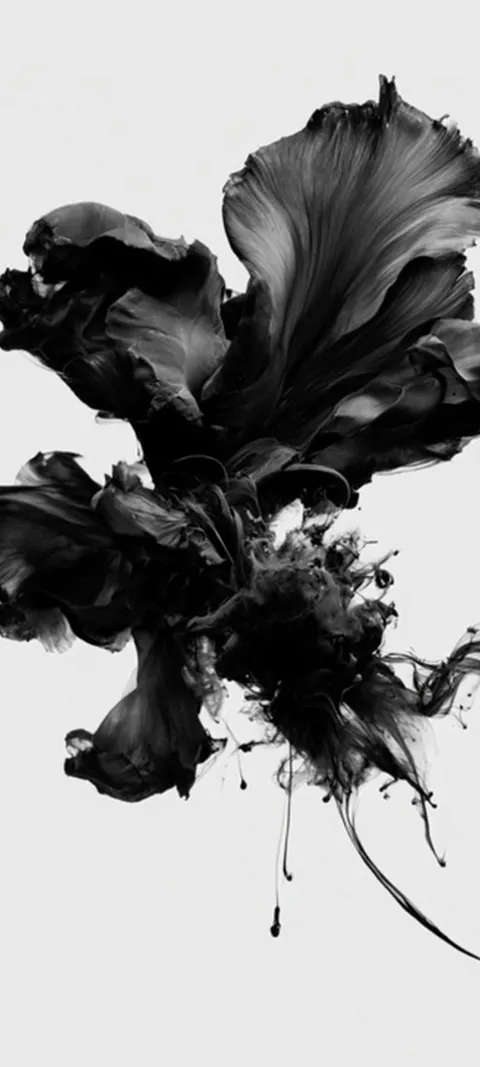
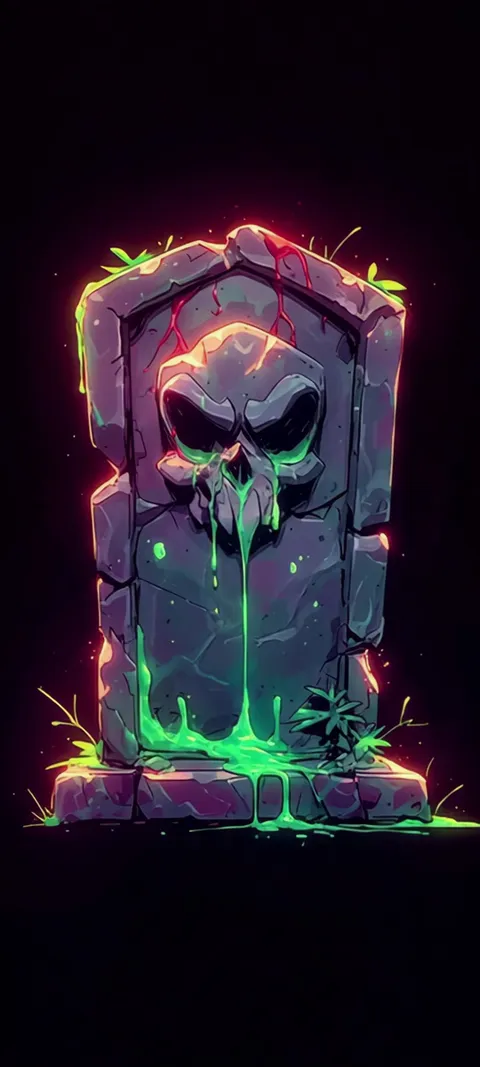
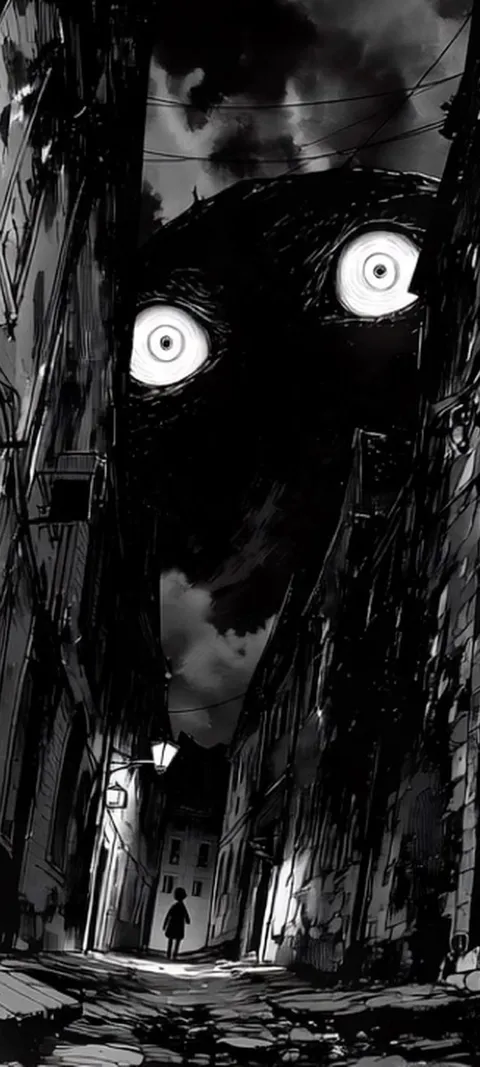
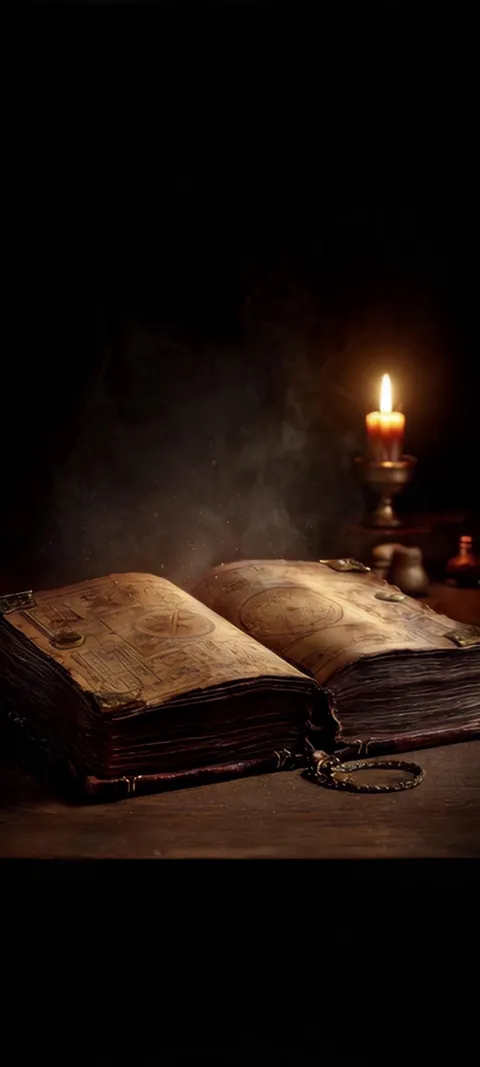
Can I make my iPhone wallpaper live?
Yes, as long as the picture is a Live Photo. iOS does not add motion to a still photo and does not accept video files in the wallpaper editor, so the file itself has to carry the motion. Shoot a Live Photo with the Camera app, or turn a short video or GIF into one with a converter, then set it on the Lock Screen. It plays briefly when you wake the phone. The Home Screen stays still.
Depth Effect and the Spatial Scene option on iOS 26 and later are visual tricks on a still, not motion. The live wallpaper setup guide covers the Live toggle and why a Live Photo sometimes refuses to play.
How can I convert a video to a live wallpaper?
On iPhone, trim the video to a few seconds, run it through a Live Photo converter app from the App Store, save the result to Photos and set it as a Lock Screen wallpaper. On Android, you often do not need to convert at all. Samsung phones accept a video in the Lock Screen wallpaper editor and trim it for you. For the Home Screen on any Android phone, a video wallpaper app installs a live wallpaper service that loops the file.
Every converter does the same thing: it pairs a still frame with a short clip and tags the pair as a Live Photo, so quality depends on the clip, not the app. Steady, slow motion converts cleanly; fast pans and handheld shake smear at wallpaper size, and horizontal footage loses most of its width to the crop.
Can I use a GIF as a live wallpaper?
Not directly on iPhone. iOS treats a GIF saved to Photos as a still image, so it will not animate on the Lock Screen. Convert it to a Live Photo with the same tools used for video, then set it. On Android, either convert the GIF to a short video or install a GIF wallpaper app that loops it on the Home Screen. Either way, expect visible banding, because GIFs are limited to 256 colors.
That color limit is why a GIF looks worse than the same clip as video: gradients, skies and soft shadows break into stepped bands. If you can find the original video, use it.
How long should a live wallpaper be?
One to three seconds on iPhone, and five to ten seconds on Android. An iPhone Live Photo wallpaper only plays for about a second and a half when you wake the phone, so anything longer is cut off. An Android live wallpaper loops continuously on the Home Screen, so it needs to be long enough that the repeat is not distracting but short enough to stay small. Samsung caps Lock Screen videos and trims long clips for you.
For a loop, pick a clip whose last frame cuts back to its first without a jump: waves, rain, candle flames, drifting fog or snow. For an iPhone Live Photo, put the one movement you want at the very start of the clip.
Why does my homemade live wallpaper look worse than a downloaded one?
Usually four things: resolution, aspect ratio, framing and bitrate. Phone screens are tall, around 9:20, and a 1080 × 2400 file fills one without stretching. A clip shot at 16:9 and cropped loses most of its pixels. Social media exports are compressed hard, so motion smears. And a wallpaper made as a video rather than as a wallpaper leaves the subject under the clock or behind the app grid, where you cannot see it.
Shoot in portrait at the camera's highest quality setting, keep the phone still, and leave the top third of the frame plain for the clock. The live wallpapers in ScreenLux are composed that way from the start, at 1080 × 2400 with one movement timed to the wake. The live wallpapers for iPhone page shows the Live Photo versions and the live wallpapers for Android page shows the looping video versions.
Is a live wallpaper maker app worth it?
Only if you plan to make several. A converter is worth a couple of dollars if you have your own footage you want on the Lock Screen. If what you actually want is a good-looking moving wallpaper, making one from scratch is the slow route, because the hard part is the footage, not the conversion. A wallpaper app with original live designs skips the shooting, trimming and converting.
ScreenLux takes that second route. Every wallpaper is premium: previewing on a Lock Screen or Home Screen mockup is free, and ScreenLux+ unlocks downloads for $19.99 once, $14.99 a year with a 7-day trial, or $1.99 a week with a 3-day trial. On iPhone the live wallpapers save to Photos as Live Photos; on Android the app installs its own live wallpaper service, so nothing needs converting. Free users see a small banner ad, which ScreenLux+ removes. No account is needed. If you would rather keep making your own, the Android wallpaper guide covers each manufacturer's editor.
Wallpapers made for the phone
470+ original live and still wallpapers composed at 1080 × 2400, with nothing to trim or convert. The app is free to download and every wallpaper previews free; ScreenLux+ unlocks downloads.
Get ScreenLux FreeFree to download · No account required · iOS 17+ · Android 8+