 SCREEN
The Best iOS 26 Wallpapers: Depth Effect and Live Photo Picks
The best iOS 26 wallpapers have one clear subject in the lower two thirds of the frame and open space above it. That is what lets the adaptive clock stretch, Depth Effect tuck the time behind the subject, and Spatial Scene find layers to move. Portraits, animals and close-ups do this best; for motion, pick a Live Photo, which plays on the Lock Screen when the phone wakes.
What the iOS 26 Lock Screen asks of a wallpaper
iOS 26 brought the Liquid Glass design, a clock that resizes to fit the photo, and Spatial Scene, which adds 3D depth to an ordinary picture on supported iPhones. Each of those reads the image and reacts to it. So the question is less which picture is prettiest and more which picture gives each feature something to use.
| iOS 26 feature | What the picture needs | What breaks it | Examples |
|---|---|---|---|
| Adaptive clock | Open, even space in the top third so the clock can grow into it | Busy detail or bright highlights behind the time | Koi Pond, Lighthouse Night Beacon |
| Depth Effect | One subject with a clean edge, its top reaching just into the clock area | Subjects that cover most of the clock, or soft edges iOS cannot cut out | Barn Owl Gaze, Majestic Bald Eagle |
| Spatial Scene | A near subject in front of a clearly distant background | Flat graphics, gradients and patterns with no foreground | Dragon Over Ruins, Mandrill Primate Portrait |
| Live Photo | One short movement, with the subject below the clock | Fast action across the whole frame | Arctic Fox Cub, Golden Ocean Wave |
| Liquid Glass widgets and icons | Dark or mid tones and low contrast where the glass sits | Hard light-to-dark edges under the widget row | Abyss Purple, Blue Blocks |
Picks by type
These are real wallpapers from the ScreenLux catalog, grouped by what they do well on iOS 26. I make ScreenLux, so treat this as a maker's shortlist; Apple's built-in wallpapers are free and worth trying first.
- Animal portraits for Depth Effect. Barn Owl Gaze, Majestic Bald Eagle, Golden Eagle Gaze and Mandrill Primate Portrait each put a single head and shoulders against a dark, plain background. The outline is clean, which is what the cut-out needs.
- Stills for the big clock. Koi Pond sets a single fish low in a black frame and leaves the whole top for the time. Shark Gaze is a full-frame close-up with even texture across the top, so the clock stays readable on it.
- Live Photos for the wake moment. Arctic Fox Cub, Black Panther Gaze and Sleeping Felt Fox are live, with one subject and a calm frame around it. Golden Ocean Wave and Mountain Aurora Reflection are the scenic options.
- Illustrated characters. Neon Scooter is a live anime-style design; Reflected Anime Crowd is a darker still. Both keep the figure low in the frame.
- Quiet abstracts for the Home Screen. Abyss Purple and Blue Blocks have little fine detail, which keeps icons and glass widgets readable.
The first four from the iOS 26 wallpapers page are below. The Depth Effect wallpapers page has the full set of subject-led picks.
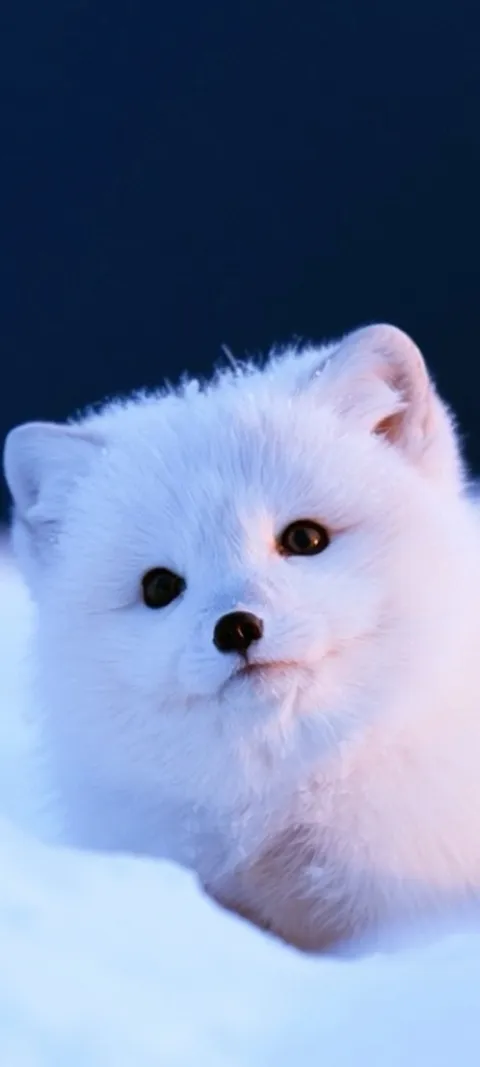
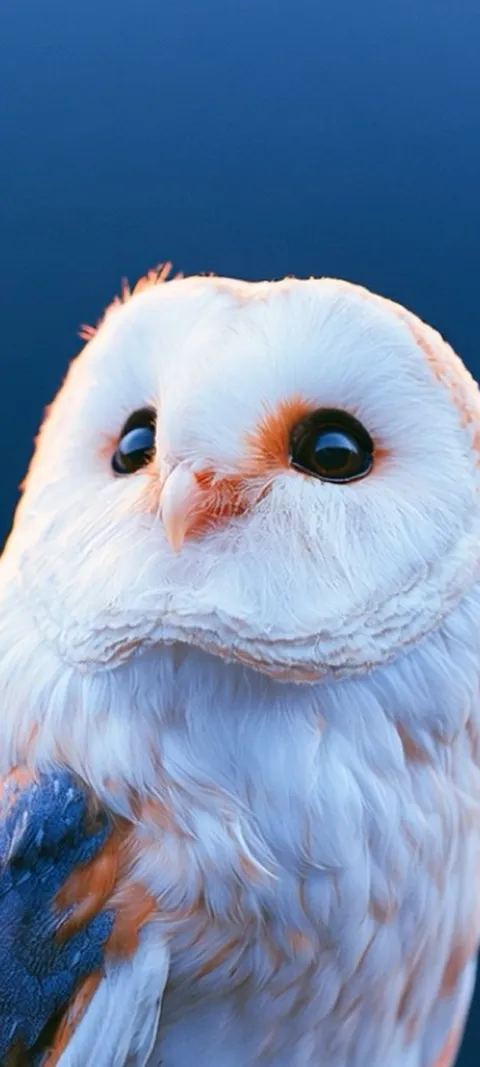
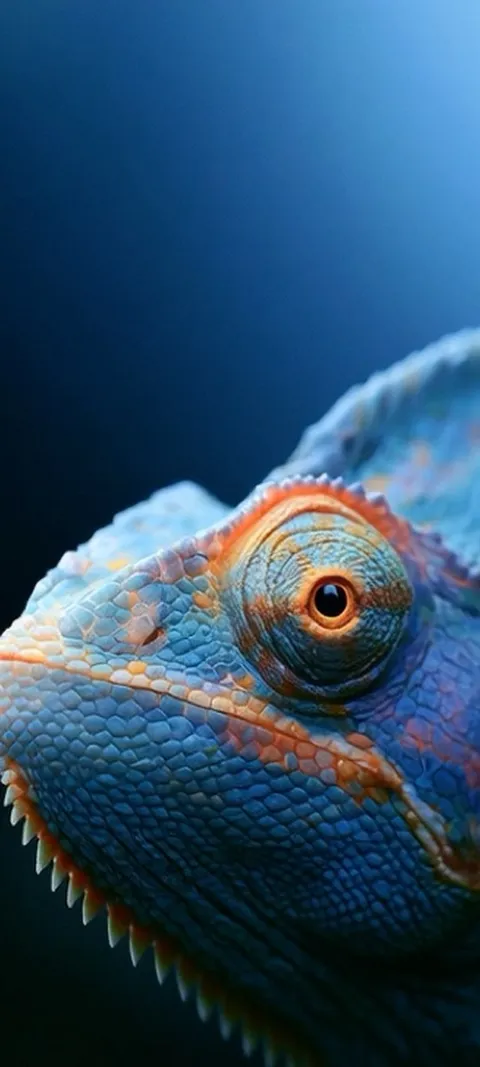
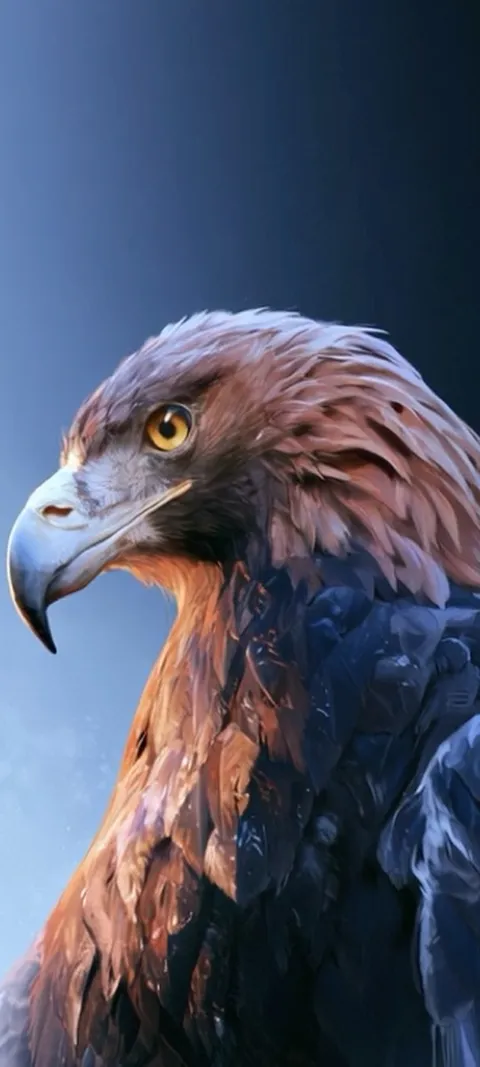
Every wallpaper in the app is premium. Browsing and previewing on a Lock Screen mockup is free, and ScreenLux+ unlocks downloads: $19.99 once, $14.99 a year with a 7-day free trial, or $1.99 a week with a 3-day free trial, when the store offers the trial. Free users see a small banner ad; ScreenLux+ removes it.
How to set one up so the features switch on
- Save the picture to Photos. A Live Photo must arrive as a Live Photo; a screenshot of one is a still.
- Open the editor. Press and hold the Lock Screen and tap the plus button, or open the picture in Photos, tap Share and choose Use as Wallpaper.
- Frame it with two fingers. Pinch and drag until the top of the subject just meets the bottom of the clock. Too much overlap and iOS drops Depth Effect.
- Check the controls at the bottom. This is where the Live Photo and spatial options appear when the picture supports them. If one is missing, the picture did not qualify on this iPhone.
- Leave the widget row empty at first. Widgets under the clock can stop the subject from overlapping the time. Add them back once you see how the picture sits.
- Tap Add, then choose the Home Screen. Use the pair, or customize the Home Screen with a blur, a color or a different picture.
Which wallpapers look best on the iOS 26 Lock Screen?
Subject-led pictures with room at the top. The iOS 26 clock stretches into empty space and can sit behind the subject, so a portrait, an animal or a close-up with a plain upper third gives the system the most to work with. Dark and mid-tone images keep the glass clock readable. Landscapes work when the sky is calm. Busy collages, text-heavy images and wide photos cropped to fit are the ones that fight the clock.
Depth Effect and Spatial Scene depend on the device and the image, and iOS decides in the editor whether a picture qualifies, so no wallpaper can guarantee either one. The iOS 26 wallpapers page collects 121 designs chosen on that basis.
How do you find iOS 26 wallpapers?
Apple’s own iOS 26 wallpapers are already on the phone. Press and hold the Lock Screen, tap the plus button, and the wallpaper gallery opens with Apple’s sets alongside your Photos, Photo Shuffle, Weather and Astronomy options. You can reach the same gallery from Settings, under Wallpaper, with Add New Wallpaper. Anything from outside Apple’s gallery, such as your own photo or a wallpaper saved from an app, is set from Photos with Share and Use as Wallpaper.
Apple’s stock wallpapers are free and built for the clock, so try them first. The reason to look further is variety: the gallery is small, and everyone with the same iPhone has it. The change-wallpaper guide walks through the editor itself.
Can you get moving wallpapers on iOS 26?
Yes, as Live Photos on the Lock Screen. Set a Live Photo as the wallpaper with the Live control switched on, and its short clip plays each time the phone wakes. That is the only video-style motion iOS 26 offers. The Home Screen shows a still. Spatial Scene adds a separate kind of movement, a 3D shift as you tilt the phone, on supported iPhones. Low Power Mode and Reduce Motion both pause the Live Photo clip.
The motion is brief, so the best moving wallpapers are built around one gesture rather than a busy loop. ScreenLux delivers its live wallpapers for iPhone as Live Photos at 1080 × 2400 with the moving subject kept below the clock; Arctic Fox Cub, Blue Chameleon Close-up and Golden Eagle Gaze are three that also have the clear subject Depth Effect wants. More detail is in Does iOS 26 Support Live Wallpapers?
What kind of wallpaper works with Spatial Scene on iOS 26?
A photo with obvious layers. Spatial Scene builds a depth map from a flat picture and moves the layers against each other as you tilt the phone, so it needs a near subject and a background that is clearly further away. A creature in front of a blurred forest works. So does a figure against a distant skyline. Flat art, gradients, patterns and text give it nothing to separate, and iOS may not offer the effect for them at all.
Availability depends on the iPhone and on the image, and the same picture can pass on one phone and be declined on another. The only reliable check is the editor: if the spatial control appears when you add the wallpaper, the photo qualifies.
Which wallpapers keep Liquid Glass widgets and icons readable?
Calm ones. Liquid Glass elements are translucent and pick up whatever sits behind them, so a wallpaper with hard edges or bright patches under the widget row makes the glass look noisy and the text harder to read. Dark and mid-tone images with gentle gradients work best. On the Home Screen, where icons cover most of the picture, a simple abstract or a blurred version of the Lock Screen image usually beats a detailed photo.
This is why a pair often works better than one picture on both screens: a subject-led image on the Lock Screen, and something quiet behind the icons. Abyss Purple and Blue Blocks are the kind of low-detail designs that sit well under glass.
Wallpapers made for the phone
470+ original live and still wallpapers composed at 1080 × 2400, with the subject framed for the iOS 26 clock. The app is free to download and every wallpaper previews free; ScreenLux+ unlocks downloads.
Get ScreenLux FreeFree to download · No account required · iOS 17+ · Android 8+