 SCREEN
 Does iOS 26 Support Live Wallpapers? What Actually Moves on an iPhone
Yes. iOS 26 supports live wallpapers in one specific form: a Live Photo set as the Lock Screen wallpaper, which plays its short clip when you wake the phone or tap the screen. The Home Screen does not animate continuously, and there is no way to loop a video behind your icons. Depth Effect and the new Spatial Scene add a sense of motion without a video. Here is exactly what moves, when, and why the older Live wallpapers are gone.
What moves on an iOS 26 Lock Screen, and when
"Live wallpaper" covers several different things on an iPhone, and most of the confusion comes from expecting one of them to behave like another. This is the full list.
| Feature | What moves | When |
|---|---|---|
| Live Photo wallpaper | The photo’s short clip plays once, about a second and a half | When you wake, raise or tap the Lock Screen |
| Depth Effect | Nothing; the subject is cut out and layered in front of the clock | Whenever the Lock Screen shows and iOS detects a subject |
| Spatial Scene (iOS 26) | The photo gains 3D depth and its layers shift as you tilt the phone | As you move the phone, on supported iPhones |
| Liquid Glass clock (iOS 26) | The clock resizes and blends with the photo; it does not animate | Always, as the Lock Screen renders |
| Perspective Zoom | The wallpaper slides slightly against the icons | As you tilt the phone, on Lock and Home Screen |
| Weather and Astronomy wallpapers | Apple’s scenes update with real conditions and time of day | Continuously, as a changing scene rather than a video |
| Home Screen | Nothing; a Live Photo shows its still frame or a blur | Never continuously |
Only the first row is a video in any sense. The rest are still images given depth, weight or a slight shift. Combine them and the Lock Screen feels alive; look for a looping clip and you will not find one.
What a Live Photo wallpaper does, second by second
Raise the phone or tap the screen and the Lock Screen appears on the Live Photo's key frame. The clip, roughly a second and a half of motion captured around that still, plays once and settles back on the key frame. Unlock, and the Home Screen shows the same frame or a blurred version of it, with no motion. Lock again and the sequence repeats. That has been the model since the iOS 16 Lock Screen redesign: motion is tied to waking the phone, not to a running loop, which is also why it costs almost no battery.
Loops built to play on wake
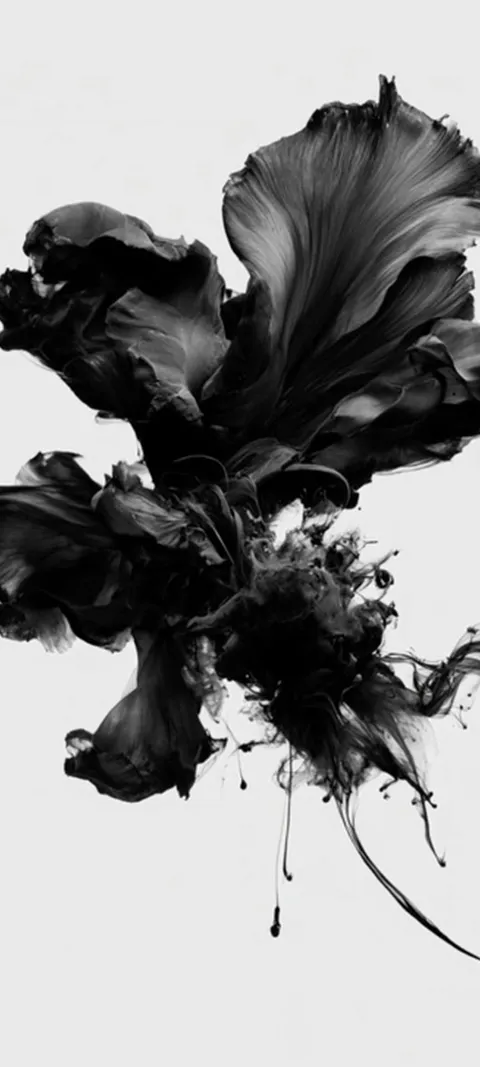
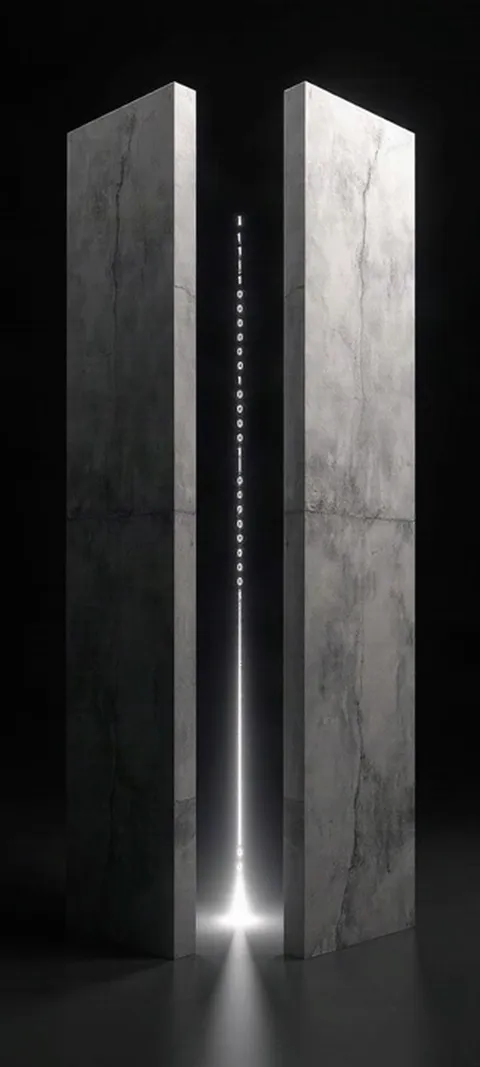
Four of the live wallpapers ScreenLux delivers as Live Photos for iPhone. Each is 1080 × 2400, with the motion placed clear of the clock band. Motion previews are free in the app.


How do you get live wallpapers on an iPhone with iOS 26?
Save a Live Photo to Photos, then set it as a Lock Screen wallpaper. Two routes: in Photos, open the Live Photo, tap Share and choose Use as Wallpaper; or long-press the Lock Screen, tap the plus button, pick Photos and choose a Live Photo. Confirm the Live Photo icon is active in the editor, adjust the crop, tap Add, and decide whether the Home Screen gets the same image or a blur. The clip plays each time you wake the phone.
Your own Live Photos work, provided they were shot with Live on. So do designed loops: the 91 live wallpapers in ScreenLux are delivered as Live Photos at 1080 × 2400, composed so the moving part sits clear of the clock. Blazing Tunnel Ride, Golden Ocean Wave and Cosmic Energy Vortex are three on the live wallpapers for iPhone page. Saving the file is never the same as installing it; you finish in Settings → Wallpaper or from Photos with Use as Wallpaper.
Why did Apple get rid of the old Live wallpapers?
Apple retired its bundled Live and Dynamic wallpaper sets when it rebuilt the Lock Screen in iOS 16, replacing them with a customizable Lock Screen built around your own Live Photos, Depth Effect, and its Weather and Astronomy scenes. The old set relied on a press-and-hold gesture that dated back to 3D Touch, which Apple had already dropped from the hardware. The mechanism did not go away; it moved from Apple's gallery to your photo library, and it now plays on wake rather than on press.
If you liked the old ink-in-water set, the closest match today is a designed Live Photo loop with a similar palette, set on the Lock Screen. The iOS 26 wallpapers page collects the ones composed around the adaptive clock, and every motion preview is free in the app before you decide.
What do Liquid Glass and Spatial Scene change on iOS 26?
Liquid Glass is the translucent design language iOS 26 introduced across the system; on the Lock Screen it gives the clock a glass-like weight and lets it adapt to the photo, resizing into open space and sitting behind the subject when Depth Effect is on. Spatial Scene is new: iOS builds a depth map from an ordinary photo and shifts the layers as you tilt the phone, giving a 3D parallax on supported iPhones. Neither plays video, and both work alongside a Live Photo's clip.
Spatial Scene availability depends on the device and the image; it can decline photos with no clear foreground and background. Wallpapers with a strong subject in front of a distant scene, like Dragon Over Ruins or Lighthouse Night Beacon, give it the most to work with. Test in the wallpaper editor before you commit, because the same photo can pass on one iPhone and fail on another.
What are the downsides of a live wallpaper on iPhone?
Fewer than people expect. Battery cost is negligible: a Live Photo plays for about a second and a half when you wake the phone and then holds still, so it is nothing like a looping video. Storage is the real one; a Live Photo is several megabytes against a fraction of that for a still. Some photos refuse Depth Effect or Spatial Scene because iOS cannot find a subject. And the Home Screen never animates, so a loop you love plays only on the Lock Screen.
Two settings change the behaviour. Reduce Motion, under Accessibility → Motion, stops the clip playing and disables Perspective Zoom if you find them distracting. In Low Power Mode the clip does not play either, which is worth knowing before you assume the wallpaper is broken. Neither setting removes the Live Photo; it comes back when you switch them off.
Can the iPhone Home Screen have a live wallpaper?
No. iOS shows a still on the Home Screen, either the Live Photo's key frame or a blurred version of it, and no app can draw an animation behind the icons; there is no equivalent of Android's live wallpaper service. Perspective Zoom gives a slight parallax when you tilt, and that is the limit. If continuous motion behind icons is the goal, that is an Android feature. On iPhone, the wake animation on the Lock Screen is the live wallpaper.
The practical set-up is a Live Photo on the Lock Screen and the paired still, or a Depth Effect wallpaper, on the Home Screen. All ScreenLux wallpapers are premium; browsing and previewing the motion is free, and ScreenLux+ unlocks downloads for $19.99 once or $14.99 a year with a 7-day free trial when the store offers one. ScreenLux needs iOS 17 or later, and no account.
Wallpapers made for the phone
470+ original live and still wallpapers composed at 1080 × 2400. The app is free to download and every wallpaper previews free; ScreenLux+ unlocks downloads.
Get ScreenLux FreeFree to download · No account required · iOS 17+ · Android 8+