 SCREEN
Depth Effect Not Working on Your iPhone Wallpaper? Here's Why
Depth Effect stops working for one of six reasons, and the first two cover most cases: a widget is sitting under the clock, or the subject of the photo does not reach the clock. Remove the widgets, drag the image so the subject just overlaps the bottom of the time, and check the toggle in the three-dot menu.
Symptom, cause and fix
Depth Effect cuts the subject out of your Lock Screen wallpaper and draws it in front of the clock. It has been part of iOS since iOS 16, is still there on iOS 26 and iOS 27, and fails in a few predictable ways.
| What you see | Likely cause | Fix |
|---|---|---|
| Depth Effect is greyed out in the three-dot menu | A widget sits in the row under the clock | Remove the widgets and the toggle comes back |
| The toggle is on, but the clock still covers the subject | The subject does not reach the clock, or iOS cannot separate it from the background | Drag the image until the subject overlaps the bottom of the clock, or pick a clearer subject |
| The subject is there and then the effect drops out | The subject hides too much of the clock, so iOS turns the effect off | Move the subject down until only a sliver of the clock is hidden |
| It worked yesterday and is gone today | A widget was added, a Focus switched the Lock Screen, or an update reset the editor | Check the widget row and the three-dot menu, then tap Done |
| Only the Home Screen shows no layering | Depth Effect only exists on the Lock Screen | Nothing to fix; there is no clock on the Home Screen to layer |
| The menu never offers Depth Effect at all | The iPhone predates the feature, or the image is tiny or heavily compressed | Update iOS and use a 1080 × 2400 file, not a chat thumbnail |
Set a Depth Effect wallpaper so it works the first time
- Pick a photo with one clear subject. A face, an animal or a single flower against a softer background. Busy scenes rarely pass.
- Open the Lock Screen editor. Long-press the Lock Screen and tap the plus button, or tap Customize to edit the current one. Settings → Wallpaper reaches the same place.
- Choose Photos and select the image. Use the full-size file, not a copy saved from a message thread.
- Position the subject against the clock. Drag with two fingers and pinch to resize until the subject overlaps the bottom of the time by a little. Overlap too much and iOS turns the effect off.
- Leave the widget row empty. Any widget under the clock disables Depth Effect.
- Check the three-dot menu. Make sure Depth Effect is checked. On iOS 26 and later, Spatial Scene sits in the same menu; pick one.
- Tap Add, then choose the Home Screen. Set as Wallpaper Pair uses the same photo on both screens; Customize Home Screen lets you blur it. Depth Effect appears on the Lock Screen only.
- Lock the phone and wake it. If the clock is not behind the subject, go back to the table above.
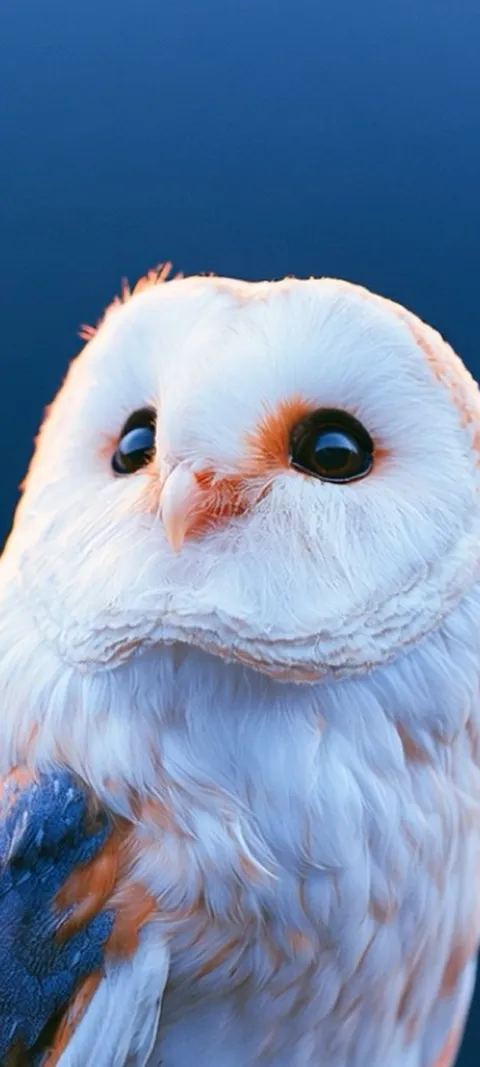
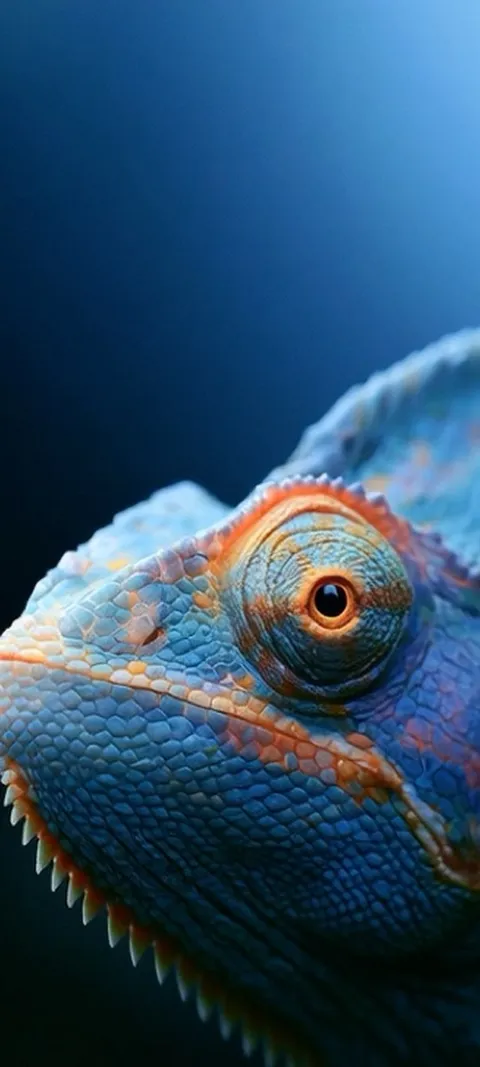
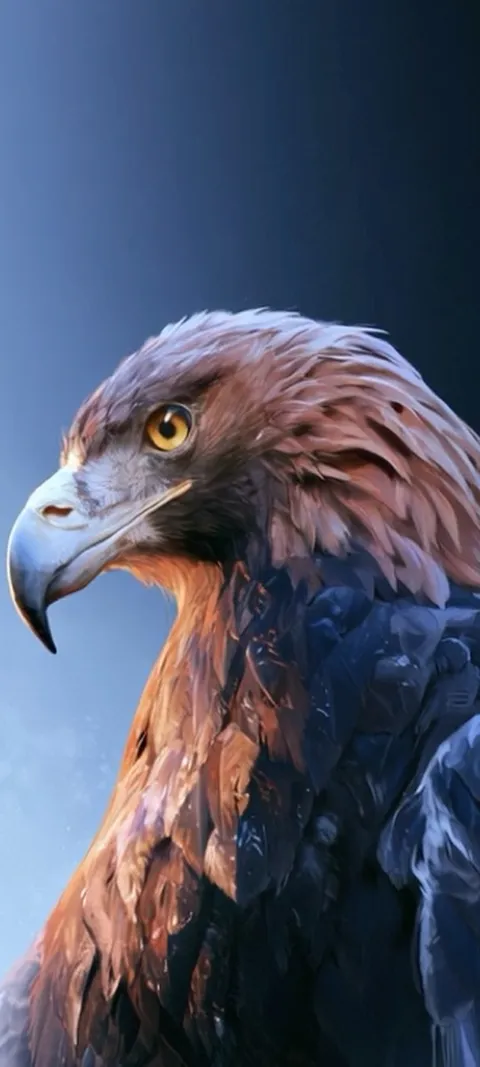
Four wallpapers composed so the subject meets the clock:

Why isn't the depth effect working on my iPhone wallpaper?
Almost always one of three things. A widget is in the row under the clock, and iOS disables Depth Effect the moment one is added. The photo has no subject iOS can isolate, or the subject does not reach the clock. Or the subject covers too much of the clock, so iOS drops the effect to keep the time readable. Open the Lock Screen editor, remove the widgets, reposition the image, and check the toggle in the three-dot menu.
The widget conflict catches the most people because the editor does not say why the toggle went grey. The crop is next: a photo zoomed in to fill the screen often pushes the subject past the clock. The widgets guide covers keeping a widget row readable if the widgets matter more to you.
How do you make the time go behind the wallpaper on iPhone?
Set a photo with one clear subject as the Lock Screen wallpaper and leave the widget row empty. Long-press the Lock Screen, tap the plus button, choose Photos, pick the image, and move it with two fingers until the subject just overlaps the bottom of the clock. Tap the three-dot button in the corner and confirm Depth Effect is checked. Tap Add. The clock then renders behind the subject on the Lock Screen only.
The effect is a layering trick. iOS cuts the subject out, draws the clock, then draws the cutout on top, which is why the subject has to touch the clock. Portraits of people and animals work best because the outline is unambiguous. Arctic Fox Cub, Barn Owl Gaze and Golden Eagle Gaze on the depth effect wallpapers page are composed with the head exactly where the clock falls.
Why did Depth Effect stop working after an iOS update?
Updates sometimes rebuild the Lock Screen and lose the toggle, and major releases change what the editor offers. On iOS 26 the three-dot menu lists Depth Effect and Spatial Scene side by side, and a Lock Screen that was fine on iOS 18 can come back with the wrong one selected or neither. Open the editor, reselect Depth Effect, and tap Done. If the toggle is missing, restart the phone and install the latest point release, which has fixed this before.
Spatial Scene is a different effect: iOS builds depth from the photo and shifts the layers as you tilt the phone, and it depends on the device and the image. Choose Depth Effect for the clock tucked behind the subject, Spatial Scene for the tilt parallax. The iOS 26 explainer compares the two; the iOS 26 wallpapers page collects images that pass both.
Does the iPhone need a depth sensor for Depth Effect?
No. Depth Effect uses the same on-device subject detection that lets you lift a person or a pet out of any photo in the Photos app. It reads the pixels, not a depth map, so it works on screenshots, downloaded images and photos from other phones, and it does not require Portrait mode or the LiDAR scanner. What it needs is a subject with a clean outline against a distinct background, and enough resolution for the outline to be found.
The feature arrived with iOS 16 and runs on every iPhone that can install iOS 17, so on a current phone the image is usually the problem. A photo saved from a chat is often a compressed thumbnail, and a dark cat on a dark sofa gives the detector nothing to hold. A 1080 × 2400 file with a lit subject and a softer background passes where the thumbnail failed.
Does a depth effect wallpaper drain the battery?
No measurable amount. The subject cutout is computed once, when you save the wallpaper in the editor, and stored. After that the Lock Screen draws two flat layers instead of one, which costs nothing you could notice. Unlike a Live Photo, there is no clip playing on wake, and the Always-On Display shows a dimmed still either way. If your battery is draining, Depth Effect is not where to look.
How do you get a depth effect wallpaper that works every time?
Start from an image composed for it: one subject, a distinct background, the head or peak placed in the lower two thirds of a tall 9:20 frame so it meets the clock without hiding it. Save it at 1080 × 2400 rather than a screenshot of someone else’s Lock Screen. ScreenLux previews every wallpaper on a Lock Screen mockup for free, so you can see whether the subject lands under the clock before you download; ScreenLux+ unlocks the download.
Wildlife portraits are the safest bet. Blue Chameleon Close-up, Majestic Bald Eagle and Mandrill Primate Portrait each have one bright subject and a background that falls away. They are also Live Photos, so the Lock Screen gets a short movement on wake as well as the layered clock.
Wallpapers made for the phone
470+ original live and still wallpapers composed at 1080 × 2400, with the subject placed where the Lock Screen clock falls. The app is free to download and every wallpaper previews free; ScreenLux+ unlocks downloads.
Get ScreenLux FreeFree to download · No account required · iOS 17+ · Android 8+