 SCREEN
How to Add Widgets to the Lock Screen on iPhone
To add widgets to the Lock Screen on an iPhone, press and hold the Lock Screen, tap Customize, tap Add Widgets, then tap or drag the widgets you want into the row under the clock and tap Done. It works on iOS 16 or later. The row holds up to four small widgets, and a second slot next to the date holds one line of text.
How to add widgets to the Lock Screen, step by step
The phone has to be unlocked first, so let Face ID recognize you before you press and hold. If the Lock Screen opens to the Home Screen instead, swipe down from the top edge to bring it back.
- Press and hold the Lock Screen. Hold on an empty area until the Customize button appears at the bottom.
- Tap Customize. If iOS asks which screen to edit, choose the Lock Screen.
- Tap Add Widgets. A panel slides up with suggested widgets at the top and a list of apps below.
- Tap or drag the widgets you want. Tapping drops a widget into the next free space. Dragging lets you choose the position. Small widgets take one space and wide ones take two.
- Make room if the row is full. Tap the minus button on a widget you can live without, then add the new one.
- Set the line above the clock. Tap the date and pick what should sit beside it, such as the next calendar event or the weather.
- Close the panel and tap Done. Lock the phone and check that everything reads clearly against the wallpaper.
Tapping a Lock Screen widget opens its app once the phone is unlocked. The widgets themselves are for glancing, not for controls.
The two widget slots on the iPhone Lock Screen
Lock Screen widgets are not the same as Home Screen widgets. They are smaller, drawn in a single tint, and an app has to build them separately. They live in two places.
| Slot | What it holds | Good for | How to edit |
|---|---|---|---|
| Line above the clock | One line of text next to the date | Next event, weather, a reminder, a fitness ring summary | Customize, then tap the date |
| Row under the clock | Up to four small widgets, two wide ones, or one wide and two small | Battery, weather, calendar, alarms, app shortcuts | Customize, then tap Add Widgets or the row itself |
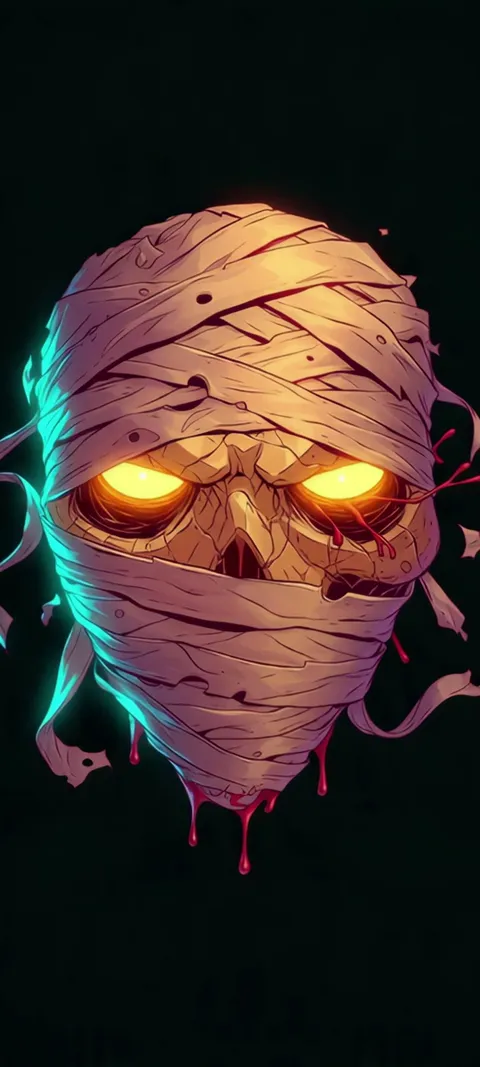
Both slots sit in the top third of the screen, on top of the wallpaper. That is why the picture behind them matters as much as the widgets you choose. Four Lock Screen wallpapers from the catalog, each sized at 1080 × 2400 for a tall phone screen:



How many widgets can you put on the iPhone Lock Screen?
The row under the clock holds four small widgets, two wide ones, or one wide widget with two small ones beside it. The line above the clock holds one more piece of text next to the date. That is the limit per Lock Screen. If the row is full, the Add Widgets panel will not accept another until you remove one. To get more, build a second Lock Screen with a different set and swipe between them.
A full row is rarely the best row. Four small widgets form a dense band of text and rings directly under the clock, which is the busiest part of the screen already. Two or three leave gaps where the wallpaper shows through, and the Lock Screen reads faster. The Lock Screen and Home Screen guide covers building a second Lock Screen and tying it to a Focus.
Why don't my widgets show up on my Lock Screen?
There are four usual causes. The app only makes Home Screen widgets, which are a separate thing and do not appear in the Lock Screen list. The app was just installed and has not been opened yet, so iOS has not registered its widgets. A Focus is showing a different Lock Screen than the one you edited. Or the phone is locked and the widget hides its details until Face ID recognizes you.
Work through them in that order. Open the app once, then go back to Customize and look in the Add Widgets list again. If the app still is not listed, it does not offer a Lock Screen widget, and nothing on your side will change that. If a widget is on the screen but blank, restarting the phone clears most cases. Widgets that show a placeholder until you glance at the phone are working as designed.
How do you remove or change a Lock Screen widget?
Press and hold the Lock Screen, tap Customize, and tap the widget row. Each widget gets a minus button in its corner; tap it to remove that widget. Tap a different widget in the panel below to fill the gap, or drag the ones in the row to reorder them. Some widgets can be tapped while editing to choose what they show, such as a city for weather. Tap Done to save.
Removing a widget does not remove the app or its Home Screen widgets. The row itself disappears once it is empty, and the clock and wallpaper go back to their plain layout. To change the line above the clock, tap the date in the same editor and pick something else, or pick the plain date to clear it.
Do Lock Screen widgets turn off Depth Effect?
Often, yes. Depth Effect lifts the subject of a photo in front of the clock, and a widget row sitting directly under the clock occupies the same space. On iOS 16 through iOS 18, adding widgets to that row switches Depth Effect off for that Lock Screen. On recent versions the layout is more flexible, but the rule of thumb holds: if the subject overlaps the widgets, iOS will choose the widgets.
So decide which one the Lock Screen is for. A portrait or animal photo with a clear subject is a good candidate for depth, with the line above the clock as the only widget. The depth effect wallpapers are picked for that layout. A Lock Screen meant for information works better with a calm background and no depth at all.
Which wallpapers keep Lock Screen widgets readable?
Pick a wallpaper that is quiet in the upper third of the screen, where the clock and widgets sit. Widgets are drawn as thin, semi-transparent shapes with light text, so they need an even background behind them: a dark sky, a soft gradient, a blurred backdrop, or flat color. Busy detail, bright highlights and hard edges in that band make the text break up. The subject of the picture belongs in the lower half.
Dark and low-contrast images are the safe choice. In the ScreenLux catalog, Abyss Purple is a single brushed-metal color from top to bottom, and Pink Hue Sunset is a soft gradient with nothing sharp anywhere. Among the live picks, Mountain Aurora Reflection leaves a plain dark sky above the peak, and Barn Owl Gaze sets the owl against a flat blue backdrop. The minimal wallpapers and dark wallpapers are the two pages to start from.
Test before you commit. In the wallpaper editor, pinch to move the picture so the calm area sits behind the widgets, then lock the phone and read it at arm's length. If you have to look twice to read the temperature, the background is too busy. Every ScreenLux wallpaper previews free on a Lock Screen mockup, so you can judge the top third before downloading; ScreenLux+ unlocks the downloads.
Can you add widgets to the Lock Screen on Android?
It depends on the phone. On Samsung Galaxy phones running One UI 6.1 or later, press and hold an empty part of the Lock Screen, tap the Widgets button with the plus sign, choose a widget, and tap Done. Other manufacturers handle it differently, and some Android versions do not offer Lock Screen widgets on phones at all. If pressing and holding the Lock Screen shows no widget option, your phone does not support it.
The readability advice is the same on any phone: keep the area behind the clock and widgets plain. The Android wallpaper guide covers setting a different image for the Lock Screen and Home Screen.
Wallpapers made for the phone
470+ original live and still wallpapers composed at 1080 × 2400, with room for the clock and widgets. The app is free to download and every wallpaper previews free; ScreenLux+ unlocks downloads.
Get ScreenLux FreeFree to download · No account required · iOS 17+ · Android 8+