 SCREEN
 How to Set a Different Lock Screen and Home Screen Wallpaper on iPhone
iPhone can use one wallpaper on the Lock Screen and a completely different one on the Home Screen. When you add a wallpaper and tap Add, choose Customize Home Screen instead of Set as Wallpaper Pair, then pick a color, a gradient, or a different photo for the Home Screen and tap Done. To split a pair you already have, press and hold the Lock Screen, tap Customize, choose Home Screen, and change the background there.
How to set different Lock Screen and Home Screen wallpapers, step by step
iOS treats the two screens as a pair by default, but the pairing is only a suggestion. These steps work on recent iOS versions, including iOS 26 and iOS 27.
- Open the wallpaper editor. Press and hold an unlocked Lock Screen and tap +, or go to Settings → Wallpaper → Add New Wallpaper.
- Choose and frame the Lock Screen image. Pick a photo, a Live Photo or an Apple design. Pinch and drag so the subject sits below the clock, and set the clock style.
- Tap Add, then Customize Home Screen. This is the fork. Set as Wallpaper Pair copies the image to both screens; Customize Home Screen opens the Home Screen editor instead.
- Pick the Home Screen background. Tap Photos to choose a different picture, Color for a flat tone, or Gradient for a fade. To keep the same photo but soften it, leave it selected and tap Blur.
- Tap Done. The Lock Screen and the new Home Screen are saved together as one pair.
- Change an existing pair later. Press and hold the Lock Screen, tap Customize, choose Home Screen, and swap the background. The Lock Screen is untouched.
Lock Screen vs Home Screen: what each one can do
The two screens are not equal. The Lock Screen is where motion and depth happen; the Home Screen is a static background under a grid of icons.
| Lock Screen | Home Screen | |
|---|---|---|
| What sits on top of it | Clock, date, widgets, notifications | App icons, folders, widgets, the dock |
| Live Photo | Plays a short clip on wake | Still frame only; never animates |
| Depth Effect | Subject can rise in front of the clock on supported photos | Not available |
| Blur | No blur option | Blur toggle when the photo is used |
| Solid color or gradient | Color wallpaper option | Color or Gradient option |
| Saved as | One unit with its Home Screen | Part of that Lock Screen; switches with it |
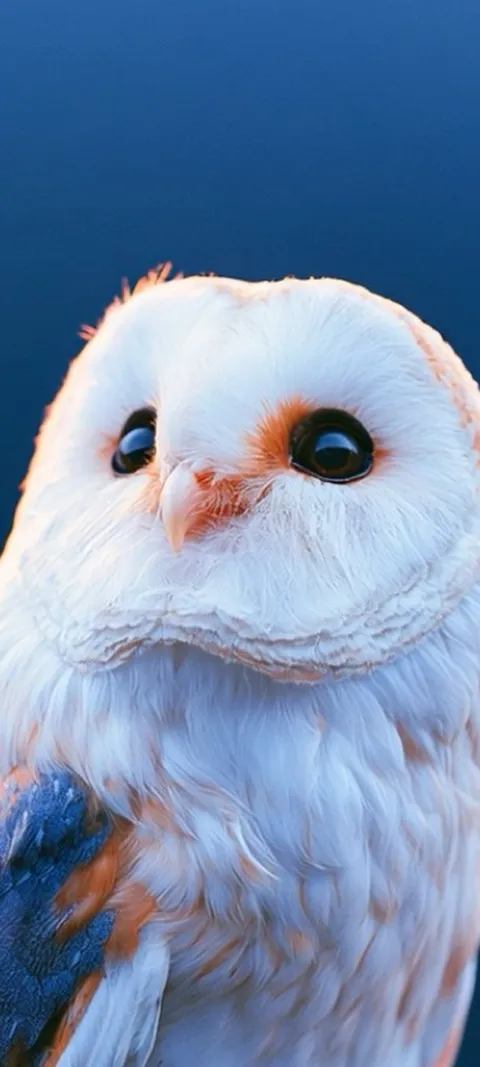
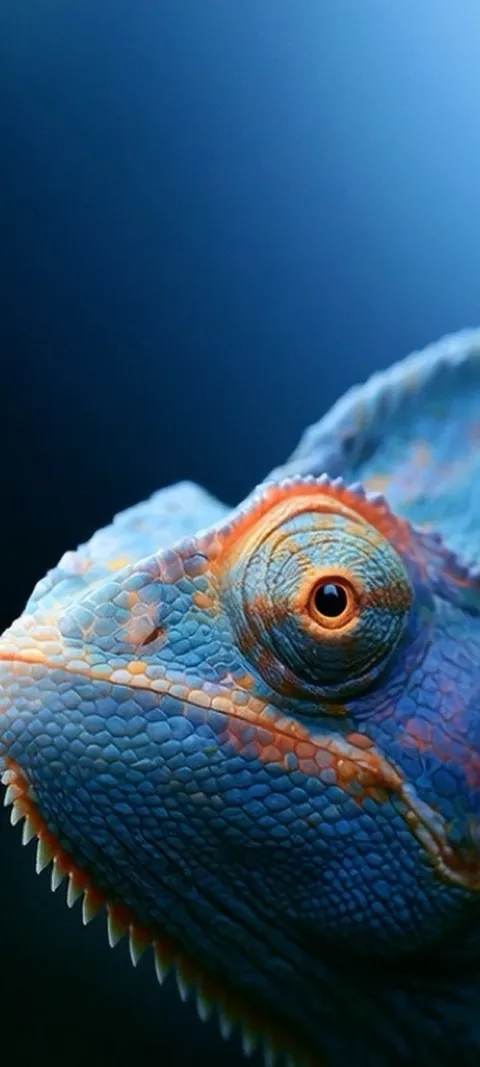
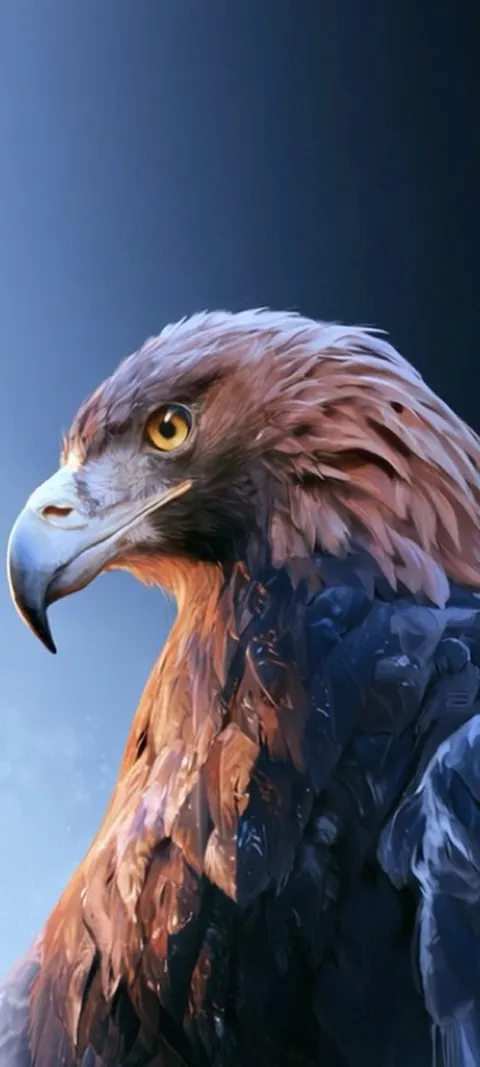
That split points to a simple rule. Give the Lock Screen the image with the subject, and give the Home Screen something calm. These depth effect wallpapers have a clear subject that can rise in front of the clock; pair any of them with a dark gradient behind your apps. Previews are free in ScreenLux, and ScreenLux+ unlocks the downloads.

Does the Home Screen wallpaper have to be blurred on iPhone?
No. The blur is a toggle, not a rule. When you use the same photo on both screens, iOS offers a Blur button at the bottom of the Home Screen editor; tap it to switch between the sharp photo and a soft, defocused version. Some Apple designs and a few Photo Shuffle layouts arrive blurred by default, but a tap turns it off. The choice is saved with that wallpaper pair.
Blur exists because busy photos make app names hard to read. If you turn it off, pick an image with a quiet middle and dark tones; the dark wallpapers are the safe set. A sharp photo with the subject at the very bottom, under the dock, also works, since the dock has its own frosted panel.
Why did the Home Screen wallpaper change when I switched Lock Screens?
Because each Lock Screen carries its own Home Screen. iOS saves the two as a single wallpaper pair. When you swipe to a different Lock Screen in the switcher, or a Focus swaps one in, its paired Home Screen comes along. If you want the same Home Screen behind every Lock Screen, set it separately on each pair: press and hold the Lock Screen, tap Customize, choose Home Screen, and pick the same background each time.
This is also why a Home Screen change sometimes seems to vanish. You customised one pair, then a Focus switched to another pair with its own, older Home Screen. Check the Focus badge under each wallpaper in the switcher, and edit the pair that Focus points to.
Can you use a Live Photo on the Lock Screen and a still on the Home Screen?
Yes, and it happens automatically. Set a Live Photo as the Lock Screen and choose Set as Wallpaper Pair: the Lock Screen animates when you wake the phone, and the Home Screen shows a still frame of the same image. Or choose Customize Home Screen and put a completely different still, a color, or a gradient behind your apps. Either way the Home Screen never moves, because iOS does not animate it.
A moving Lock Screen with a plain dark Home Screen is the combination most people settle on. The motion gets a moment on wake, and the apps sit on something calm. ScreenLux delivers its live wallpapers for iPhone as 1080 × 2400 Live Photos for the Lock Screen half of that pair; the live wallpaper guide has the full steps.
Can you use a plain color or gradient as the Home Screen wallpaper?
Yes. In the Home Screen editor, choose Color for a flat tone or Gradient for a two-tone fade, then pick from the swatches or tap the color wheel for an exact shade. Both options are saved with the Lock Screen they belong to, so a photo Lock Screen and a plain Home Screen stay together as a pair. A dark gradient is the most readable background for app names and widget text.
If a flat color feels too bare, a subtle designed gradient does the same job with more depth. The gradient wallpapers are composed to stay quiet in the middle where the icons sit. Pair one with a Lock Screen that has a strong subject and the two screens read as one design.
Which wallpapers look best behind app icons?
Dark, low-detail images with the subject near the bottom or the edges. App icons are bright and busy, so the background should be neither. Deep blues, blacks and muted gradients keep white app names readable; fine texture and high contrast in the centre of the frame fight the grid. If you love a detailed photo, use it on the Lock Screen and give the Home Screen a darker, simpler companion.
Two practical tests: put the wallpaper on, then check the app names in a bright room and again at night. If either is hard to read, add the blur or switch to a darker image. The minimal wallpapers and dark wallpapers pass both tests, and the change-wallpaper guide covers the editor in detail.
Wallpapers made for the phone
470+ original live and still wallpapers composed at 1080 × 2400. Free to download and preview; ScreenLux+ unlocks downloads.
Get ScreenLux FreeFree to download · No account required · iOS 17+ · Android 8+