 SCREEN
iPhone Home Screen Ideas: Layouts, Widgets and Wallpapers
The best iPhone Home Screen ideas start with one decision: what the screen is for. Keep the six to twelve apps you open daily on a single page, add one or two widgets, and send everything else to the App Library. Then pick one icon style, such as Dark or Tinted on iOS 26, and a wallpaper that stays calm where the icons sit.
How to set up an iPhone Home Screen from scratch
It is faster to rebuild than to tidy. This takes about ten minutes and nothing gets deleted; apps you remove from the Home Screen stay in the App Library.
- Pick the wallpaper first. Everything else is matched to it. Choose something with a quiet middle, since that is where the icon grid sits.
- Clear the extra pages. Press and hold the background, tap the page dots at the bottom, and uncheck every page except the first.
- Remove what you do not open daily. Press and hold an app, tap Remove App, then Remove from Home Screen. It stays installed.
- Fill the Dock. Put your four most-used apps there; they show on every page.
- Add one widget. Tap Edit, then Add Widget, and choose the one that answers a question you ask often, such as weather or your next event.
- Choose an icon style. Tap Edit, then Customize, and pick Dark, Clear or Tinted. Use the eyedropper to match the tint to the wallpaper.
- Arrange for your thumb. Drag the apps you use most toward the bottom of the screen, then tap Done.
Six iPhone Home Screen layout ideas
These are the layouts that keep working after the first week. Each one pairs with a different kind of wallpaper, which is the part most layout ideas skip.
| Layout | What goes on it | Icon style | Wallpaper that suits it |
|---|---|---|---|
| One page, no clutter | Eight or fewer apps in the Dock and bottom rows, nothing else | Default or Dark | A soft gradient or flat color |
| Widget stack on top | One large widget across the top half, apps in the bottom two rows | Dark | Dark, with the detail in the lower half |
| Wallpaper first | Apps only in the Dock, the rest of the page left empty | Large, labels hidden | A strong picture with a clear subject |
| Thumb zone | Every app in the bottom half, empty rows above | Any | Busy at the top, calm at the bottom |
| Monochrome | Widgets and apps in one color | Tinted, color picked from the wallpaper | A single-color texture or ombre |
| Focus pages | A work page and a personal page, each shown by a Focus | Clear | One per Focus, matched to its Lock Screen |
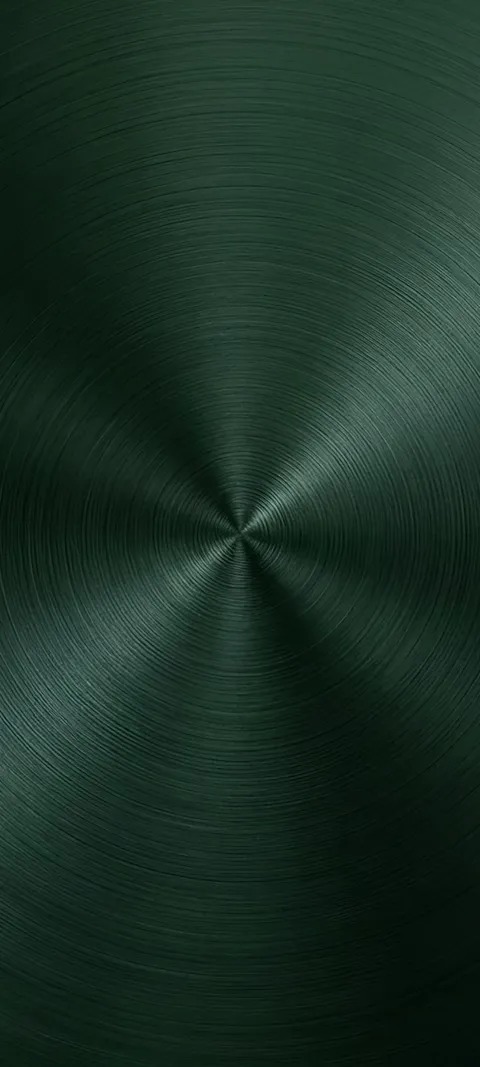
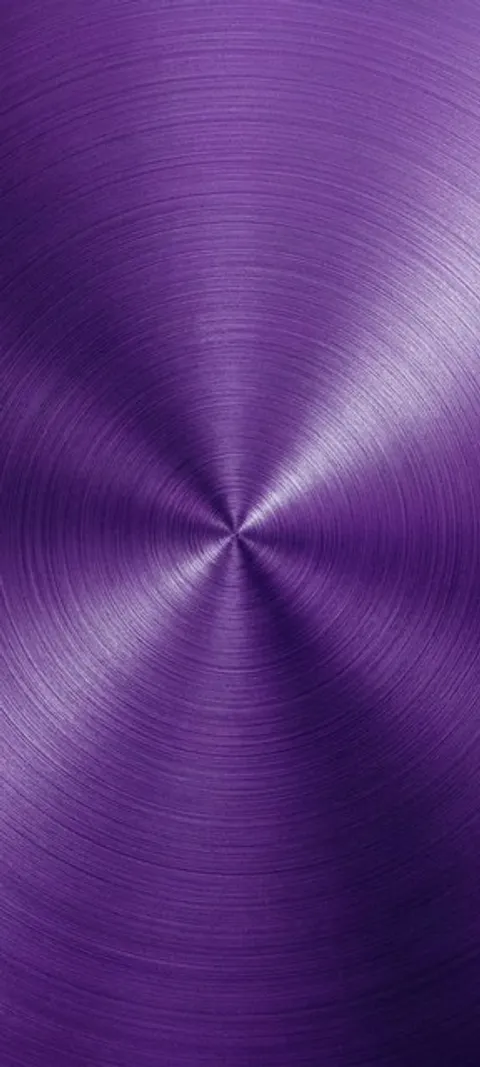
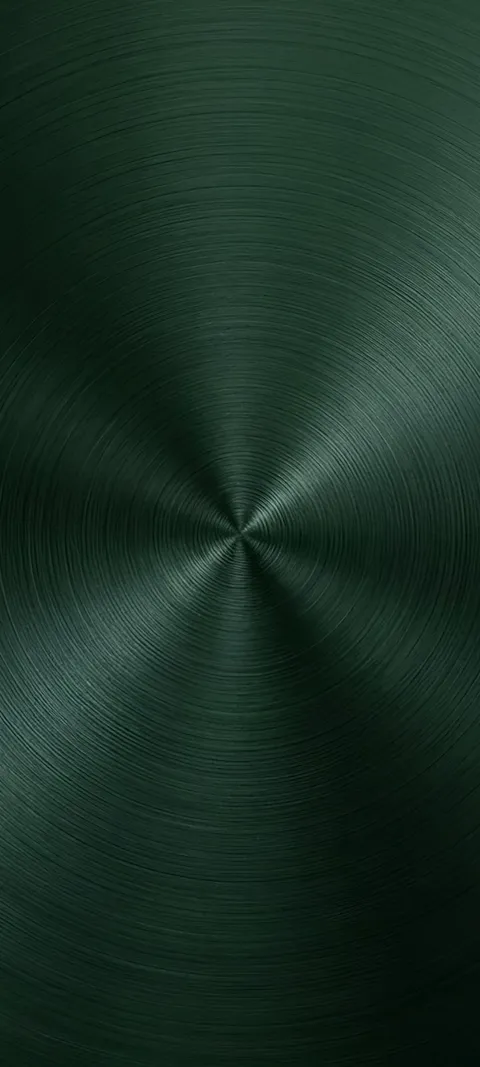
The one-page layout is the easiest place to start. The monochrome layout looks the most deliberate, but it depends on a wallpaper with one dominant color, so the tint has something to match. Abyss Blue and Abyss Purple are single brushed-metal colors from edge to edge, which makes the eyedropper pick a clean shade. Cool Ombre fades from one tone to another, which suits Clear icons.
The wallpaper-first layout is the opposite: few apps, large icons, and a picture with a subject you actually want to see. Cat Watching Snow and Coastal Sunset Drive are the kind of scene that works here; preview them with the icon grid on top and check that the subject stays clear. Four picks from the minimal collection, each composed at 1080 × 2400 for a tall iPhone screen:

Widgets that earn their space
A widget takes the room of four to eight apps, so it should save you a tap every day. Weather, calendar, battery for your earbuds and watch, and a photo widget are the ones people keep. Smart Stacks let one widget slot rotate through several, which is the best way to get more information without more clutter. Swipe up or down on the stack to flip through it, and turn off Smart Rotate in its settings if you want it to stay put.
Widgets follow the icon style, so Dark and Tinted apply to them too. That is what makes a Home Screen look consistent without any custom icon packs. If you also want widgets on the Lock Screen, the Lock Screen widgets guide covers the separate rules there.
What are some cool ideas for an iPhone Home Screen?
The ideas that last are structural, not decorative. Keep a single page and send everything else to the App Library. Put one large widget at the top and apps underneath. Leave the wallpaper mostly empty with apps only in the Dock. Tint every icon one color picked from the wallpaper. Or build two pages, one for work and one for home, and let a Focus switch between them. Each of these still works after the novelty fades.
How do I make my iPhone Home Screen pretty?
Reduce, then match. Remove apps you do not open daily, which leaves room for the wallpaper to show. Pick one icon style for the whole screen: on iOS 26, press and hold the background, tap Edit, then Customize, and choose Dark, Clear or Tinted. Use the eyedropper in Tinted to pull a color from the wallpaper. Then choose a wallpaper with calm areas where the icons sit. Matching color does more than any custom icon pack.
Dark icons on a dark wallpaper is the easiest combination to get right, because nothing fights for attention. A gradient behind Tinted icons is the next safest. The dark wallpapers page is a good place to start if your current screen feels loud. Black Haze and Charcoal Fade are both near-black gradients with no hard edges, so icons and widget text read cleanly on any row.
What should you put on your iPhone Home Screen?
Put the apps you open several times a day, and nothing else. For most people that is six to twelve apps: messages, camera, maps, music, a browser, and whatever you use for work. Add one or two widgets that answer a question at a glance, such as weather, calendar or battery. Everything else belongs in the App Library, one swipe left of the last page, where it is searchable and sorted automatically.
A quick test: for a week, notice which apps you open from Search or the App Library instead of the Home Screen. Those can stay off the Home Screen for good. Apps you keep hunting for on page three should move to page one. To hide whole pages without deleting anything, press and hold the background, tap the page dots at the bottom, and uncheck the pages you no longer want.
How do you change the color of app icons on iPhone?
On iOS 26, press and hold an empty part of the Home Screen until the icons jiggle, tap Edit at the top, then tap Customize. Tap Dark for dark icons, Clear for translucent glass icons, or Tinted to color every icon and widget one hue. Tinted gives you sliders for color and saturation and an eyedropper that samples your wallpaper. Each style also offers Light, Dark or Auto, which switches with the time of day.
The same panel has a size control. Choosing the large size makes icons bigger and hides their names, which suits a wallpaper-first layout with only a few apps. The change applies to every page at once; iOS does not let you tint one page and leave another alone.
What kind of wallpaper looks best behind Home Screen apps?
A wallpaper with low detail where the icons sit. The Home Screen covers most of the picture with a grid of icons and labels, so busy patterns, faces and text in the middle of the image get chopped into pieces. Gradients, soft textures, night skies and dark scenes with the subject at the very top or bottom all work well. Save the detailed artwork for the Lock Screen, where nothing covers it.
iOS lets the two screens use different pictures, so you do not have to compromise. A common pairing is a detailed image on the Lock Screen and a blurred or plain version on the Home Screen. The Lock Screen and Home Screen wallpaper guide covers how to set that up. The minimal wallpapers collection is built for the Home Screen side of that pair.
Can you leave empty spaces between apps on the iPhone Home Screen?
Yes, on iOS 18 and later. Press and hold the background until the icons jiggle, then drag an app to any open spot on the grid. It stays there instead of snapping to the next free space, so you can leave whole rows empty or push every app to the bottom of the screen. On older versions, apps always filled from the top left, and blank-icon tricks were the only workaround.
Empty rows are what make the wallpaper-first and thumb-zone layouts possible. Drag the apps down first, then move widgets into the gaps you want filled.
Where to find Home Screen wallpapers
Your own photos work if they have a calm area; try a shot of sky, water or a plain wall. For something made to sit behind icons, ScreenLux has 470+ original wallpapers, including gradient, dark and minimal sets sized at 1080 × 2400. Every wallpaper previews free on Lock Screen and Home Screen mockups, so you can check how the icon grid sits on it before deciding. ScreenLux+ unlocks the downloads: $19.99 once for lifetime, $14.99 a year with a 7-day free trial, or $1.99 a week with a 3-day free trial.
Some catalog pieces are Live Photos, but remember that the iPhone Home Screen never animates. A live wallpaper plays on the Lock Screen when you wake the phone, and the Home Screen shows its still frame. For a Home Screen, pick on how the still looks.
Wallpapers made for the phone
470+ original live and still wallpapers composed at 1080 × 2400, with calm space for icons and widgets. The app is free to download and every wallpaper previews free; ScreenLux+ unlocks downloads.
Get ScreenLux FreeFree to download · No account required · iOS 17+ · Android 8+