 SCREEN
 How to Change the Wallpaper on Your iPhone (iOS 26 and iOS 27)
To change your iPhone wallpaper, unlock the phone, press and hold the Lock Screen until the wallpaper switcher appears, tap the + button, and choose a photo, a Live Photo, a color, or one of Apple's designs. Tap Add, then pick Set as Wallpaper Pair to use it on both screens or Customize Home Screen to give the Home Screen its own background. The same editor lives in Settings → Wallpaper → Add New Wallpaper, and any picture in your library can be set from its share sheet with Use as Wallpaper.
How to change the iPhone wallpaper, step by step
These steps are the same on recent iOS versions, including iOS 26 and iOS 27. The wallpaper editor has kept the same shape since Apple redesigned the Lock Screen: you add wallpapers, each one is saved, and you swipe between them.
- Unlock, but stay on the Lock Screen. Use Face ID or Touch ID and do not swipe up. The editor only opens from an unlocked Lock Screen.
- Press and hold the wallpaper. The screen shrinks into the wallpaper switcher, with your saved Lock Screens side by side.
- Tap the + button. It sits in the bottom corner. To edit the current wallpaper instead of adding one, tap Customize beneath it.
- Choose a source. Your own photos, Photo Shuffle, Live Photos, an emoji pattern, a plain color, or Apple's featured collections. A photo you saved from a wallpaper app appears under Photos like any other picture.
- Frame the image. Pinch to zoom and drag to move it. The clock sits at the top, so keep the subject lower or to one side. Tap the clock to change its font and color.
- Tap Add and decide about the Home Screen. Set as Wallpaper Pair uses the same image on both screens. Customize Home Screen lets you choose a color, a gradient, or a different photo, and turn the blur on or off.
- Check both screens. Lock the phone, wake it, then swipe up to the Home Screen. If something is off, press and hold the Lock Screen again and tap Customize.
Where to start: the three routes into the editor
All three roads lead to the same screen. Pick whichever is closest to where the picture already is.
| Method | Where to start | Best for |
|---|---|---|
| Lock Screen switcher | Press and hold the Lock Screen, then tap the + button | The fastest route. It is also where you swap between wallpapers you have already saved. |
| Settings | Settings → Wallpaper → Add New Wallpaper | The same editor with a larger preview of the current Lock Screen and Home Screen pair. |
| Photos app | Open a photo → Share → Use as Wallpaper | Setting one specific picture, including a Live Photo you just saved. |
| Wallpaper app | Save the image to Photos, then use either route above | Downloaded designs. ScreenLux saves a 1080 × 2400 file to Photos; iOS itself does the setting. |
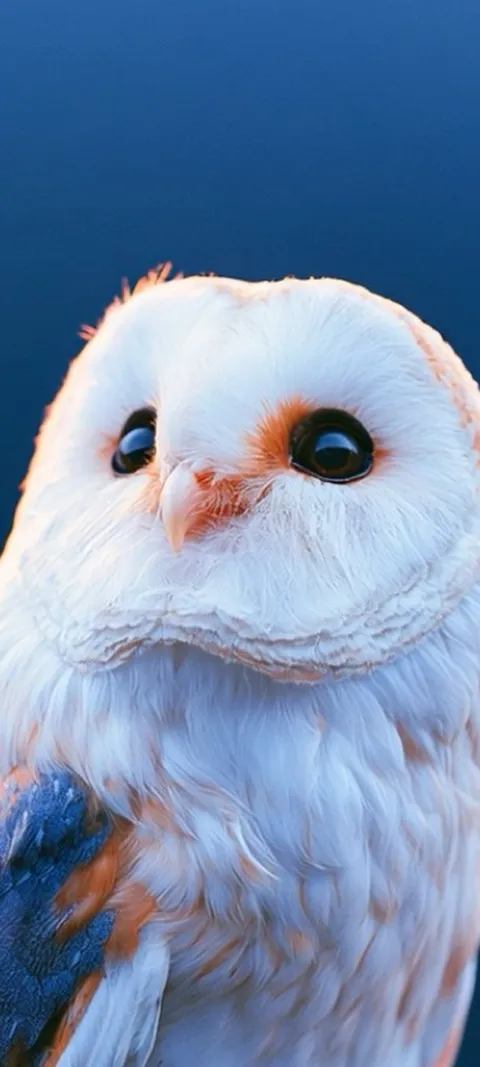
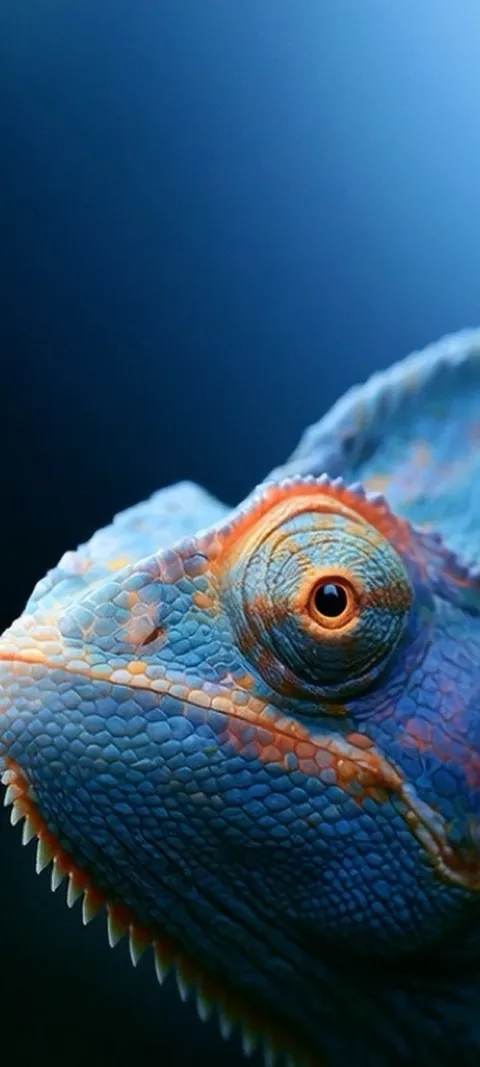
A few current picks from the iPhone catalog, each already framed for a tall phone screen. Previews are free; ScreenLux+ unlocks the downloads.


How do you set a photo as your iPhone wallpaper from the Photos app?
Open the photo in Photos, tap the Share button, and choose Use as Wallpaper. iOS opens the same wallpaper editor you get from the Lock Screen: pinch and drag to frame the picture, tap the clock to change its style, then tap Add. Pick Set as Wallpaper Pair to use the photo on both screens, or Customize Home Screen to give the Home Screen a different look. Live Photos set this way animate when you wake the phone.
This is the route most wallpaper apps rely on, ScreenLux included. Saving an image to Photos is not the same as installing it; the app puts a 1080 × 2400 file in your library and you finish in Photos or in the Lock Screen switcher. If the image you want is a Live Photo, keep the Live toggle on in the editor. The live wallpaper guide covers what animates and what does not.
How do you change the Home Screen wallpaper on iPhone?
Press and hold the Lock Screen, tap Customize under the current wallpaper, and choose Home Screen. From there you can keep the paired photo, blur it, switch to a solid color or gradient, or tap Photos to pick a different image entirely. Tap Done to save. Every Lock Screen carries its own Home Screen, so changing one pair leaves your other saved wallpapers untouched.
The Home Screen never animates and never uses Depth Effect, so it is the place for simpler, darker images that keep app names readable. Browse the dark wallpapers if icons are getting lost, and see the split-screen guide for the full set of Home Screen options.
How do you switch back to a wallpaper you used before?
Every wallpaper you add stays saved until you delete it. Press and hold the Lock Screen to open the switcher, swipe left or right through your saved wallpapers, and tap the one you want. It becomes the active Lock Screen and brings its paired Home Screen with it. Nothing is re-cropped or re-downloaded, and your clock style and widgets on that wallpaper are exactly as you left them.
This is why it pays to keep a few wallpapers saved rather than replacing the same one: a night look, a work look, and a photo of someone you like. A wallpaper linked to a Focus switches in automatically when that Focus turns on. If the switcher is getting crowded, the delete guide shows how to clear the old ones.
What resolution should an iPhone wallpaper be?
Aim for 1080 × 2400 pixels or larger in a tall 9:20 frame. Every current iPhone uses a tall display close to that ratio, so a 1080 × 2400 image covers the screen without letterboxing and with little cropping. Smaller images get stretched and look soft; images in the wrong shape lose their edges. Portrait orientation matters more than raw pixel count.
Everything in the ScreenLux catalog is composed at 1080 × 2400 for phones, with the subject placed below the clock zone, so it drops in without re-framing. The iPhone wallpapers page is the full set; the Lock Screen picks are the ones that leave the top of the frame clear for the time.
Why is the new wallpaper zoomed in or cropped?
iOS fits every image to the screen and lets you adjust the framing while you set it. If the result looks zoomed, go back into the editor, then pinch to zoom out and drag the image until the part you care about sits where you want it. Images that are wider than they are tall will always be cropped heavily, because the phone screen is a tall portrait rectangle. A portrait-shaped source is the real fix.
Two more things can push the picture around. Perspective Zoom, the subtle parallax effect, needs a little margin and so shows the image slightly enlarged. And Depth Effect, which places the subject in front of the clock, only works when there is room above the subject; if you zoom in too far, iOS quietly switches it off.
Wallpapers made for the phone
470+ original live and still wallpapers composed at 1080 × 2400. Free to download and preview; ScreenLux+ unlocks downloads.
Get ScreenLux FreeFree to download · No account required · iOS 17+ · Android 8+