 SCREEN
How to Set Multiple Pictures as Your iPhone Wallpaper
To use multiple pictures as your iPhone wallpaper, set up Photo Shuffle: press and hold the Lock Screen, tap the plus button, choose Photo Shuffle, pick your photos or an album, set how often they change, and tap Add. The Lock Screen then rotates through the set on tap, on lock, hourly or daily. If you want several pictures visible at once instead, you need a collage saved as a single image.
How to set up Photo Shuffle, step by step
These steps hold on recent iOS versions, including iOS 26 and iOS 27. Labels can shift slightly between releases, but the order stays the same.
- Open the wallpaper gallery. Unlock the phone with Face ID or Touch ID, stay on the Lock Screen, press and hold an empty area, and tap the plus button. Settings, then Wallpaper, then Add New Wallpaper reaches the same place.
- Tap Photo Shuffle. It sits in the top row of options, next to Photos and Live Photo.
- Choose where the photos come from. Pick one or more featured categories such as People, Nature or Cities, choose an existing album, or tap Select Photos Manually and tick the pictures you want.
- Set the shuffle frequency. Tap the three-dot button and choose On Tap, On Lock, Hourly or Daily.
- Frame and add. Swipe through the set to check that no face sits under the clock, then tap Add.
- Decide what the Home Screen does. Set as Wallpaper Pair lets the Home Screen follow the shuffle. Customize Home Screen keeps it on a colour or a single photo.
Which shuffle frequency should you pick?
The frequency matters more than people expect. A shuffle that changes too often stops feeling like a wallpaper and starts feeling like a slideshow.
| Setting | When the photo changes | Who it suits |
|---|---|---|
| On Tap | Each tap on the Lock Screen | People who like to flip through photos on purpose |
| On Lock | Each time the phone locks | Heavy phone users; you see a new photo many times a day |
| Hourly | Once an hour | A steady change without it feeling random |
| Daily | Once a day | A photo of the day; the calmest setting |
Daily is the safe default. On Tap is the most fun, but it also changes the photo when you only meant to wake the screen. You can change the setting later: press and hold the Lock Screen, tap Customize, and open the same three-dot menu.
Why does Photo Shuffle stop changing?
Most of the time the shuffle is fine and the trigger is the problem. Hourly and Daily only change when that much time has passed, so a quick check looks like nothing happened. On Tap needs a tap on the Lock Screen itself, not a notification. If the shuffle still sticks on one photo, check that the album still holds more than one picture, that you did not switch to a different Lock Screen, and that Focus modes are not linked to a fixed Lock Screen. Deleting the shuffle and adding it again clears most stuck cases.
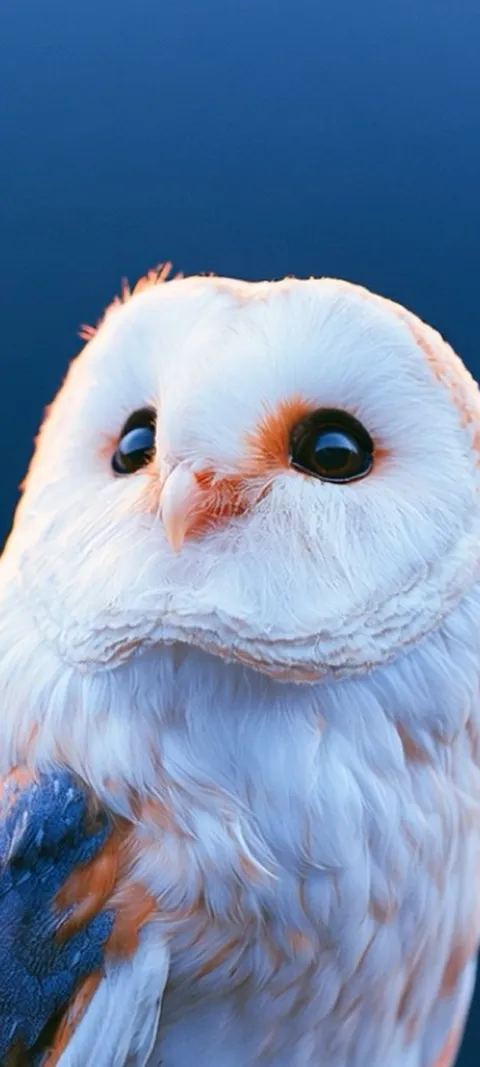
Four iPhone wallpapers composed at 1080 × 2400, the size that fills a current iPhone without cropping. Saved to one album, a set like this makes a clean shuffle.



How do you shuffle photos on the iPhone Lock Screen?
Press and hold the Lock Screen, tap the plus button, and choose Photo Shuffle from the top row of the gallery. Pick featured photos from categories such as People, Nature or Cities, an album, or select photos by hand. Before tapping Add, open the three-dot menu and set the shuffle frequency: On Tap, On Lock, Hourly or Daily. The same route works from Settings, under Wallpaper, then Add New Wallpaper.
Photo Shuffle is a Lock Screen feature. It has been part of iOS since the Lock Screen redesign in iOS 16, so it works on every iPhone that runs a recent version, including iOS 26 and iOS 27. You can keep several Lock Screens side by side, so a shuffle can live next to a fixed favourite and you swipe between them when you want a change.
How do you combine two pictures into one iPhone wallpaper?
iOS has no built-in collage tool for wallpapers, so combining two pictures into one frame takes a layout or collage app. Build the collage in a tall portrait canvas, at least 1080 × 2400 pixels so it stays sharp, save it to Photos, and set it like any other photo. Keep both pictures below the top quarter of the canvas, because the clock and date cover that area on the Lock Screen.
A split works best when the two halves share a colour or a light level. A bright beach photo beside a night city shot reads as noise at Lock Screen size. If you want two pictures without a collage, Photo Shuffle with just those two photos does the job and keeps each one full screen. The guide to separate Lock and Home Screen wallpapers covers the other common way to show two images: one on each screen.
How many photos can you add to Photo Shuffle?
A hand-picked Photo Shuffle tops out at 50 photos. If you need more, point the shuffle at an album or a featured category instead of selecting photos one by one; iOS then draws from the whole set and keeps it up to date as you add pictures. A second workaround is to build several Lock Screens, each with its own shuffle, and swipe between them when you want a different mood.
Fewer photos usually look better than more. A set of eight to fifteen pictures with the same tone feels like a collection; fifty mixed photos feel like a camera roll. If you are pulling from an album, make a dedicated one for wallpapers so screenshots and receipts never land on your Lock Screen.
Does the Home Screen change when Photo Shuffle changes?
It can. When you tap Add and choose Set as Wallpaper Pair, the Home Screen follows the Lock Screen and shows the current shuffled photo, often with a blur so app icons stay readable. If you would rather keep the Home Screen fixed, choose Customize Home Screen instead and pick a plain colour, a gradient or a single photo. The Lock Screen keeps shuffling either way.
A fixed Home Screen is the better choice when your shuffle mixes bright and dark photos, because icon labels can disappear against a white sky. A dark colour or a quiet still keeps the apps legible while the Lock Screen does the changing. The lock screen wallpapers page has stills composed for that top-of-screen clock area.
Do Live Photos move inside a Photo Shuffle?
No. Photo Shuffle shows each picture as a still, even when the original is a Live Photo. If you want motion on the Lock Screen, set a single Live Photo as its own wallpaper rather than adding it to a shuffle; it plays a short clip when you wake the phone. You can keep that Live Photo Lock Screen next to your shuffle and swipe between the two.
Remember that on iPhone the motion only happens on the Lock Screen. The Home Screen never animates, with or without a shuffle. The live wallpaper guide walks through the Live Photo steps and the settings that pause motion, like Low Power Mode.
What kind of pictures work best in a wallpaper shuffle?
Pictures that share a look. Pick portrait photos with the subject in the lower two thirds, so the clock never sits on a face, and keep the brightness similar across the set. A theme helps too: all animals, all coastlines, all night scenes. A curated set of wallpapers built for a tall screen avoids the cropping and soft edges you get from photos taken in landscape.
This is where a wallpaper collection is useful. ScreenLux groups its designs into collections that share a palette and style. Living Wild, for example, is sixteen animal close-ups, among them Arctic Fox Cub, Majestic Bald Eagle and Lionfish Undersea, and they rotate well because the framing is consistent. Save the set to a Photos album and point Photo Shuffle at it. Browse the Living Wild collection or all iPhone wallpapers; previewing is free, and ScreenLux+ unlocks the downloads.
Wallpapers made for the phone
470+ original live and still wallpapers composed at 1080 × 2400, grouped into collections that shuffle well together. The app is free to download and every wallpaper previews free; ScreenLux+ unlocks downloads.
Get ScreenLux FreeFree to download · No account required · iOS 17+ · Android 8+