 SCREEN
The Best iPhone Wallpapers Right Now (Live, Dark, Aesthetic)
The best iPhone wallpapers right now share three things: one clear subject in the lower two thirds of the frame, open space above it for the clock, and a dark or mid-tone palette that keeps icons readable. Add motion with a Live Photo, which plays on the Lock Screen each time the phone wakes. Below are picks in five styles, chosen by what the iOS 26 and iOS 27 Lock Screen actually does with them.
What makes a wallpaper good on today's iPhone
The iPhone stopped being a flat picture frame with iOS 16. The Lock Screen clock resizes to fit the photo, Depth Effect can slide the time behind a subject, widgets sit under the clock, and since iOS 26 the Liquid Glass icons and widgets pick up colour from whatever is behind them. A wallpaper that ignores those behaviours looks worse on the phone than it did in the preview. A wallpaper that plays to them looks better. That is the test behind every pick on this page, and it is why the best wallpapers for iPhone are rarely the busiest ones.
| Style | What it does best | What to watch | Examples |
|---|---|---|---|
| Live (Live Photo) | A short movement when the phone wakes; one subject, calm frame | Fast action across the whole frame; motion pauses in Low Power Mode | Arctic Fox Cub, Golden Ocean Wave |
| Dark and black | Readable clock and icons, less glow at night, battery help on OLED | Pure black can look empty behind a full Home Screen grid | Abyss Purple, Black Panther Gaze |
| Aesthetic (soft, pastel, gradient) | A calm Home Screen that does not fight the icons | Light tones wash out white clock text; keep the top third darker | Pink Hue Sunset, Amethyst Waves |
| Depth Effect portraits | The clock tucks behind the subject for a layered look | Subjects that cover most of the clock; widgets can switch the effect off | Barn Owl Gaze, Majestic Bald Eagle |
| Quiet abstracts for the Home Screen | Icons, folders and Liquid Glass widgets stay easy to read | Hard light-to-dark edges under the widget row | Blue Blocks, Ember Glowing |
The picks, by style
These are real wallpapers from the ScreenLux catalog, grouped by what they do well. I make ScreenLux, so read this as a maker's shortlist rather than a neutral survey; Apple's built-in gallery is free and a fair place to start.
- Live wallpapers for the wake moment. Arctic Fox Cub blinks once and settles. Golden Ocean Wave breaks and pulls back. Lighthouse Night Beacon turns a single beam across a dark sea. Night Drive Dashboard and Rainy City Lights add street-level motion without busy detail at the top. Each one is a Live Photo at 1080 × 2400 with the moving part kept below the clock.
- Dark and black for readability. Abyss Purple and Dark Panels are near-black with a single soft highlight, so the clock and icons stay crisp. Black Panther Gaze and Abstract Black Form are the live options in this group, with motion that stays low in the frame. Black Haze is the choice when you want texture rather than a flat void.
- Aesthetic picks for a softer phone. Pink Hue Sunset is a warm gradient with a darker upper band for the clock. Amethyst Waves and Aqua Flow are fluid, low-contrast designs that suit a pastel icon set. Coastal Sunset Drive puts a car on an evening coast road with the sky left open. Mountain Aurora Reflection is the live choice here, with the aurora drifting behind still water.
- Depth Effect portraits. Barn Owl Gaze, Majestic Bald Eagle, Golden Eagle Gaze, Snow Leopard Gaze and Mandrill Primate Portrait each put one head against a plain dark background. The outline is clean, which is what the cut-out needs, and the top of the head reaches just into the clock area so the time can tuck behind it.
- Quiet abstracts for the Home Screen. Blue Blocks, Ember Glowing and Deep Reflection have little fine detail, so a full grid of icons and Liquid Glass widgets sits on them cleanly. Pair one of these with a subject-led Lock Screen picture and both screens improve.
The first four from the iPhone wallpapers page are below, and every live pick above also appears on the live wallpapers for iPhone page.

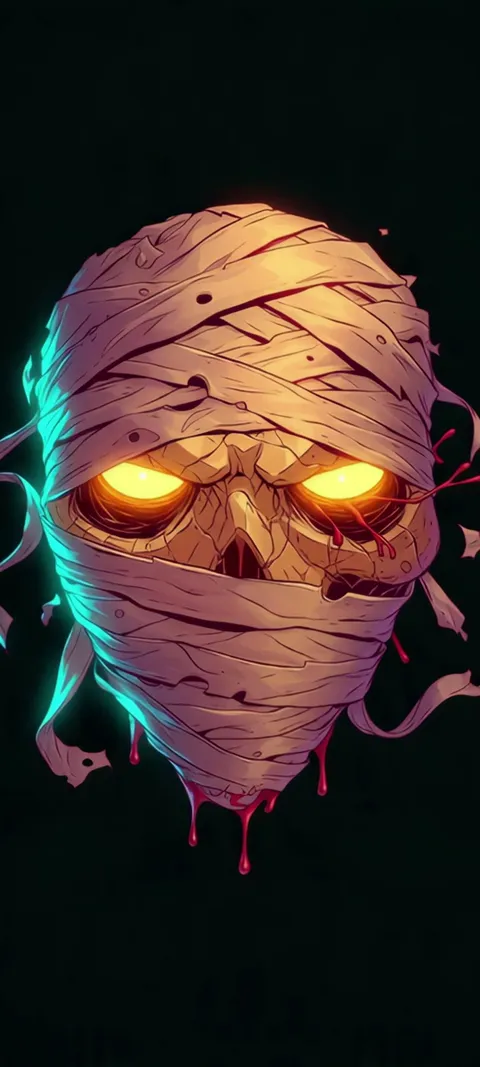
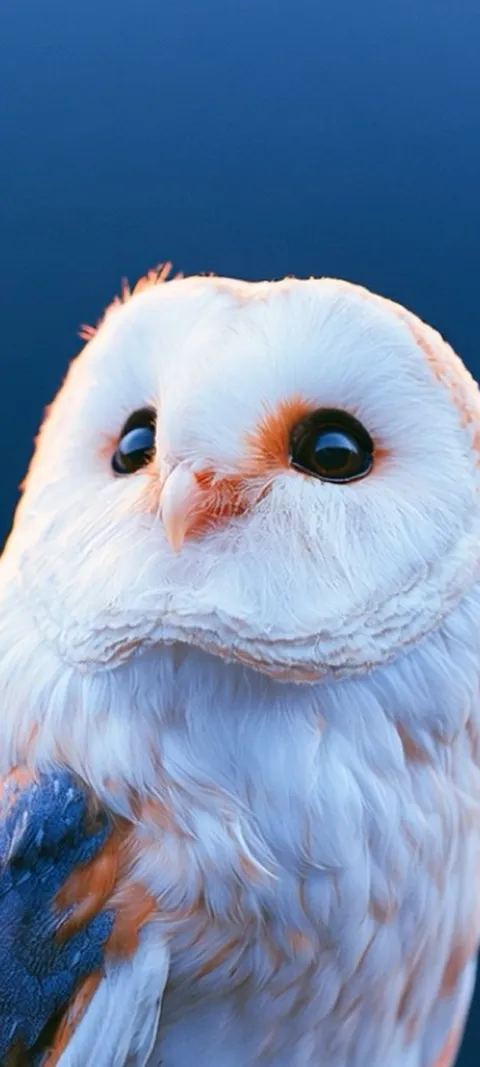

Every wallpaper in the app is premium. Browsing and previewing on a Lock Screen mockup is free, and ScreenLux+ unlocks downloads: $19.99 once, $14.99 a year with a 7-day free trial, or $1.99 a week with a 3-day free trial, when the store offers the trial. Free users see a small banner ad; ScreenLux+ removes it. No account is needed, and the app runs on iOS 17 or later.
Why the same picture can fail on one screen and work on the other
The Lock Screen and the Home Screen ask for opposite things. On the Lock Screen the picture is mostly visible, so a strong subject is an asset and the only hazard is the clock and widget row at the top. On the Home Screen a grid of icons, a dock and a search pill cover most of the frame, so the subject disappears behind them and anything with hard edges or bright patches turns into visual noise between the apps. That is why a wallpaper that looks right in a gallery can look cluttered once it is installed.
The fix is to stop treating the two screens as one decision. Put the subject-led picture on the Lock Screen and let the Home Screen have a quiet abstract, a gradient or a blurred version of the same image. iOS offers the blur as a one-tap option in the editor, and it keeps the colour of the Lock Screen picture without the detail. The pairs that work best are easy to spot in the list above: a Depth Effect portrait with Blue Blocks or Ember Glowing behind the icons, or a live scenic such as Golden Ocean Wave with Abyss Purple on the Home Screen. Three other habits help on any iPhone. Check the picture with Dark Mode on and off, because the icon tiles change tone. Try it with your usual widgets in place, since a widget row can switch Depth Effect off. And look at it in daylight, where a low-contrast wallpaper that was perfect in a dark room may not hold up.
How to put one on your iPhone
- Save the picture to Photos. A Live Photo must arrive as a Live Photo; a screenshot of one is a still.
- Open the editor. Press and hold the Lock Screen and tap the plus button, or open the picture in Photos, tap Share and choose Use as Wallpaper.
- Frame it with two fingers. Pinch and drag until the subject sits low and the top third is clear. For a Depth Effect portrait, let the top of the subject just meet the bottom of the clock.
- Check the controls at the bottom. The Live Photo toggle and the depth options appear here when the picture supports them on your iPhone. If one is missing, the picture did not qualify.
- Tap Add, then choose the Home Screen. Use the pair, or set a quiet abstract or a blur behind the icons instead.
What are the best iPhone wallpapers for 2026?
The best iPhone wallpapers for 2026 are the ones that work with the Lock Screen features that arrived in iOS 26 and iOS 27: the clock that resizes to fit the photo, Depth Effect, Liquid Glass widgets and Live Photo motion on wake. In practice that means subject-led pictures with open space at the top, dark or mid-tone palettes, and one short movement rather than a busy loop. Animal portraits, moody scenics and simple abstracts meet that bar most often.
Apple's own gallery is the free baseline and worth a look first; the picks above are for people who want something not everyone else has. The iOS 26 wallpapers guide goes deeper on what each Lock Screen feature asks of a picture.
What is the best website for iPhone wallpapers?
It depends on what you want. For free photographs, Unsplash and Pexels win on sheer volume and cost nothing, though you will crop and frame each one yourself. For community picks, the iPhone wallpaper subreddit surfaces what people are actually using. For original designs composed for the iPhone clock, with Live Photo motion and a Lock Screen preview before you commit, a dedicated app such as ScreenLux is the better route. Most people end up using two of the three.
I make ScreenLux, so weigh that recommendation accordingly. The honest difference is framing: stock photos are shot for print or desktop and need work to sit under a clock, while the catalog here is built at 1080 × 2400 with the subject placed for the Lock Screen from the start.
How do I get cool wallpapers on my iPhone?
Save the picture to Photos first, then set it from there. Open the image in Photos, tap Share, and choose Use as Wallpaper. The Lock Screen editor opens with the picture in place, where you can pinch to frame it, pick a clock style and add widgets. Tap Add, then decide whether the Home Screen uses the same picture, a blurred version or something else. Anything downloaded from a website, an app or a message follows the same path.
Live Photos must arrive as Live Photos. A screenshot of one, or a wallpaper forwarded through an app that strips the motion, lands as a still. The change-wallpaper guide covers the editor control by control.
Which wallpaper styles are most popular on iPhone right now?
Dark and black wallpapers lead, followed by live wallpapers, aesthetic pastels and gradients, and anime-style art. Dark designs are popular because they keep the clock readable, hide notification clutter and look good on an OLED display at night. Live Photos grew once the Lock Screen started playing them on wake. Minimal abstracts are the quiet favourite for the Home Screen, where icons cover most of the picture anyway. Seasonal sets spike in October and December.
Those preferences show up in which ScreenLux pages get the most traffic: the dark wallpapers and live wallpapers for iPhone pages stay at the top through the year, with aesthetic wallpapers close behind.
Is a live or a still wallpaper better for iPhone?
A still is the safe default and a Live Photo is the upgrade when the motion is worth it. On iPhone a Live Photo only plays on the Lock Screen, for a couple of seconds when the phone wakes, so the clip has to read well as a frozen frame too. If the still frame is good on its own, the motion is a bonus. If the picture only works while moving, you will see a muddy still most of the time. The Home Screen never animates either way.
Battery cost is small because the clip is short and plays on demand, and Low Power Mode and Reduce Motion both pause it. Good live picks therefore look like good stills with one gesture added: a fox blinking, a wave breaking, a beacon turning.
Wallpapers made for the phone
470+ original live and still wallpapers composed at 1080 × 2400, with the subject framed for the iPhone clock. The app is free to download and every wallpaper previews free; ScreenLux+ unlocks downloads.
Get ScreenLux FreeFree to download · No account required · iOS 17+ · Android 8+