 SCREEN
Aesthetic Christmas Phone Wallpapers for iPhone and Android
An aesthetic Christmas phone wallpaper keeps to two or three colors and one source of warmth: a snowy street under a lamp, a candle in a dark room, lanterns in the sky or a cat at a frosted window. Put the festive scene on the Lock Screen, where only the clock covers it, and keep a quieter winter image behind your apps. Pick a winter scene over a literal tree and it will still look right in February.
Seven Christmas wallpaper styles, and where each one works
The picks are real wallpapers from the ScreenLux catalog, but the styles apply wherever you find your images. The last column is the one to watch: a scene that looks warm on its own can disappear under a grid of icons.
| Style | What it looks like | Picks | Best on |
|---|---|---|---|
| Snowy night | Falling snow, one warm light, deep blue shadows | Winter Streetlight, Red House Mountain (live) | Lock Screen |
| Candlelight | A single flame in a dark room, soft smoke | Candlelight Smoke, Ancient Tome Glow (live) | Lock Screen |
| Lanterns and lights | Many small points of warm light against the sky | Sky Lantern Festival (live), Lanterns In Sky | Either screen |
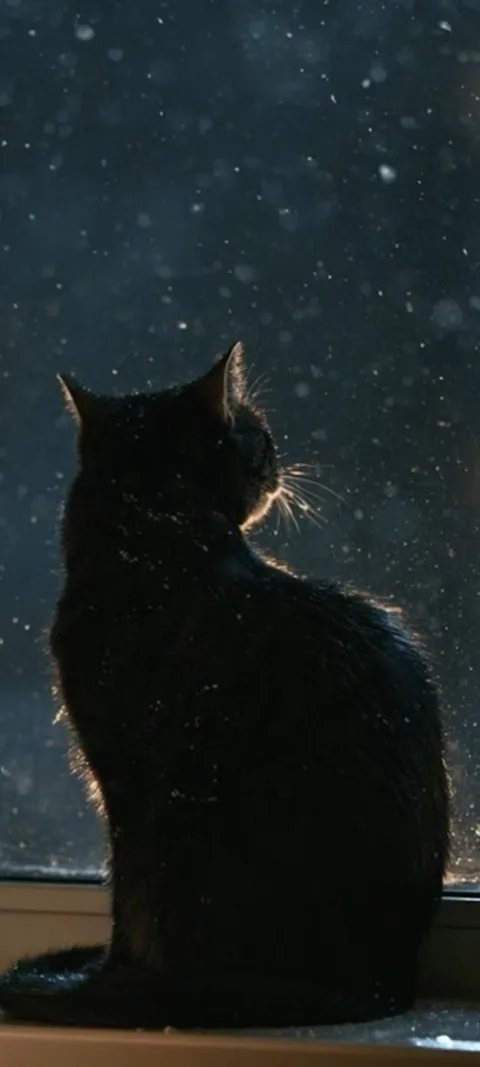
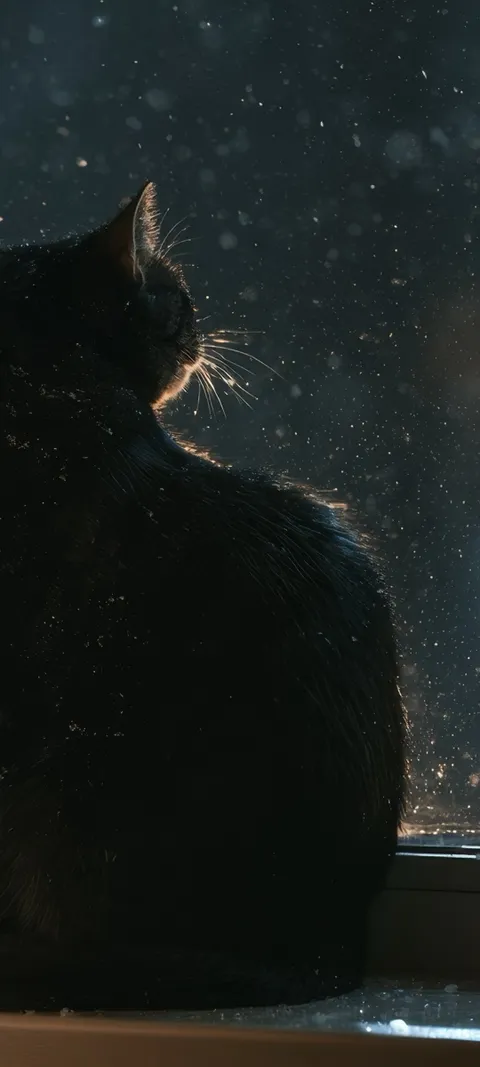
| Cozy interior | A window, a pet, snow outside and warmth inside | Cozy Winter Evening, Cat Watching Snow, Black Cat Window (live) | Lock Screen |
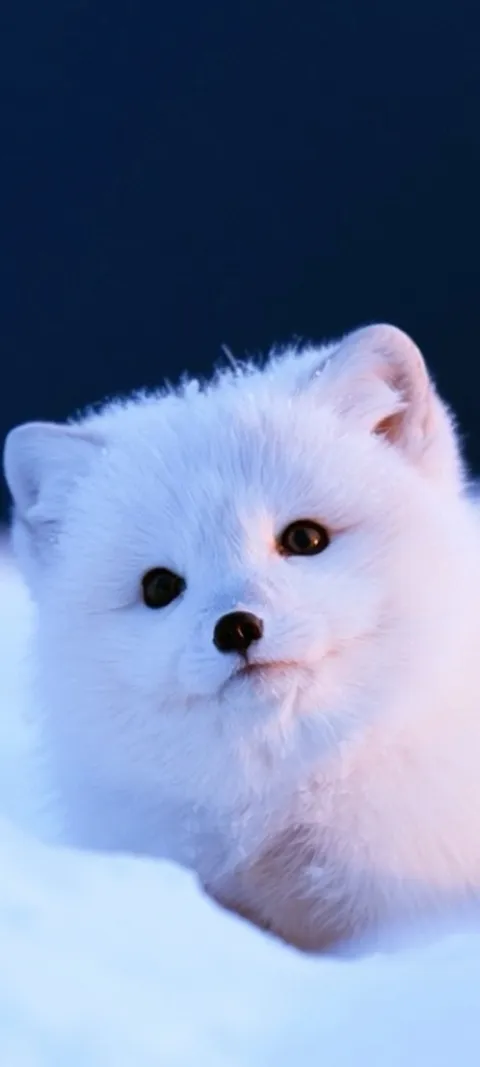
| Winter animals | One animal in snow, close and calm | Arctic Fox Cub (live), Snow Leopard Gaze (live) | Lock Screen |
| Knit and texture | Sweater stripes and wool in red, cream or gold | Knitted Red Stripes, Golden Knit | Home Screen |
| Frost and ice | Cool blue leaves, frosted glass, pale light | Frosty Blue Foliage, Winter Gaze | Home Screen |
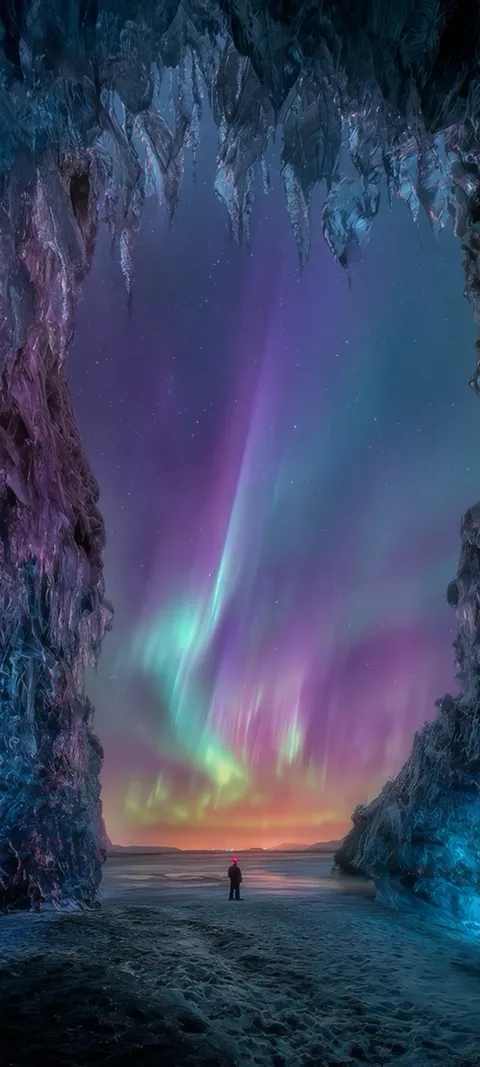
Four from the winter wallpapers set, each composed for a tall phone screen at 1080 × 2400.
How to set up a Christmas Lock Screen on iPhone
iPhone lets you keep several Lock Screens and switch between them, so you can build a holiday one without losing your usual setup.
- Save the image to Photos. Use a portrait image around 1080 × 2400. A Live Photo works too if you want motion.
- Touch and hold the Lock Screen. Unlock with Face ID or Touch ID first, then press and hold until the gallery of Lock Screens appears.
- Tap the plus button and choose Photos. Pick your Christmas image. Pinch to place the brightest part below the clock.
- Style the clock. Tap the time to choose a font and color. A warm white or soft gold usually reads well over snow and candlelight.
- Pair a Home Screen. When you finish, iPhone offers a matching Home Screen. Choose a plain winter image or blur the same one so your icons stay readable.
You can also start from Photos: open the image, tap Share, then Use as Wallpaper. If you change your mind about the Home Screen later, edit the pair from the Lock Screen gallery and swap only that side. On Android, long-press the Home Screen, open the wallpaper settings and apply the image to the Lock Screen, the Home Screen or both. Labels vary by manufacturer.
What makes a Christmas wallpaper look aesthetic rather than busy?
A narrow palette and one source of warmth. Aesthetic Christmas wallpapers usually stick to two or three colors, such as deep green and gold, red and cream, or navy and amber, and build the mood from a single element: a candle, a lit window, a string of lanterns or falling snow. Busy holiday wallpapers stack trees, gifts, ornaments and text into one frame. On a small screen that reads as clutter, and the clock and notifications make it worse.
The easiest test is to squint at the image. If you can still see one bright area and a calm background, it will hold up behind the time. If it turns into a speckled mess, it is better as a print than a phone wallpaper. The Christmas wallpapers page collects the snow, candlelight and lantern scenes in the ScreenLux catalog that pass this test.
What are some cute Christmas wallpapers for iPhone?
Animals in snow and pets at a window are the cutest options that still look grown-up. A fox cub in the snow, a cat watching flakes fall outside, or a sleeping animal curled up somewhere warm all feel festive without a single ornament. Knit textures in red and cream add a sweater-weather feel. For something lighter, try pastel versions of the season: soft pink lights, pale blue frost or white snow with a small gold glow.
From the catalog, Arctic Fox Cub and Black Cat Window are both live, so they move on an iPhone Lock Screen when you wake the phone. Cat Watching Snow and Sleeping Grey Kitten are still images with the same mood. For more ideas in this direction, the cute wallpaper ideas guide covers seven styles that work year round.
Where can you find free Christmas wallpapers for your phone?
Free photo libraries such as Unsplash and Pexels have thousands of holiday images, and design tools like Canva offer phone-sized Christmas templates you can edit. Pinterest is good for ideas, but many pins are reposts with unclear rights and low resolution. Whatever the source, check that the image is portrait and at least about 1080 pixels wide. A small landscape photo stretched to fill a tall screen will look soft once it is set.
Free sources do one thing better than any app: you can find literal Christmas imagery, such as decorated trees, wrapped presents and Santa. ScreenLux does not have those today. Its seasonal set is snow, candlelight, lanterns and cozy interiors, all original designs composed at 1080 × 2400. Every wallpaper previews free in the app; ScreenLux+ unlocks downloads at $19.99 lifetime, $14.99 a year with a 7-day trial, or $1.99 a week with a 3-day trial.
How do you add a Christmas background to a photo on iPhone?
Lift the subject out of your photo, then place it over a holiday image. On iOS 16 and later, open the photo in Photos, touch and hold the person or pet until a glowing outline appears, and copy it. Paste the cutout into an editing app that supports layers, such as Canva or a similar tool, on top of a snowy or candlelit background. Export the result in portrait at phone size, save it to Photos and set it as your wallpaper.
Keep the subject in the lower half of the frame so the clock does not cover a face. A dark or blurred background works best, because the cutout edge is less noticeable when the scene behind it is soft. If your phone supports the Depth Effect, a clean cutout can also let the subject overlap the time.
Can a Christmas wallpaper move on iPhone or Android?
Yes. On iPhone, a moving wallpaper is a Live Photo set on the Lock Screen. It plays a short clip when you wake the phone or press the Lock Screen, and the Home Screen stays still because iOS does not animate it continuously. On Android, a live wallpaper app can loop a muted video on the Home Screen. Whether video also plays on the Lock Screen depends on the phone maker, so some phones show a still there instead.
Slow motion suits the season: snow drifting, a lantern rising, a flame flickering. Sky Lantern Festival, Red House Mountain and Owl's Night Delivery are live in ScreenLux and fit that pace. To turn your own clip into a Lock Screen, the live wallpaper guide for iPhone walks through each step.
When should you change to a Christmas wallpaper, and when should it come down?
Most people switch in late November or on December 1, once the Thanksgiving week is over in the US, and keep it through New Year. After that, a strongly festive image starts to feel dated quickly. A smart move is to choose a winter scene rather than a literal Christmas one. Snow, frost and warm windows still look right in January and February, so you get three months from one wallpaper instead of four weeks.
If you want both, set the festive image on the Lock Screen and a plain winter image behind your apps, then swap only the Lock Screen in January. The winter wallpapers page has snowy landscapes, frost and northern lights scenes that carry on after the decorations come down.
Colors that read well behind the clock
Holiday palettes are often darker than they look in a store window. Deep green, burgundy and navy all make white clock digits easy to read, and a small patch of gold or amber gives the eye somewhere to rest. Bright red across the whole screen is harder: white text vibrates against it, and black text looks heavy. If you love red, use it in a texture such as Knitted Red Stripes, where the cream lines break it up.
Snow scenes have the opposite problem. A white field behind white digits can make the time vanish. Look for snowy images with a dark sky or a shadowed foreground in the top third, like Winter Streetlight, or choose a darker clock color when you edit the Lock Screen.
Wallpapers made for the phone
470+ original live and still wallpapers composed at 1080 × 2400, including snowy nights, candlelight and lantern scenes for the holidays. The app is free to download and every wallpaper previews free; ScreenLux+ unlocks downloads.
Get ScreenLux FreeFree to download · No account required · iOS 17+ · Android 8+