 SCREEN
Why Is My iPhone Wallpaper Black? 5 Causes and Fixes
An iPhone wallpaper turns black for one of five reasons: the Home Screen icons are set to Dark, the Always-On Display is hiding the wallpaper, a Focus is dimming the Lock Screen, an accessibility filter is on, or iOS failed to rebuild the wallpaper after an update. The first two cover most cases, and each is a setting you can switch back in under a minute.
Symptom, cause and fix
Where the black shows up tells you which cause you have. Find your symptom in the left column.
| What you see | Likely cause | Fix |
|---|---|---|
| Home Screen looks dark or nearly black, Lock Screen is fine | The Home Screen icons are set to the Dark appearance, which darkens the wallpaper behind them | Touch and hold the Home Screen, tap Edit → Customize, choose Light or Auto |
| Wallpaper goes black a few seconds after you lock the phone | The Always-On Display is set to hide the wallpaper | Settings → Display & Brightness → Always On Display, turn Show Wallpaper on |
| Lock Screen goes dark at night or at a set time | A Focus such as Sleep is dimming the Lock Screen or switching to a dark one | Check the Focus in Settings → Focus and the Lock Screen linked to it |
| Everything looks inverted, grey or very dim, not only the wallpaper | Classic Invert, a grayscale color filter or a low white point is on | Settings → Accessibility → Display & Text Size, turn the filter off |
| Wallpaper is solid black on both screens after an update or a restore | iOS failed to rebuild the wallpaper, often on a phone that is short of storage | Restart, free a few gigabytes, then set the wallpaper again |
Check these in order
- Look at the Home Screen appearance. Touch and hold an empty spot on the Home Screen, tap Edit, then Customize. If Dark is selected, tap Light or Auto and watch the wallpaper brighten.
- Check the Always-On Display. In Settings → Display & Brightness → Always On Display, make sure Show Wallpaper is on. This only applies to iPhone models with an always-on screen.
- Check your Focus modes. Open Settings → Focus and look at Sleep and any Focus that runs on a schedule. A Focus can dim the Lock Screen or switch you to a different, darker one.
- Rule out accessibility filters. In Settings → Accessibility → Display & Text Size, turn off Classic Invert, Color Filters and Reduce White Point if any are on.
- Restart the phone. A restart clears a wallpaper that failed to load after an update or a backup restore.
- Set the wallpaper again. If it is still black, delete that Lock Screen and build a new one from the original photo with Settings → Wallpaper → Add New Wallpaper.
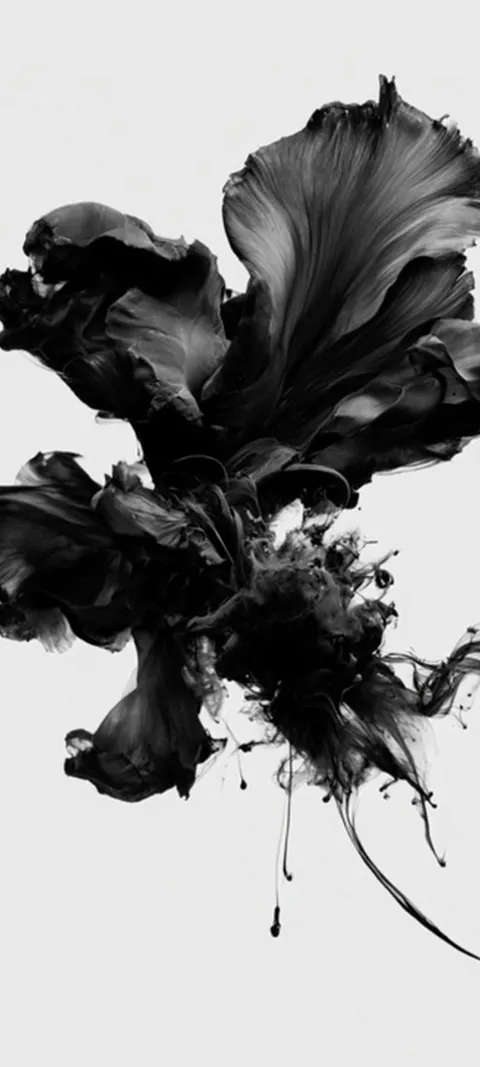
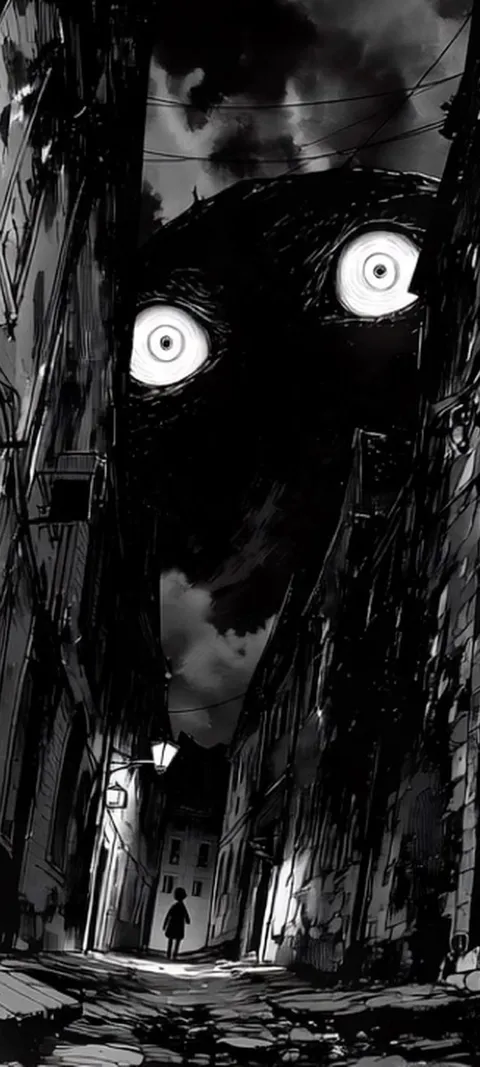
If you like the dark look and only want it to stay readable, start from an image made to be dark. Four from the black wallpapers collection, composed at 1080 × 2400 so they fill the screen without stretching:


Why is my iPhone wallpaper suddenly black?
Usually because a setting changed, not because the image broke. The most common cause is the Dark icon appearance on the Home Screen, which darkens the wallpaper behind the icons. Next is the Always-On Display with Show Wallpaper turned off, so the Lock Screen goes black once the phone dims. A Focus that dims the Lock Screen, an accessibility filter, or a wallpaper iOS failed to rebuild after an update cover almost everything else.
How do you get rid of the black background on an iPhone?
Match the fix to the screen. For a dark Home Screen, touch and hold an empty spot, tap Edit, then Customize, and choose Light or Auto instead of Dark. For a black Lock Screen while the phone is dimmed, open Settings, tap Display & Brightness, tap Always On Display and turn Show Wallpaper on. If the wallpaper itself is gone, set it again from Settings → Wallpaper → Add New Wallpaper and pick the photo.
If you are setting the wallpaper again, use the original file rather than a screenshot of your old Lock Screen; screenshots bake the clock into the image and come out soft. The guide to changing the iPhone wallpaper walks through every step of the editor.
Why does my wallpaper turn black when the iPhone is locked?
That is the Always-On Display on iPhone models that have it. When the phone dims, iOS can keep a darkened copy of your wallpaper or hide it and show only the clock on black. If Show Wallpaper is off, the screen goes black a few seconds after you lock it, which looks like a fault but is a setting. Turn Show Wallpaper on in Settings → Display & Brightness → Always On Display, or turn Always On off entirely.
Some people prefer the black version at night, and on an OLED screen black pixels are switched off, so hiding the wallpaper uses slightly less power. A dark wallpaper is a middle ground: the dimmed version stays visible without a bright image glowing on the nightstand. The black wallpapers page collects images built for that.
Why did my iPhone wallpaper turn black after an update?
During a major update iOS rebuilds the Lock Screen and Home Screen, and if it cannot read the stored wallpaper it falls back to black. Apple’s support forums have threads about this going back to iOS 16, and it is most often reported on phones that were nearly out of storage. Restart the phone first. If the wallpaper is still black, free some space, install the latest point release, delete the broken Lock Screen and set the photo again.
To delete a Lock Screen, long-press it, swipe to the black one, swipe it up and tap the trash can. Then tap the plus button to build a new one.
How do you turn the iPhone background back to white?
If menus, Settings and apps have turned black, Dark Mode is on, and it is separate from your wallpaper. Open Settings, tap Display & Brightness and choose Light. If Automatic is on, the phone switches to dark at sunset or on a schedule, so turn Automatic off to keep it light. Dark Mode changes the interface, not the photo. If the screen looks negative rather than dark, Classic Invert is on in Accessibility settings.
Smart Invert reverses colors everywhere except images, so your wallpaper photo keeps its colors. Classic Invert reverses everything onscreen, wallpaper included, which is why a bright image can suddenly look dark. Both live in Settings → Accessibility → Display & Text Size, along with the color filters that can turn the screen grey.
How do you keep a dark wallpaper from looking like a black screen?
Pick one with a lit subject and some mid-tones, not an image that is mostly pure black. A dark wallpaper reads well when there is a clear shape near the center and contrast around the clock. Pure black with faint detail can disappear under the Dark icon appearance or the dimmed Always-On Display. Preview it on both screens before you commit, and keep the brightest part where the clock and icons will not cover it.
Night scenes work well because the light sources carry the image. Earth City Lights, Lighthouse Night Beacon and Rainy City Lights are dark overall but keep bright points that survive dimming, and all three are Live Photos that move on the Lock Screen when you wake the phone. ScreenLux previews every wallpaper on a Lock Screen and Home Screen mockup for free, so you can check how dark it sits before you download; ScreenLux+ unlocks the download.
When the wallpaper is not black, just dull
A wallpaper that looks muddy rather than black usually has a different cause: a low-resolution file stretched to fit, or Perspective Zoom enlarging it past its pixels. The blurry wallpaper guide covers those fixes. Every current iPhone uses a tall display around 19.5:9, so a 1080 × 2400 image covers it without upscaling. The iPhone wallpapers page lists ScreenLux images sized that way, including Live Photos for the Lock Screen.
Wallpapers made for the phone
470+ original live and still wallpapers composed at 1080 × 2400, including dark and black designs that stay readable behind the clock. The app is free to download and every wallpaper previews free; ScreenLux+ unlocks downloads.
Get ScreenLux FreeFree to download · No account required · iOS 17+ · Android 8+